> ## Documentation Index
> Fetch the complete documentation index at: https://docs.brightdata.com/llms.txt
> Use this file to discover all available pages before exploring further.
# Cursor MCP Server Integration
> Connect Cursor IDE to the Bright Data MCP server (60+ tools) in either hosted or self-hosted mode, for AI coding assistant web search and scraping.
You might be eligible for our Startup Program. Get fully funded access to the infrastructure you're reading about right now (up to \$20K value).
## Self-hosted MCP
Before you begin, ensure you have the following:
* [Node.js ](https://nodejs.org/en/download) is installed and up to date
* [A Bright Data account](https://brightdata.com/?hs_signup=1\&utm_source=docs) (new users get free credit for testing, and then you can pay as you go)
* **An API key** from the [user settings page](https://brightdata.com/cp/setting/users) (New users receive an **API key** in the welcome email.)
If you prefer to use a different zone name, you can specify it with the `WEB_UNLOCKER_ZONE `environment variable in your configuration
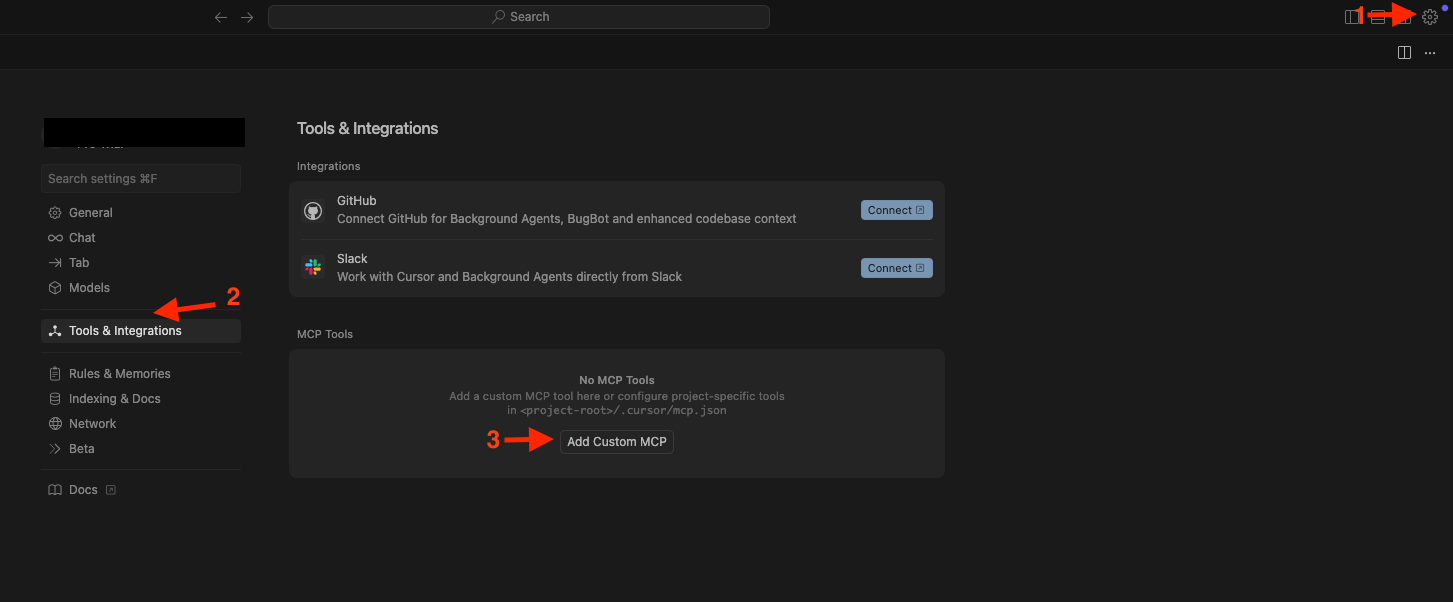
Go to Cursor -> Click the gear icon -> Tools & Integrations -> Add Custom MCP -> include the following:
```json expandable theme={null}
{
"mcpServers": {
"brightdata-mcp": {
"command": "npx",
"args": ["-y", "@brightdata/mcp"],
"env": {
"API_TOKEN": ""
}
}
}
}
```
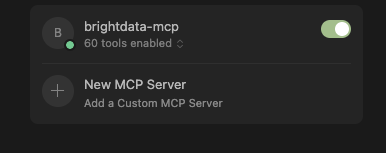
 Then you need to see: