> ## Documentation Index
> Fetch the complete documentation index at: https://docs.brightdata.com/llms.txt
> Use this file to discover all available pages before exploring further.
# Authentication
> Learn how to authenticate with Bright Data using API Access or Native Access methods.
Bright Data ensures secure access to its services.
Bright Data provides two primary methods for authentication:
1. **API Access** - Authenticate and interact with the Bright Data platform using an API key/token.
2. **Native Access** - Authenticate and interact with the Bright Data platform using proxy protocol `username` and `password`.
Both API and Native access methods are billed at the same rate. Usage is charged according to your pricing plan for each Bright Data product.
## How do I authenticate with API Key?
An API key is a secure hashed token used to authenticate with Bright Data API. We create a default key for you upon account creation automatically.
You can create additional API keys for different users and with different permissions.
Manage your API Keys anytime in the [Account settings](https://brightdata.com/cp/setting/users).
### How do I relay the API key within a request?
Here’s an example request:
```sh Sample Request theme={null}
curl --request POST \
--url https://api.brightdata.com/request \
--header 'Authorization: Bearer ' \
--header 'Content-Type: application/json' \
--data '{
"zone": "my_unlocker_zone",
"url": "https://example.com/page",
"format": "json",
"method": "GET",
"country": "us",
"data_format": "markdown"
}'
```
The important part of this request is the `Authorization` header:
```sh theme={null}
'Authorization: Bearer '
```
This `` is your **API key**, which is required for every API request.
### How do I generate a new API key?
To generate a new API key, follow these steps:
Sign in to Bright Data's control panel and go to your [Account settings](https://brightdata.com/cp/setting/users).
Click the **Add API key** button in the top right of the API key section.
If you don’t see the 'API key' section, switch to an **admin account**. only admins can generate API keys.\
Note: Each user can generate only one API key. The total number of API keys cannot exceed the number of account users.
Set the User, Permissions, and Expiration date (or choose 'Unlimited'), then click **Save**.
Once generated, your API key will only be shown once. Be sure to **save it in a secure location**.
### What are API Key options and configuration?
When creating an API key, you can assign one of five permission levels to control access and ensure security based on user roles or use cases. [Learn more about user roles here](/api-reference/authentication#understanding-api-key-permissions).
#### What permissions level does an API key have?
There are 5 types of permissions to choose from to control API key access:
* **Admin:** Grants full access to the account, including all Billing, Financial, product settings and configurations.
* **Finance:** Allows access to Billing and Financial pages only.
* **Ops:** Allows access to zone/product configurations but restricts Billing access.
* **Limit:** Permits management of zone passwords and IP allowlists/denylists.
* **User:** Enables API usage on the zone/product level without access to Billing or product configuration pages.
#### Does the API Key have an expiration date?
When creating an API key, you can setup its expiration date. Requests authenticating with this key past the expiration date will be denied.
You can setup the expiration date as `unlimited` - although this is possible, we strongly recommend to setup an expiration date.
Consult your organization's information or data security officer for instructions.
#### How can I view the API Key settings and configuration?
You can view and manage your API Keys in [Account settings](https://brightdata.com/cp/setting/users).
#### Why can't I see a plain text version of my API Key, or copy it?
For your security, we do not allow plain text view of API keys with `admin` permissions. After creation you will be offered to copy and save the key.
#### Can I refresh the API key?
Yes. Once you click "Refresh" we will generate a new API key. After the refresh, any request you will send with the old key will fail to authenticate.
#### Where should I save the API key with admin permissions?
API keys are like passwords and should be dealt and saved with outmost care and under controlled access. Consult your IT manager or security administrator on how and where to save the keys per your organizations' processes and regulation.
## How do I authenticate with native proxy protocol?
### Which product zones can I access with proxy protocol?
Proxy protocol access is supported by:
* All proxy networks (Datacenter, ISP, residential & mobile)
* Web Unlocker
* Scraping browser
### How do I autheticate with native proxy username and password?
Here’s an example of a Native Access request:
```sh Sample Request theme={null}
curl "https://www.example.com" \
-i --proxy brd.superproxy.io:33335 \
--proxy-user brd-customer-[ACCOUNT_ID]-zone-[ZONE_NAME]:[ZONE_PASSWORD]
```
The key part of this request is the `--proxy-user` parameter which holds the authentication credentials:
```sh proxy-user theme={null}
brd-customer-[ACCOUNT_ID]-zone-[ZONE_NAME]:[ZONE_PASSWORD]
```
This parameter is made up of three elements combined into a single string:
1. `ACCOUNT_ID` - your unique customer identifier.
2. `ZONE_NAME` - the name of the zone you created.
3. `ZONE_PASSWORD` - the password associated with your zone.
Together, they form the complete proxy-user value.
### Username/password format
* All the parameters are case sensitive.
* There must be a consecutive string without spaces.
* `-` (dash/minus sign) separates between the username substrings, and `:` (colon) between the username string and the password.
#### Account ID
Your Account ID is a unique identifier automatically generated when your Bright Data account is created. It is used for authentication and account-related operations.
To find your Account ID, follow these steps:
Click on Account Settings in the left-hand menu.} />
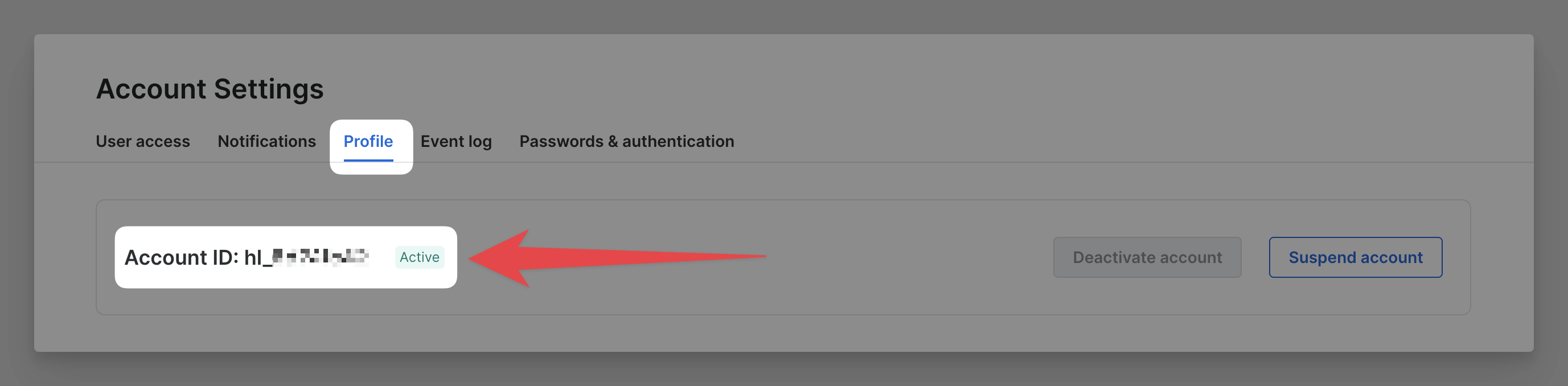 Your Account ID is always a text string that begins with `hl_###`.
#### Zone name
Zone is a bright data collection of configuration, for specific service. Read more about what is a zone [here](https://docs.brightdata.com/api-reference/terminology#what-is-a-zone). The zone name is set **once** by you when zone is created, and it cannot be changed later.
You can review all of your zone names by visiting [My zones](https://brightdata.com/cp/zones).
#### Zone password
Each **zone** is assigned a unique password that is required for authenticating both API and Native Access requests.
To view or update your zone password, follow these steps:
Open My zones in your dashboard.} />
## Comparing API Access vs. Native Access
| Feature | API Access | Native Access |
| :--------------------------------------------------------------------------------- | :------------------------------------------------------------------------------------------------------------------------------------------------------------------------------------------------------------------------------------------------------------------------------------------------------------------------------------------------------------------------------------------------------------------------------------------------------------------------------- | :---------------------------------------------------------------------------------------------------------------------------------------------------------- |
| **Used for** | Seamless integration with scripts, automation tools, or third-party APIs | Direct proxy connections in browsers, crawlers, or proxy-compatible tools |
| **Recommended products** | - [Unlocker API](https://docs.brightdata.com/scraping-automation/web-unlocker)
Your Account ID is always a text string that begins with `hl_###`.
#### Zone name
Zone is a bright data collection of configuration, for specific service. Read more about what is a zone [here](https://docs.brightdata.com/api-reference/terminology#what-is-a-zone). The zone name is set **once** by you when zone is created, and it cannot be changed later.
You can review all of your zone names by visiting [My zones](https://brightdata.com/cp/zones).
#### Zone password
Each **zone** is assigned a unique password that is required for authenticating both API and Native Access requests.
To view or update your zone password, follow these steps:
Open My zones in your dashboard.} />
## Comparing API Access vs. Native Access
| Feature | API Access | Native Access |
| :--------------------------------------------------------------------------------- | :------------------------------------------------------------------------------------------------------------------------------------------------------------------------------------------------------------------------------------------------------------------------------------------------------------------------------------------------------------------------------------------------------------------------------------------------------------------------------- | :---------------------------------------------------------------------------------------------------------------------------------------------------------- |
| **Used for** | Seamless integration with scripts, automation tools, or third-party APIs | Direct proxy connections in browsers, crawlers, or proxy-compatible tools |
| **Recommended products** | - [Unlocker API](https://docs.brightdata.com/scraping-automation/web-unlocker)
- [SERP](https://docs.brightdata.com/scraping-automation/serp-api)
- [Browsers](https://docs.brightdata.com/scraping-automation/scraping-browser)
- [Scrapers](https://docs.brightdata.com/datasets/scrapers/overview)
- [Functions](https://docs.brightdata.com/datasets/scraper-studio/introduction)
- [Marketplace](https://docs.brightdata.com/datasets/marketplace) | [Proxies](https://docs.brightdata.com/proxy-networks) |
| [**SSL certificate**](https://docs.brightdata.com/general/account/ssl-certificate) | Not required | Required to access without KYC the residential network & unlocker. More info [here.](https://docs.brightdata.com/proxy-networks/residential/network-access) |
| **Connection via** | API endpoint | Proxy endpoint |
| **Authentication** | [API key](https://docs.brightdata.com/api-reference/authentication#how-do-i-generate-a-new-api-key%3F) | `username:password` |
| **Output options** | HTML or JSON | HTML |