> ## Documentation Index
> Fetch the complete documentation index at: https://docs.brightdata.com/llms.txt
> Use this file to discover all available pages before exploring further.
# 如何将 Selenium 与 Bright Data 一起使用
> 将 Bright Data 代理集成到 Python 的 Selenium 中,以增强自动化工作流。本指南将帮助你设置安全、匿名的连接,用于网页抓取和浏览器自动化。
### 您的代理访问信息
Bright Data 代理按“代理区域”(Proxy zones)进行分组。每个区域包含其对应的代理配置。
要获取代理区域的访问权限:
1. 登录 Bright Data 控制面板
2. 选择现有代理区域或新建一个代理区域
3. 点击新的区域名称,并选择 **概览(Overview)** 选项卡
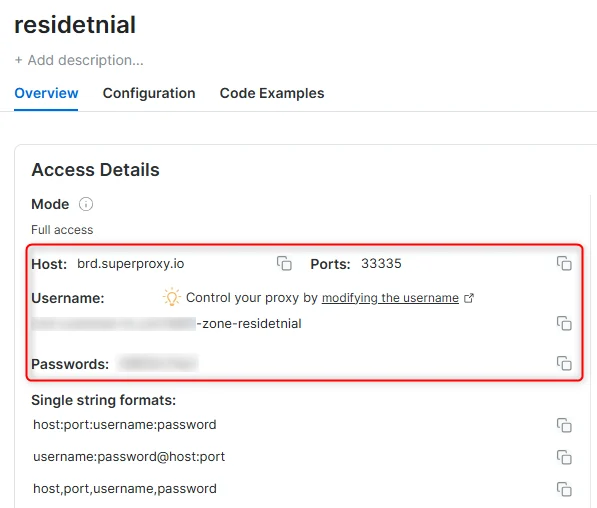
4. 在概览选项卡中,找到 **访问详情(Access details)**,并单击复制图标将代理访问信息复制到剪贴板
5. 您需要以下信息:代理主机(Proxy Host)、代理端口(Proxy Port)、代理区域用户名(Proxy Zone username)和代理区域密码(Proxy Zone password)
6. 点击复制图标,将文本复制到剪贴板,并粘贴到您的工具的代理配置中
### 访问详情示例
 ### 住宅代理访问
要使用 Bright Data 的 **住宅代理(Residential Proxies)**,您必须是经过 KYC 验证的企业账户。请与 Bright Data 合规团队完成 KYC 验证;不存在自动或无需 KYC 的访问方式。尚未完成 KYC 时,请使用 ISP 或数据中心代理。[了解更多...](/proxy-networks/residential/network-access)
### 目标是搜索引擎?
如果您的目标是 Google、Bing 或 Yandex 等搜索引擎,则需要使用专门的搜索引擎结果页(**SERP**)代理 API。请使用 Bright Data SERP API 来访问搜索引擎。\
[点击此处了解 Bright Data SERP 代理 API。](/scraping-automation/serp-api/introduction)
### 避免工具中的 `PROXY ERROR`
一些工具会使用搜索引擎作为代理测试目标:如果您的代理测试失败,这可能就是原因。请确保您的测试目标域名不是搜索引擎(此设置在工具配置中,而非 Bright Data 代理的控制范围内)。
**账户管理不是 Bright Data 平台支持的使用场景**(自 2026 年 4 月 1 日起生效)。这包括在 TikTok、Instagram 等类似平台上进行账户管理。Bright Data 代理不得用于此类用途。详情请参阅[可接受使用政策](https://brightdata.com/acceptable-use-policy)。
## 什么是 Selenium?
Selenium 是一个功能强大的开源工具,用于自动化网页浏览器。它支持多种编程语言,包括 JavaScript、Python 和 Java,并提供强大的 API 来控制浏览器操作。Selenium 广泛用于网页抓取、自动化测试以及基于浏览器的工作流。凭借其灵活性和跨浏览器兼容性,它是开发者和测试人员不可或缺的工具。
在浏览器会话期间保持一致的 IP,请在用户名中使用 `-session` 参数。这非常重要,因为 Bright Data 代理默认在每次请求时轮换 IP。\
[了解更多](/cn/proxy-networks/faqs#如何长时间使用同一个-ip?)
### 住宅代理访问
要使用 Bright Data 的 **住宅代理(Residential Proxies)**,您必须是经过 KYC 验证的企业账户。请与 Bright Data 合规团队完成 KYC 验证;不存在自动或无需 KYC 的访问方式。尚未完成 KYC 时,请使用 ISP 或数据中心代理。[了解更多...](/proxy-networks/residential/network-access)
### 目标是搜索引擎?
如果您的目标是 Google、Bing 或 Yandex 等搜索引擎,则需要使用专门的搜索引擎结果页(**SERP**)代理 API。请使用 Bright Data SERP API 来访问搜索引擎。\
[点击此处了解 Bright Data SERP 代理 API。](/scraping-automation/serp-api/introduction)
### 避免工具中的 `PROXY ERROR`
一些工具会使用搜索引擎作为代理测试目标:如果您的代理测试失败,这可能就是原因。请确保您的测试目标域名不是搜索引擎(此设置在工具配置中,而非 Bright Data 代理的控制范围内)。
**账户管理不是 Bright Data 平台支持的使用场景**(自 2026 年 4 月 1 日起生效)。这包括在 TikTok、Instagram 等类似平台上进行账户管理。Bright Data 代理不得用于此类用途。详情请参阅[可接受使用政策](https://brightdata.com/acceptable-use-policy)。
## 什么是 Selenium?
Selenium 是一个功能强大的开源工具,用于自动化网页浏览器。它支持多种编程语言,包括 JavaScript、Python 和 Java,并提供强大的 API 来控制浏览器操作。Selenium 广泛用于网页抓取、自动化测试以及基于浏览器的工作流。凭借其灵活性和跨浏览器兼容性,它是开发者和测试人员不可或缺的工具。
在浏览器会话期间保持一致的 IP,请在用户名中使用 `-session` 参数。这非常重要,因为 Bright Data 代理默认在每次请求时轮换 IP。\
[了解更多](/cn/proxy-networks/faqs#如何长时间使用同一个-ip?)
新用户应从 ISP 或数据中心代理开始,这些代理无需 KYC。住宅代理仅向通过 KYC 验证的企业账户开放。详见[住宅网络访问政策](/cn/proxy-networks/residential/network-access)。
## 如何将 Bright Data 集成到 Selenium
**步骤 0:准备工作**
开始之前,请确保你已经:
1. 安装 Python:从 [python.org](https://www.python.org/) 下载最新版本。
2. **安装 Selenium**:使用 pip 安装 Selenium 库
```bash theme={null}
pip install selenium
```
3. **Bright Data 代理信息**:从 [Bright Data 仪表板](https://www.bright.cn/cp/zones/page/plans) 获取代理信息(host、port、username、password)。
4. **安装 WebDriver**:为你使用的浏览器下载对应的 WebDriver(例如 Google Chrome 使用 [ChromeDriver](https://developer.chrome.com/docs/chromedriver/))。
* 为了更轻松地管理驱动,可以使用 `webdriver-manager` 包
```python theme={null}
pip install webdriver-manager
```
如果你想将 Selenium 与 Bright Data 的 Browser API 一起使用,请参阅 [Browser API 文档](/cn/scraping-automation/scraping-browser/introduction) 以获取正确的设置方法与代码示例。以下代理集成指南适用于直接代理集成,不适用于 Browser API。
**步骤 1:导入所需库**
开始导入必要模块:
```python theme={null}
from selenium import webdriver
from selenium.webdriver.chrome.service import Service
from selenium.webdriver.chrome.options import Options
from webdriver_manager.chrome import ChromeDriverManager
```
**步骤 2:配置 Bright Data 代理**
设置你的 Bright Data 代理凭据并构建代理 URL:
```python theme={null}
# Bright Data Proxy Configuration
proxy_host = "brd.superproxy.io"
proxy_port = "port" # Replace with your port number
proxy_username = "username" # Replace with your Bright Data username
proxy_password = "password" # Replace with your Bright Data password
# Full Proxy URL
proxy = f"http://{proxy_username}:{proxy_password}@{proxy_host}:{proxy_port}"
```
**步骤 3:设置 Chrome Options**
使用 Selenium ChromeOptions 配置代理:
```python theme={null}
# Configure Chrome Options
chrome_options = Options()
chrome_options.add_argument(f"--proxy-server={proxy}")
```
**步骤 4:初始化 WebDriver**
指定 ChromeDriver 路径,并使用代理设置初始化 WebDriver:
```python theme={null}
# Initialize WebDriver
service = Service(ChromeDriverManager().install())
driver = webdriver.Chrome(service=service, options=chrome_options)
```
**步骤 5:测试代理**
使用 Selenium 访问测试网址以确认代理是否正常工作:
```python theme={null}
# Navigate to a test site
print("Connecting to target website...")
driver.get("http://httpbin.org/ip")
# Print the page content
print("Page content:")
print(driver.page_source)
# Close the browser
driver.quit()
```
**步骤 6:验证输出**
运行脚本时,浏览器或控制台将显示代理 IP,如下示例:
```python theme={null}
{
"origin": "123.45.67.89"
}
```
通过将 **Bright Data** 代理与 **Selenium** 集成,你可以更安全、更高效地自动化网页交互。无论是测试 Web 应用、抓取动态内容,还是访问区域限制网站,Bright Data 都能为你的自动化场景提供可靠性与隐私保护。立即开始使用 Bright Data 和 Selenium 构建更智能的自动化工作流吧!