> ## Documentation Index
> Fetch the complete documentation index at: https://docs.brightdata.com/llms.txt
> Use this file to discover all available pages before exploring further.
# 如何在 WebHarvy 中设置 Bright Data
> 将 WebHarvy 与 Bright Data 代理集成,可以通过安全、灵活的代理管理提升自动化网页抓取,实现无缝且可靠的数据提取。
### 您的代理访问信息
Bright Data 代理按“代理区域”(Proxy zones)进行分组。每个区域包含其对应的代理配置。
要获取代理区域的访问权限:
1. 登录 Bright Data 控制面板
2. 选择现有代理区域或新建一个代理区域
3. 点击新的区域名称,并选择 **概览(Overview)** 选项卡
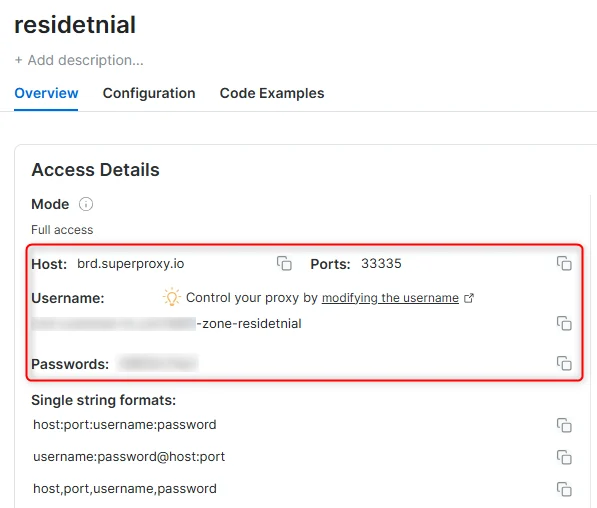
4. 在概览选项卡中,找到 **访问详情(Access details)**,并单击复制图标将代理访问信息复制到剪贴板
5. 您需要以下信息:代理主机(Proxy Host)、代理端口(Proxy Port)、代理区域用户名(Proxy Zone username)和代理区域密码(Proxy Zone password)
6. 点击复制图标,将文本复制到剪贴板,并粘贴到您的工具的代理配置中
### 访问详情示例
 ### 住宅代理访问
要使用 Bright Data 的 **住宅代理(Residential Proxies)**,您必须是经过 KYC 验证的企业账户。请与 Bright Data 合规团队完成 KYC 验证;不存在自动或无需 KYC 的访问方式。尚未完成 KYC 时,请使用 ISP 或数据中心代理。[了解更多...](/proxy-networks/residential/network-access)
### 目标是搜索引擎?
如果您的目标是 Google、Bing 或 Yandex 等搜索引擎,则需要使用专门的搜索引擎结果页(**SERP**)代理 API。请使用 Bright Data SERP API 来访问搜索引擎。\
[点击此处了解 Bright Data SERP 代理 API。](/scraping-automation/serp-api/introduction)
### 避免工具中的 `PROXY ERROR`
一些工具会使用搜索引擎作为代理测试目标:如果您的代理测试失败,这可能就是原因。请确保您的测试目标域名不是搜索引擎(此设置在工具配置中,而非 Bright Data 代理的控制范围内)。
## 什么是 WebHarvy?
WebHarvy 是一款网页抓取工具,可以轻松提取网站中的文本、HTML、图片、URL 和邮箱,并将提取的内容保存为多种格式。如果您进行大规模抓取操作,使用 Bright Data 提供的 [代理服务](https://www.bright.cn/proxy-types) 可以帮助您提高成功率,并向同一目标发送更多并发请求。
## 如何使用 Bright Data 代理设置 WebHarvy:
* 下载并安装 WebHarvy Web Scraper
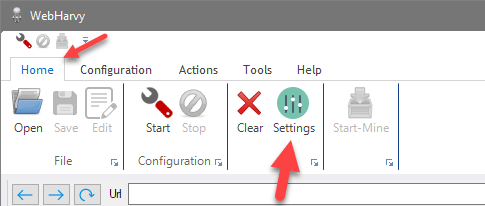
* 转到 WebHarvy → Home 选项卡 → Settings → Proxy Settings
### 住宅代理访问
要使用 Bright Data 的 **住宅代理(Residential Proxies)**,您必须是经过 KYC 验证的企业账户。请与 Bright Data 合规团队完成 KYC 验证;不存在自动或无需 KYC 的访问方式。尚未完成 KYC 时,请使用 ISP 或数据中心代理。[了解更多...](/proxy-networks/residential/network-access)
### 目标是搜索引擎?
如果您的目标是 Google、Bing 或 Yandex 等搜索引擎,则需要使用专门的搜索引擎结果页(**SERP**)代理 API。请使用 Bright Data SERP API 来访问搜索引擎。\
[点击此处了解 Bright Data SERP 代理 API。](/scraping-automation/serp-api/introduction)
### 避免工具中的 `PROXY ERROR`
一些工具会使用搜索引擎作为代理测试目标:如果您的代理测试失败,这可能就是原因。请确保您的测试目标域名不是搜索引擎(此设置在工具配置中,而非 Bright Data 代理的控制范围内)。
## 什么是 WebHarvy?
WebHarvy 是一款网页抓取工具,可以轻松提取网站中的文本、HTML、图片、URL 和邮箱,并将提取的内容保存为多种格式。如果您进行大规模抓取操作,使用 Bright Data 提供的 [代理服务](https://www.bright.cn/proxy-types) 可以帮助您提高成功率,并向同一目标发送更多并发请求。
## 如何使用 Bright Data 代理设置 WebHarvy:
* 下载并安装 WebHarvy Web Scraper
* 转到 WebHarvy → Home 选项卡 → Settings → Proxy Settings
 * 注册 Bright Data 的代理网络
* 登录您的 Bright Data 控制面板
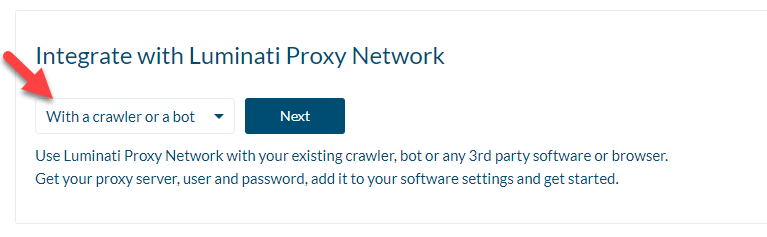
* 在 **Integrate** **with Bright Data Proxy Network** 部分,选择 **With a crawler or a bot** 选项
* 注册 Bright Data 的代理网络
* 登录您的 Bright Data 控制面板
* 在 **Integrate** **with Bright Data Proxy Network** 部分,选择 **With a crawler or a bot** 选项
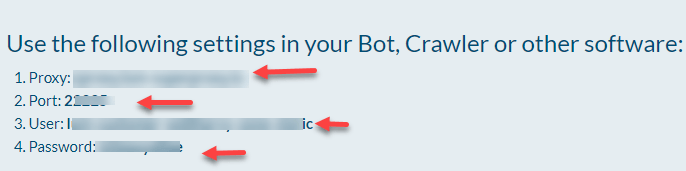
 * 在 API 示例页面,您将看到以下信息:
* 代理地址、端口号、用户名和密码
* 在 API 示例页面,您将看到以下信息:
* 代理地址、端口号、用户名和密码
 * 返回 WebHarvy 代理设置,将 Bright Data 的详情粘贴到 WebHarvy 代理设置中
* 点击 + 按钮
* 点击 Apply
* 返回 WebHarvy 代理设置,将 Bright Data 的详情粘贴到 WebHarvy 代理设置中
* 点击 + 按钮
* 点击 Apply
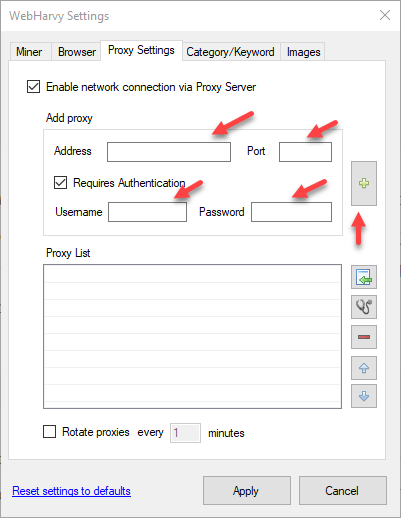 **请注意**:WebHarvy 仅在抓取过程中使用代理服务器。WebHarvy 的配置浏览器不会使用此代理服务器,因此如果在配置浏览器中检查 IP 地址,仍会显示您计算机的原始 IP。要使配置浏览器使用代理服务器,您需要在 Windows 中直接设置代理地址。
要 **禁用代理服务器**,只需在 WebHarvy → Home Menu → Settings → Proxy Settings 选项卡中 **取消勾选 Enable Network connection via Proxy server**。
或者,您也可以使用我们自己的数据采集工具,更快捷轻松地完成操作。
**重要提示**:
如果您使用 Bright Data 的住宅代理、Web Unlocker API 或 SERP API,需要安装 SSL 证书以启用与目标网站的端到端安全连接。
这是一个简单的过程,请参阅 [此指南](/cn/general/account/ssl-certificate#installation-of-the-ssl-certificate) 了解具体操作。
**请注意**:WebHarvy 仅在抓取过程中使用代理服务器。WebHarvy 的配置浏览器不会使用此代理服务器,因此如果在配置浏览器中检查 IP 地址,仍会显示您计算机的原始 IP。要使配置浏览器使用代理服务器,您需要在 Windows 中直接设置代理地址。
要 **禁用代理服务器**,只需在 WebHarvy → Home Menu → Settings → Proxy Settings 选项卡中 **取消勾选 Enable Network connection via Proxy server**。
或者,您也可以使用我们自己的数据采集工具,更快捷轻松地完成操作。
**重要提示**:
如果您使用 Bright Data 的住宅代理、Web Unlocker API 或 SERP API,需要安装 SSL 证书以启用与目标网站的端到端安全连接。
这是一个简单的过程,请参阅 [此指南](/cn/general/account/ssl-certificate#installation-of-the-ssl-certificate) 了解具体操作。