> ## Documentation Index
> Fetch the complete documentation index at: https://docs.brightdata.com/llms.txt
> Use this file to discover all available pages before exploring further.
# Scraper Studio 仪表盘功能
> Bright Data Scraper Studio 仪表盘参考:爬虫类型、状态、运行统计列与如何下载采集数据。
Bright Data Scraper Studio 仪表盘是每个爬虫的所在地。在这里检查爬虫属性、触发运行、配置交付、管理版本以及查看采集统计。本页是 **My Scrapers**(我的爬虫)页面和统计详情页中每个控件的参考。
## Scrapers 仪表盘
您使用的每个爬虫,无论是由 AI Agent 生成、在 Bright Data Scraper Studio IDE 中构建,还是由 Bright Data 团队构建,都会出现在 Scrapers 仪表盘的 **My Scrapers**(我的爬虫)下。
**My Scrapers**(我的爬虫)页面列出所有爬虫类型,不仅限于 Scraper Studio 爬虫。
### 仪表盘上会显示哪些爬虫类型?
**My Scrapers**(我的爬虫)页面列出三种爬虫类型,按构建和维护各爬虫的主体进行区分。
| 类型 | 说明 |
| -------------------------- | --------------------------- |
| **Scraper API** | 数千个由 Bright Data 构建和维护的预置爬虫 |
| **Scraper Studio** | 由客户或 AI 构建和维护的爬虫 |
| **Scraper Studio Managed** | 由 Bright Data 团队构建和维护的爬虫 |
### 每种爬虫状态代表什么?
每个爬虫和运行都带有一个状态,表示其在构建和采集生命周期中所处的阶段。
| 状态 | 说明 |
| ----------------- | --------------------- |
| **Ready(就绪)** | 运行已完成 |
| **Canceled(已取消)** | 运行被客户或系统取消 |
| **Active(已激活)** | 爬虫已保存到生产环境并可启动,但尚未被触发 |
| **Draft(草稿)** | 爬虫仍在构建中,尚未保存到生产环境 |
| **Running(运行中)** | 采集正在进行 |
要打开某个爬虫的仪表盘,点击该爬虫。
## 采集统计页面显示哪些内容?
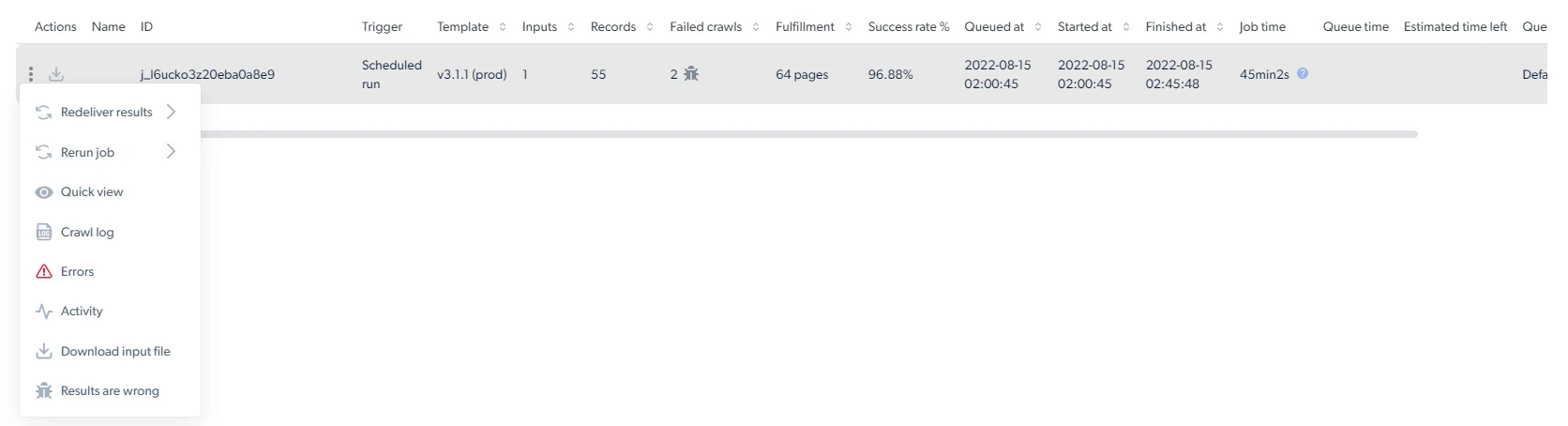
统计页面展示一个爬虫每次运行的逐次采集指标。
 | 列 | 说明 |
| ------------------------------- | ------------------------------ |
| **ID** | 采集任务的唯一标识 |
| **Trigger(触发者)** | 触发任务的人及方式(API、UI 或按计划) |
| **Template(模板)** | 模板版本号 |
| **Inputs(输入数)** | 提交给该次采集的输入条数 |
| **Records(记录数)** | 爬虫返回的记录数 |
| **Failed crawls(失败抓取数)** | 抓取失败的页面数 |
| **Fulfillment(覆盖量)** | 抓取过程中发现的唯一页面总数,包括被发现但不一定被抓取的页面 |
| **Success rate(成功率)** | 产生成功记录的输入百分比 |
| **Queued at(入队时间)** | 任务进入队列的时间戳 |
| **Started at(开始时间)** | 爬虫开始采集的时间戳 |
| **Finished at(完成时间)** | 爬虫完成采集的时间戳 |
| **Job time(任务时长)** | 整体任务耗时 |
| **Estimated time left(预计剩余时间)** | 进行中任务的剩余时间 |
| **Queue(队列)** | 任务运行所在队列的名称(来自触发器的队列名) |
| **Page Loads(页面加载量)** | 任务消耗的总页面加载量 |
| **Spent(花费)** | 该任务的总花费 |
每个任务行上的三点菜单提供下载输入文件、重新交付、调试和报告操作。
| 列 | 说明 |
| ------------------------------- | ------------------------------ |
| **ID** | 采集任务的唯一标识 |
| **Trigger(触发者)** | 触发任务的人及方式(API、UI 或按计划) |
| **Template(模板)** | 模板版本号 |
| **Inputs(输入数)** | 提交给该次采集的输入条数 |
| **Records(记录数)** | 爬虫返回的记录数 |
| **Failed crawls(失败抓取数)** | 抓取失败的页面数 |
| **Fulfillment(覆盖量)** | 抓取过程中发现的唯一页面总数,包括被发现但不一定被抓取的页面 |
| **Success rate(成功率)** | 产生成功记录的输入百分比 |
| **Queued at(入队时间)** | 任务进入队列的时间戳 |
| **Started at(开始时间)** | 爬虫开始采集的时间戳 |
| **Finished at(完成时间)** | 爬虫完成采集的时间戳 |
| **Job time(任务时长)** | 整体任务耗时 |
| **Estimated time left(预计剩余时间)** | 进行中任务的剩余时间 |
| **Queue(队列)** | 任务运行所在队列的名称(来自触发器的队列名) |
| **Page Loads(页面加载量)** | 任务消耗的总页面加载量 |
| **Spent(花费)** | 该任务的总花费 |
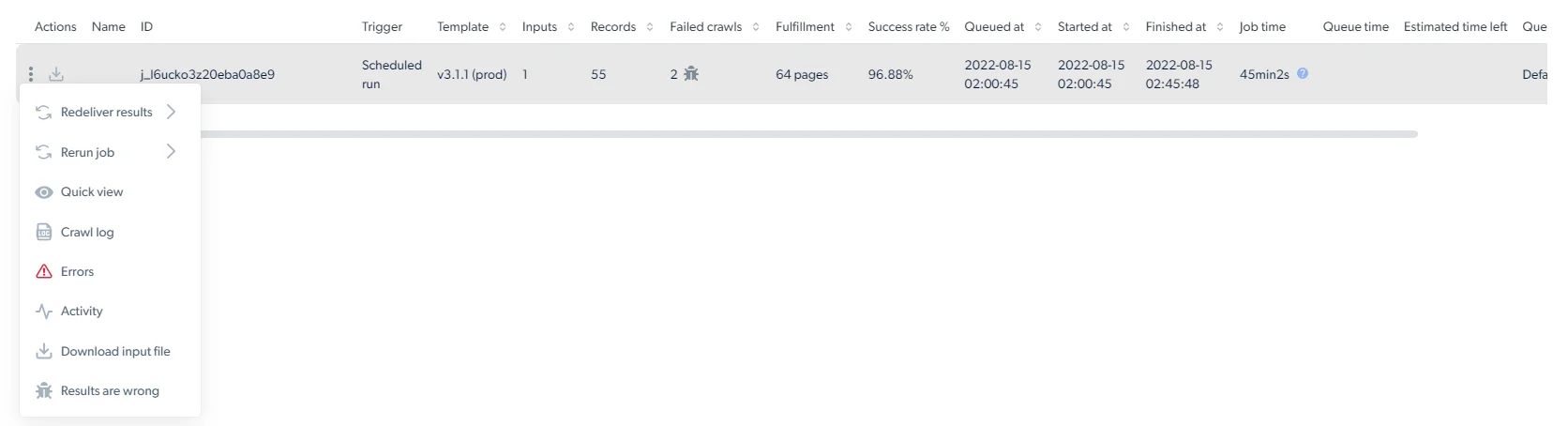
每个任务行上的三点菜单提供下载输入文件、重新交付、调试和报告操作。
 ## 如何从仪表盘下载数据?
点击 **Download file options**(下载文件选项)按钮,选择文件格式,下载会立即开始。
实时任务的输出会保存在 Bright Data 侧,但无法从仪表盘下载。要获取它们,请使用 Scraper Studio API,或将其发送到您在交付选项中配置的某个交付目的地。
## 如何触发爬虫并获取结果?
要触发爬虫,使用[启动数据收集与交付](/cn/products/scraper-studio/initiate-collection-and-delivery-options)中记录的三种启动方式:
* [通过 API 启动](/cn/products/scraper-studio/initiate-collection-and-delivery-options#how-do-i-trigger-a-scraper-run)
* [手动启动](/cn/products/scraper-studio/initiate-collection-and-delivery-options#how-do-i-trigger-a-scraper-run)
* [按计划运行](/cn/products/scraper-studio/initiate-collection-and-delivery-options#how-do-i-trigger-a-scraper-run)
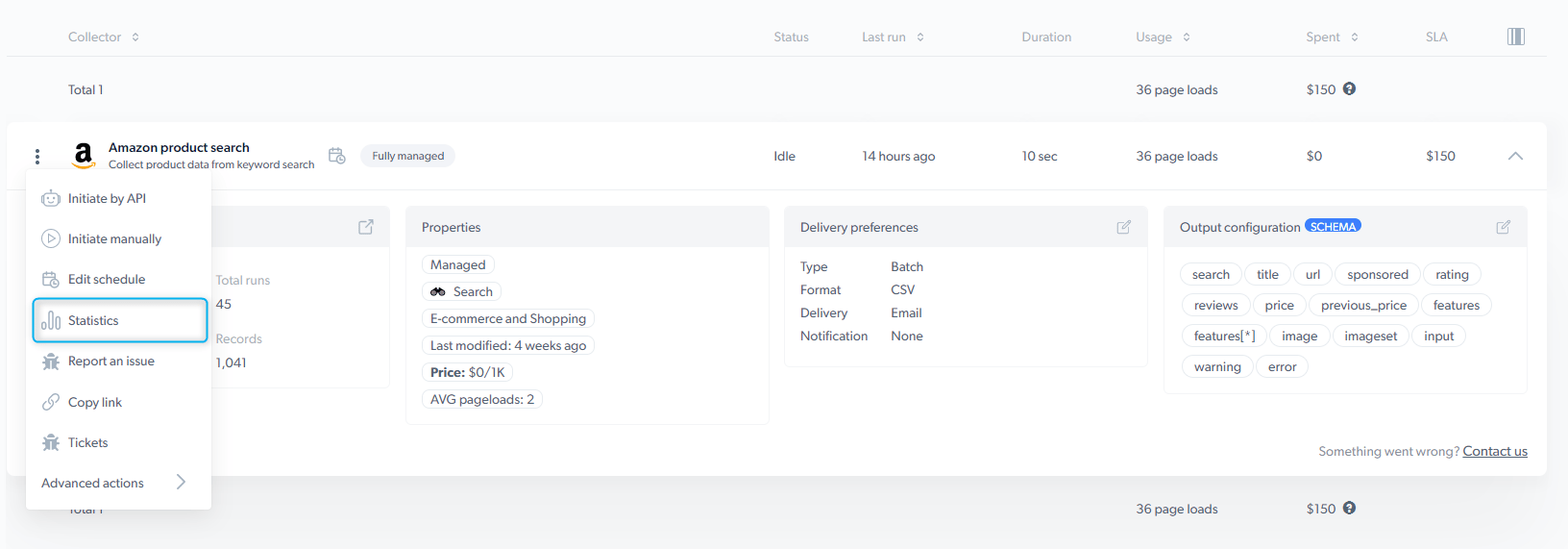
要获取结果,点击爬虫所在行的三点图标并选择 **Statistics**(统计信息)打开采集统计页面,您可在其中下载数据。
## 相关内容
配置触发方式、文件格式与交付目的地
IDE 中每个面板与控件的参考
## 如何从仪表盘下载数据?
点击 **Download file options**(下载文件选项)按钮,选择文件格式,下载会立即开始。
实时任务的输出会保存在 Bright Data 侧,但无法从仪表盘下载。要获取它们,请使用 Scraper Studio API,或将其发送到您在交付选项中配置的某个交付目的地。
## 如何触发爬虫并获取结果?
要触发爬虫,使用[启动数据收集与交付](/cn/products/scraper-studio/initiate-collection-and-delivery-options)中记录的三种启动方式:
* [通过 API 启动](/cn/products/scraper-studio/initiate-collection-and-delivery-options#how-do-i-trigger-a-scraper-run)
* [手动启动](/cn/products/scraper-studio/initiate-collection-and-delivery-options#how-do-i-trigger-a-scraper-run)
* [按计划运行](/cn/products/scraper-studio/initiate-collection-and-delivery-options#how-do-i-trigger-a-scraper-run)
要获取结果,点击爬虫所在行的三点图标并选择 **Statistics**(统计信息)打开采集统计页面,您可在其中下载数据。
## 相关内容
配置触发方式、文件格式与交付目的地
IDE 中每个面板与控件的参考