> ## Documentation Index
> Fetch the complete documentation index at: https://docs.brightdata.com/llms.txt
> Use this file to discover all available pages before exploring further.
# 使用浏览器扩展程序入门
> 通过本快速指南开始使用 Bright Data 浏览器扩展程序。
## 快速开始
按照以下步骤开始使用 Bright Data 浏览器扩展程序:
要开始使用扩展程序,你需要在 Bright Data 账户中至少拥有 **一个活跃的 Zone**。
* 前往 [My Proxies](https://www.bright.cn/cp/zones) 页面查看你现有的 Zones。
* 如果你还没有 Zone,点击 **Add** 创建一个新的 Zone。
 若需查看创建 Zone 的详细说明,请参阅以下指南: [Datacenter](/cn/proxy-networks/data-center/introduction)、[ISP](/cn/proxy-networks/isp/introduction)、[Residential](/cn/proxy-networks/residential/introduction)、以及 [Mobile](/cn/proxy-networks/residential/introduction)。
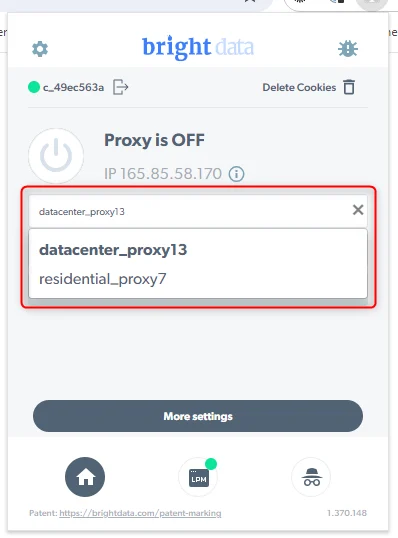
在扩展程序中,从下拉菜单中选择你想要使用的 Zone。
若需查看创建 Zone 的详细说明,请参阅以下指南: [Datacenter](/cn/proxy-networks/data-center/introduction)、[ISP](/cn/proxy-networks/isp/introduction)、[Residential](/cn/proxy-networks/residential/introduction)、以及 [Mobile](/cn/proxy-networks/residential/introduction)。
在扩展程序中,从下拉菜单中选择你想要使用的 Zone。
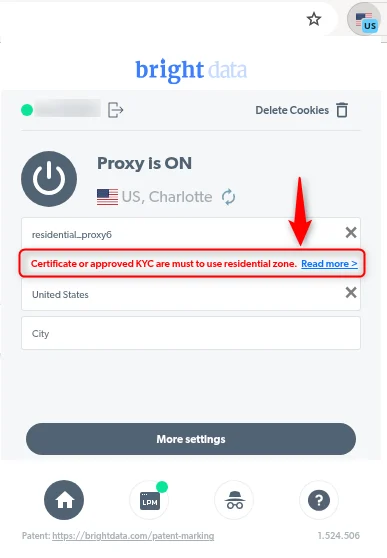
 如果你选择 **Residential** Zone,并看到提示 *"Certificate or approved KYC are required to use residential zone"*,则需要在 Chrome 中安装我们的 SSL 证书。
* 请参阅 [Chrome 证书安装指南](/cn/general/account/ssl-certificate#installation-instructions)。
* 若想进一步了解 Residential 网络的接入模式,请查看 [Residential 接入指南](/cn/proxy-networks/residential/network-access)。
如果你选择 **Residential** Zone,并看到提示 *"Certificate or approved KYC are required to use residential zone"*,则需要在 Chrome 中安装我们的 SSL 证书。
* 请参阅 [Chrome 证书安装指南](/cn/general/account/ssl-certificate#installation-instructions)。
* 若想进一步了解 Residential 网络的接入模式,请查看 [Residential 接入指南](/cn/proxy-networks/residential/network-access)。
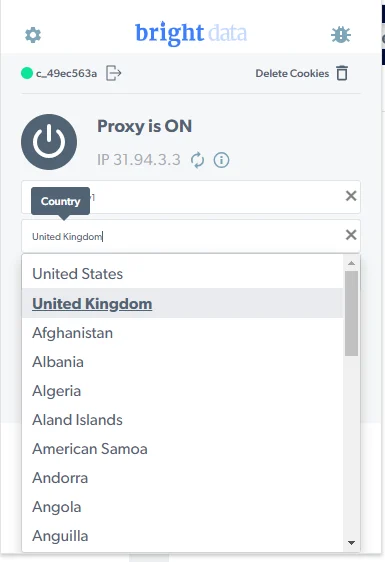
 选择你希望用于该 Zone 的国家,以及在可用情况下选择城市。
城市级定位仅适用于 **Residential** 和 **Mobile** Zones。
配置说明请参阅 [如何启用城市选择](/cn/proxy-networks/browser-extension/quickstart#如何启用城市选择)。
选择你希望用于该 Zone 的国家,以及在可用情况下选择城市。
城市级定位仅适用于 **Residential** 和 **Mobile** Zones。
配置说明请参阅 [如何启用城市选择](/cn/proxy-networks/browser-extension/quickstart#如何启用城市选择)。
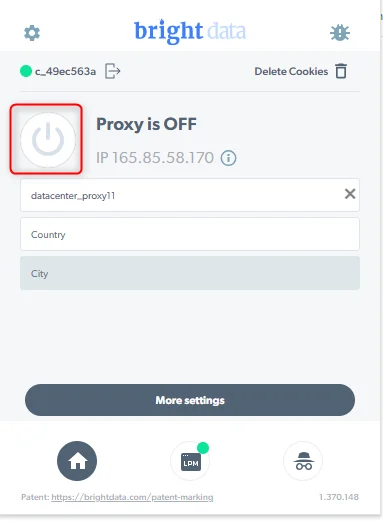
 在扩展程序中开启代理,即可开始使用你选择的 Zone 浏览网页。
 ## 如何启用城市选择
1. 在控制面板中,前往 [My Proxies](https://www.bright.cn/cp/zones) 页面。
2. 打开你希望启用城市选择的 **Residential** 或 **Mobile** Zone。
## 如何启用城市选择
1. 在控制面板中,前往 [My Proxies](https://www.bright.cn/cp/zones) 页面。
2. 打开你希望启用城市选择的 **Residential** 或 **Mobile** Zone。
 3. 在 **Geolocation targeting** 下选择 **City**。
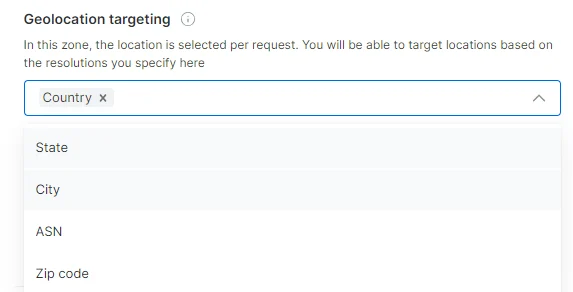 4. 保存更改。