> ## Documentation Index
> Fetch the complete documentation index at: https://docs.brightdata.com/llms.txt
> Use this file to discover all available pages before exploring further.
# Fix scrapers with the Self-Healing tool
> Use the Bright Data Scraper Studio Self-Healing tool to fix broken scrapers and add or remove output fields from plain-language prompts in 1 click.
The Self-Healing tool is an AI-powered code refactor assistant in Bright Data Scraper Studio that rewrites parts of a scraper from a plain-language prompt. Use it when a target site changes and your scraper stops returning the expected data, or when you need to add or remove output fields without editing the JavaScript by hand.
**When to use it:** the scraper stops returning expected data, the price or title field returns `undefined`, or you need to add new fields (`price`, `image`, `rating`) without writing code.
## Prerequisites
* An active [Bright Data account](https://brightdata.com/)
* An existing scraper in Bright Data Scraper Studio (saved in development mode)
* Access to the Scraper Studio IDE
## How do I fix a scraper with the Self-Healing tool?
In the Bright Data Scraper Studio IDE, open the scraper you want to fix and locate the Self-Healing tool panel.
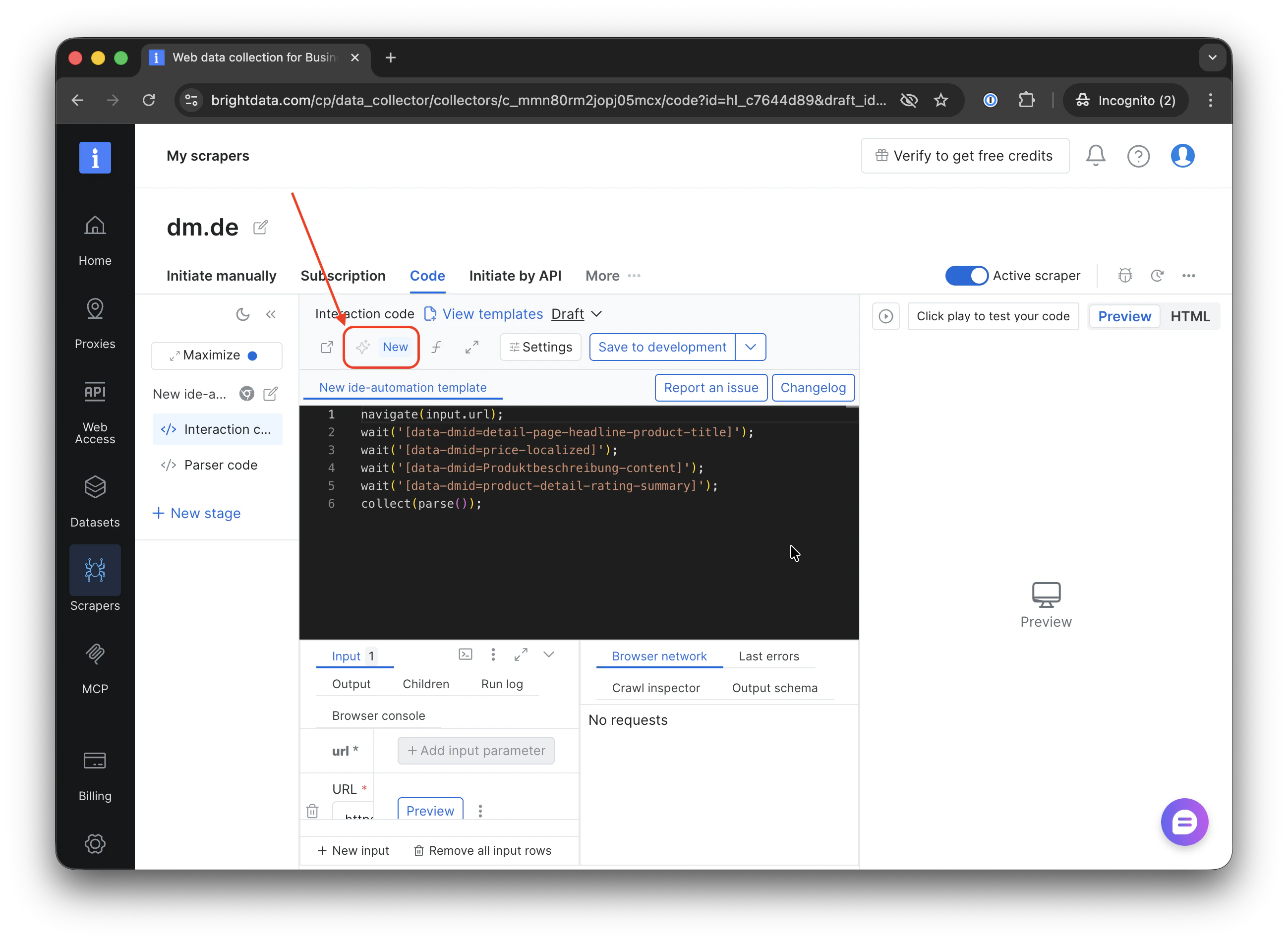 > **Expected result:** a text input field appears, ready to accept your instruction.
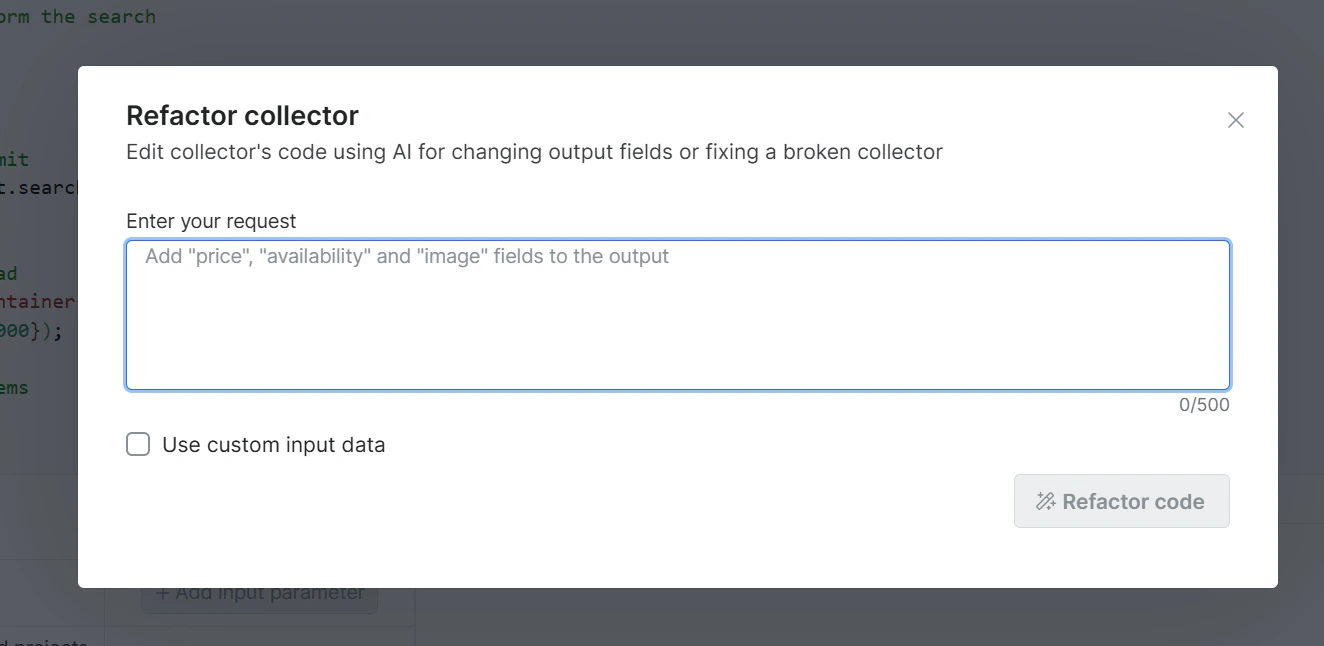 Type your request in plain language. Be specific about what is broken and which fields are affected.
```txt Example prompts theme={null}
Add 'price' and 'image' fields to the output
The 'price' value is returning 'undefined', please fix
The 'price' field is returning incorrect data from HTML, switch to using tag_response() to capture '/api/price' instead
```
> **Expected result:** the AI processes your prompt and produces a code diff in the editor.
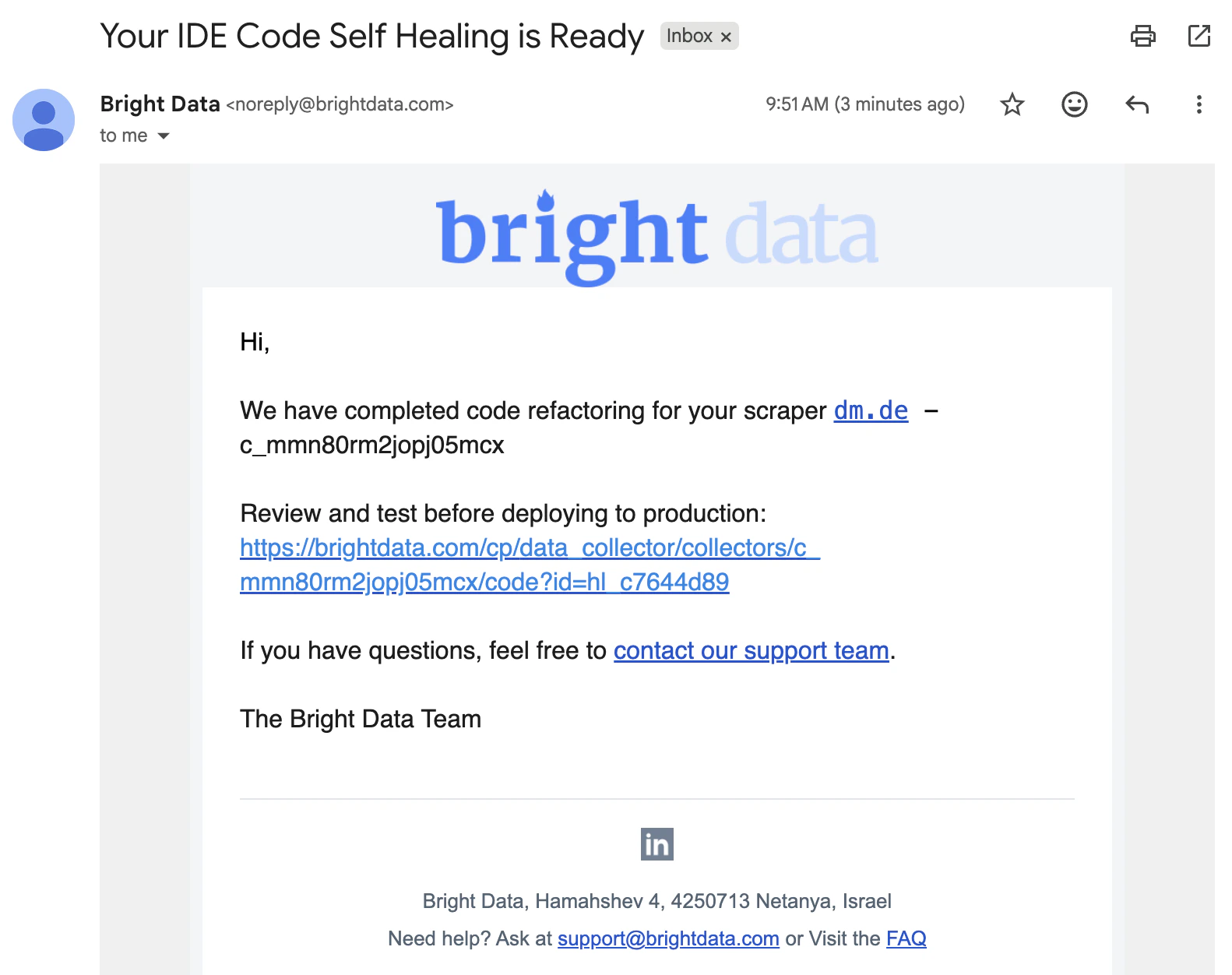
Refactoring can take up to 15 minutes. You do not need to stay on the page: Bright Data sends an email when the diff is ready, and you can review it at your convenience.
Type your request in plain language. Be specific about what is broken and which fields are affected.
```txt Example prompts theme={null}
Add 'price' and 'image' fields to the output
The 'price' value is returning 'undefined', please fix
The 'price' field is returning incorrect data from HTML, switch to using tag_response() to capture '/api/price' instead
```
> **Expected result:** the AI processes your prompt and produces a code diff in the editor.
Refactoring can take up to 15 minutes. You do not need to stay on the page: Bright Data sends an email when the diff is ready, and you can review it at your convenience.
 Examine the AI-generated diff in the code template. Verify it matches your intent before accepting.
* **Accept:** saves the changes to a draft
* **Decline:** discards the suggestion; your original code remains unchanged
> **Expected result:** if accepted, the editor shows the updated code and saves it to the draft.
After accepting, run a preview to confirm the scraper returns the expected data.
Examine the AI-generated diff in the code template. Verify it matches your intent before accepting.
* **Accept:** saves the changes to a draft
* **Decline:** discards the suggestion; your original code remains unchanged
> **Expected result:** if accepted, the editor shows the updated code and saves it to the draft.
After accepting, run a preview to confirm the scraper returns the expected data.
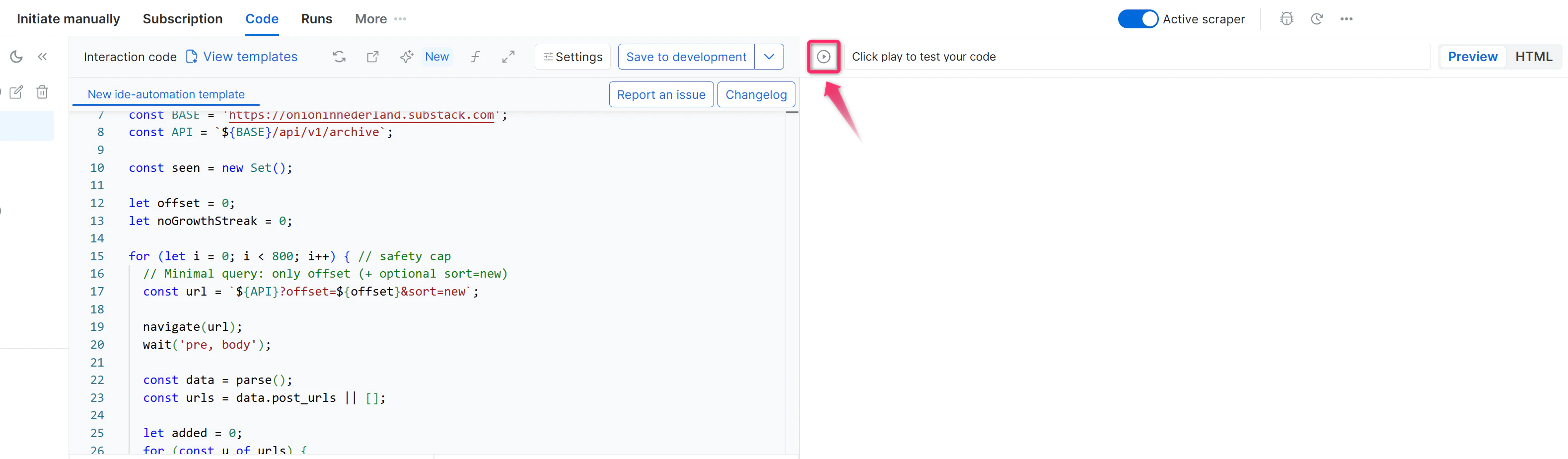 > **Expected result:** the output file contains the new or fixed fields with valid, non-undefined values.
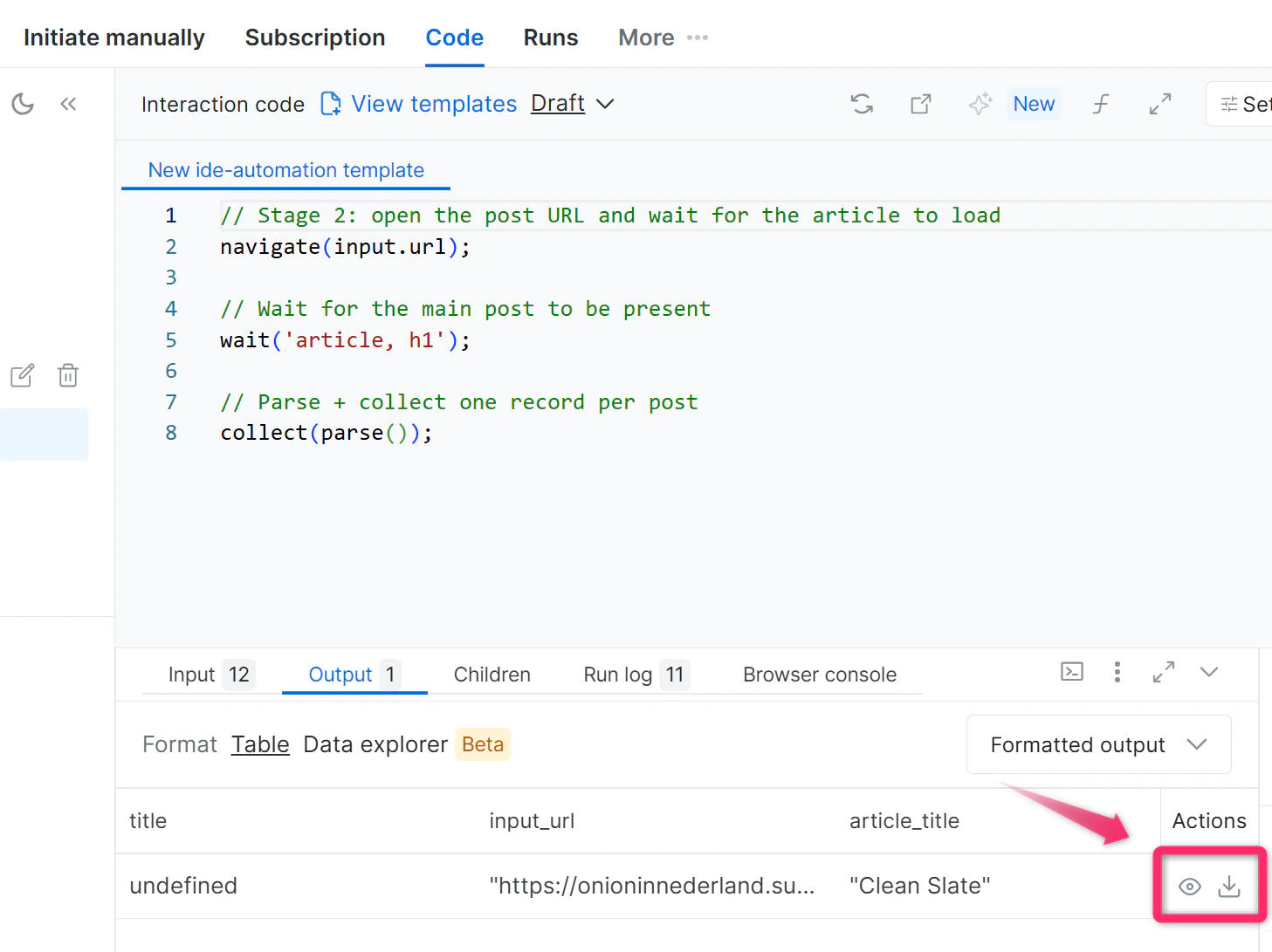 Once the preview looks correct, save the scraper to production.
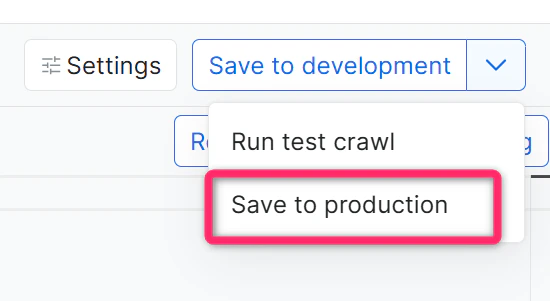 If you added or renamed fields, Bright Data Scraper Studio prompts you to update the output schema. Click **Update Schema**, then **Save to Production**.
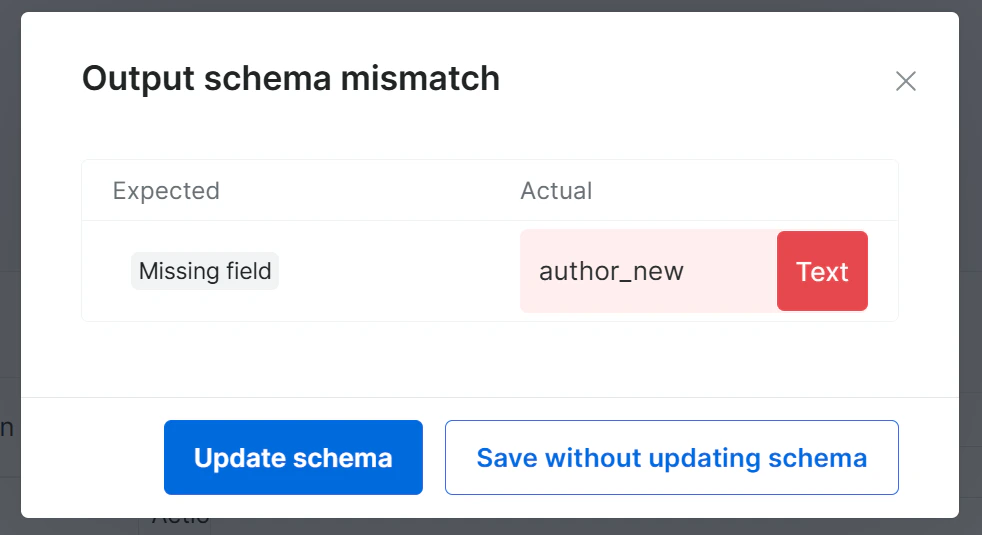 > **Expected result:** the refactored scraper is live and collecting data with the new configuration.
## Troubleshooting
| Problem | Likely cause | Resolution |
| ------------------------------------------ | ------------------------------ | -------------------------------------------------------------------------------------- |
| AI-generated code does not fix the issue | Prompt was too vague | Re-prompt with specific field names and an example error message |
| Preview still returns undefined values | Target site structure changed | Inspect the live page and include the expected HTML element or selector in your prompt |
| Changes do not appear after accepting | Browser cache issue | Refresh the IDE and re-check the development mode draft |
| The refactor runs for more than 15 minutes | Complex change or heavy prompt | Break the request into smaller prompts (one field at a time) |
## Frequently asked questions
Yes. The Self-Healing tool works on any scraper saved in development mode in Bright Data Scraper Studio, regardless of whether the scraper was built by the AI Agent, from a template, or written from scratch in the IDE.
Yes. Accepted changes go to a draft first; they only affect production after you click **Save to Production**. If you already saved to production, open the **Versions** menu on the scraper dashboard to roll back to an earlier version.
The Self-Healing tool can add or remove fields, but you must confirm the schema change before saving to production. Bright Data Scraper Studio prompts you with **Update Schema** when the new output no longer matches the current schema.
## Related
Build a new scraper from natural-language prompts
Build and edit scrapers directly in the IDE
> **Expected result:** the refactored scraper is live and collecting data with the new configuration.
## Troubleshooting
| Problem | Likely cause | Resolution |
| ------------------------------------------ | ------------------------------ | -------------------------------------------------------------------------------------- |
| AI-generated code does not fix the issue | Prompt was too vague | Re-prompt with specific field names and an example error message |
| Preview still returns undefined values | Target site structure changed | Inspect the live page and include the expected HTML element or selector in your prompt |
| Changes do not appear after accepting | Browser cache issue | Refresh the IDE and re-check the development mode draft |
| The refactor runs for more than 15 minutes | Complex change or heavy prompt | Break the request into smaller prompts (one field at a time) |
## Frequently asked questions
Yes. The Self-Healing tool works on any scraper saved in development mode in Bright Data Scraper Studio, regardless of whether the scraper was built by the AI Agent, from a template, or written from scratch in the IDE.
Yes. Accepted changes go to a draft first; they only affect production after you click **Save to Production**. If you already saved to production, open the **Versions** menu on the scraper dashboard to roll back to an earlier version.
The Self-Healing tool can add or remove fields, but you must confirm the schema change before saving to production. Bright Data Scraper Studio prompts you with **Update Schema** when the new output no longer matches the current schema.
## Related
Build a new scraper from natural-language prompts
Build and edit scrapers directly in the IDE