> ## Documentation Index
> Fetch the complete documentation index at: https://docs.brightdata.com/llms.txt
> Use this file to discover all available pages before exploring further.
# Firefox Proxy Configuration
> Step-by-step guide to configuring Bright Data proxies (port 33335) in Firefox for privacy, geo-bypass and managing multiple browser sessions or accounts.
### Your proxy access information
Bright Data proxies are grouped in "Proxy zones". Each zone holds the configuration for the proxies it holds.
To get access to the proxy zone:
1. Login to Bright Data control panel
2. Select the proxy zone or setup a new one
3. Click on the new zone name, and select the **Overview** tab.
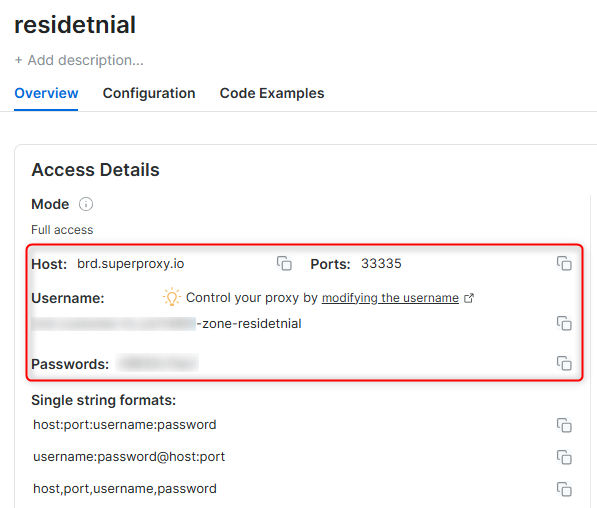
4. In the overview tab, under **Access details** you can find the proxy access details, and copy them to clipboard on click.
5. You will need: Proxy Host, Proxy Port, Proxy Zone username and Proxy Zone password.
6. Click on the copy icons to copy the text to your clipboard and paste in your tool's proxy configuration.
### Access Details Section Example
 ### Residential proxy access
To access Bright Data's **Residential Proxies** you will need to either get verified by our compliance team, or install a certificate. [Read more...](https://docs.brightdata.com/proxy-networks/residential/network-access)
### Targeting search engines?
If you target a search engine like google, bing or yandex, you need a special Search Engine Results Page (**SERP**) proxy API. Use Bright Data SERP API to target search engines.
[Click here to read more about Bright Data SERP proxy API.](https://docs.brightdata.com/scraping-automation/serp-api/introduction)
### Correct setup of proxy test to avoid "PROXY ERROR"
In many tools you will see a "test proxy" function, which performs a conncectivity test to your proxy, and some add a geolocation test as well, to identify the location of the proxy.
To correctly test your proxy you should target those search queries to:
`https://geo.brdtest.com/welcome.txt` .
Some tools use popular search engines (like google.com) as a default test target. Bright Data will block those requests and you tool will show **proxy error** although your proxy is perfectly fine.
If your proxy test fails, this is probably the reason. Make sure that your test domain is not a search engine (this is done in the tool configuration, and not controlled by Bright Data).
Maintain a consistent IP throughout your browser session by using the `-session` parameter in your username. This is essential because BrightData proxies default to rotating IPs with each request. [Learn more](https://docs.brightdata.com/proxy-networks/faqs#how-to-use-the-same-ip-for-an-extended-period-of-time-and-how-long-can-i-keep-it-long-session)
New users should begin with ISP or Data Center proxies, as residential proxies are incompatible with browser integration in [Immediate-Access mode](https://docs.brightdata.com/proxy-networks/residential/network-access#immediate-access) .
For use-cases related to **account management**, use a consistent static dedicated IP for each account you are managing. dedicated [ISP proxies](https://docs.brightdata.com/proxy-networks/isp/introduction) should be used for this.
## Changing Proxy Settings in Firefox
Take control of your Firefox browsing experience! Setting up proxies is easy, just follow these clear steps to get started:
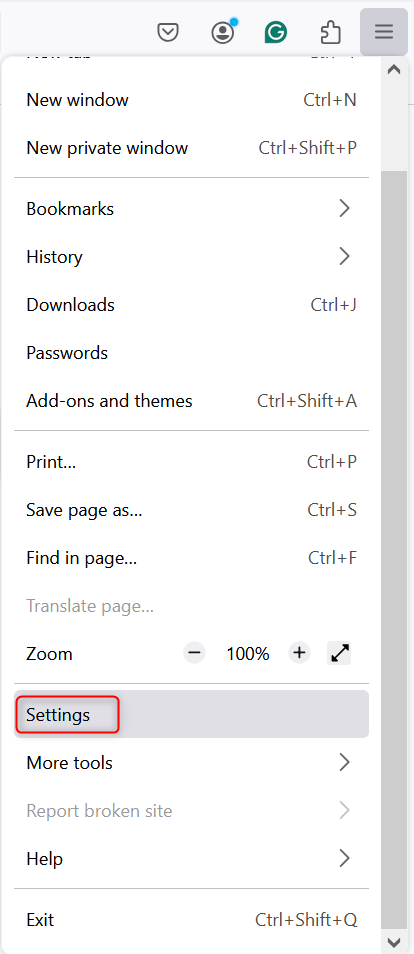
Launch Firefox and click on the **menu icon** (three horizontal lines) located in the top-right corner.\
From the dropdown, select **Settings** to access the browser's configuration menu.
### Residential proxy access
To access Bright Data's **Residential Proxies** you will need to either get verified by our compliance team, or install a certificate. [Read more...](https://docs.brightdata.com/proxy-networks/residential/network-access)
### Targeting search engines?
If you target a search engine like google, bing or yandex, you need a special Search Engine Results Page (**SERP**) proxy API. Use Bright Data SERP API to target search engines.
[Click here to read more about Bright Data SERP proxy API.](https://docs.brightdata.com/scraping-automation/serp-api/introduction)
### Correct setup of proxy test to avoid "PROXY ERROR"
In many tools you will see a "test proxy" function, which performs a conncectivity test to your proxy, and some add a geolocation test as well, to identify the location of the proxy.
To correctly test your proxy you should target those search queries to:
`https://geo.brdtest.com/welcome.txt` .
Some tools use popular search engines (like google.com) as a default test target. Bright Data will block those requests and you tool will show **proxy error** although your proxy is perfectly fine.
If your proxy test fails, this is probably the reason. Make sure that your test domain is not a search engine (this is done in the tool configuration, and not controlled by Bright Data).
Maintain a consistent IP throughout your browser session by using the `-session` parameter in your username. This is essential because BrightData proxies default to rotating IPs with each request. [Learn more](https://docs.brightdata.com/proxy-networks/faqs#how-to-use-the-same-ip-for-an-extended-period-of-time-and-how-long-can-i-keep-it-long-session)
New users should begin with ISP or Data Center proxies, as residential proxies are incompatible with browser integration in [Immediate-Access mode](https://docs.brightdata.com/proxy-networks/residential/network-access#immediate-access) .
For use-cases related to **account management**, use a consistent static dedicated IP for each account you are managing. dedicated [ISP proxies](https://docs.brightdata.com/proxy-networks/isp/introduction) should be used for this.
## Changing Proxy Settings in Firefox
Take control of your Firefox browsing experience! Setting up proxies is easy, just follow these clear steps to get started:
Launch Firefox and click on the **menu icon** (three horizontal lines) located in the top-right corner.\
From the dropdown, select **Settings** to access the browser's configuration menu.
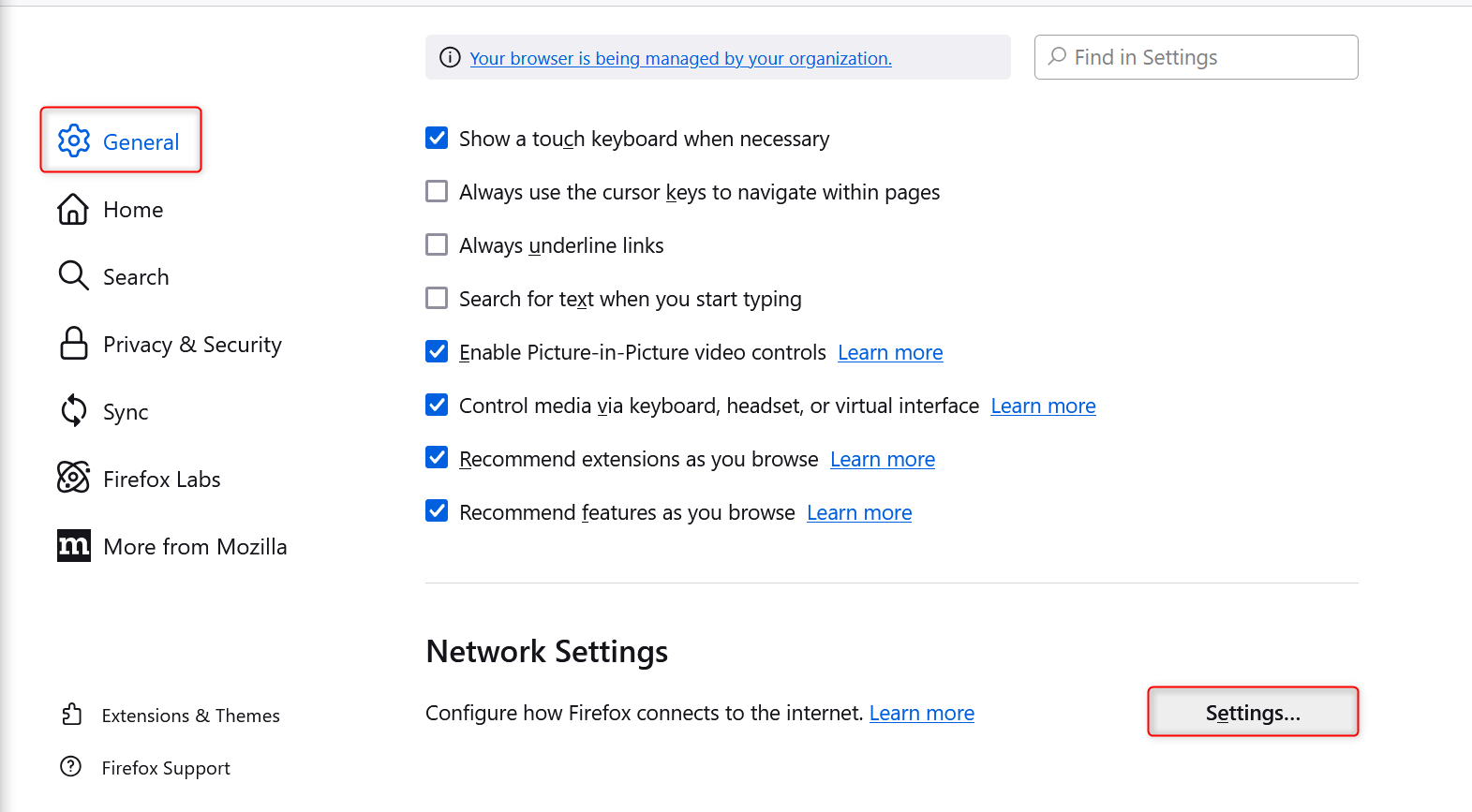
 Scroll down within the settings menu until you find the **Network Settings** section.\
Click on **Settings** to open the proxy configuration window.
Scroll down within the settings menu until you find the **Network Settings** section.\
Click on **Settings** to open the proxy configuration window.
 In the proxy settings window, do the following:
1. Select **Manual proxy configuration** to enable custom proxy settings.
2. Provide the necessary information:
* **HTTP Proxy**: Input `http://brd.superproxy.io/`.
* **Port**: Enter the port number displayed in your [Bright Data dashboard](https://brightdata.com/cp/zones).
1. (Optional) Enable **Use this proxy server for all protocols** to apply the same proxy across all connection types.
2. For SOCKS proxies, select **SOCKS v5** and fill in the appropriate server details.
When you access a website, Firefox might ask you for authentication credentials.\
Enter your **Username** and **Password** from your Bright Data account when prompted.
### Getting "Software is Preventing Firefox From Safely Connecting to this site" Error?
You are probably trying to access a website which is blocked by Bright Data policy. We often see this when trying to access [google.com](http://google.com) via our datacenter, ISP, residential or mobile proxies. Try a a different website ; we recommend to test your proxy connection with our test website: [https://geo.brdtest.com/welcome.txt](https://geo.brdtest.com/welcome.txt) .
And that’s it! Your Firefox browser is now configured with **Bright Data**, opening the door to a secure and private browsing experience. Whether you’re managing accounts, running essential tasks, or simply enjoying unrestricted access to the web, you’re all set for a faster, safer, and more reliable online journey.
In the proxy settings window, do the following:
1. Select **Manual proxy configuration** to enable custom proxy settings.
2. Provide the necessary information:
* **HTTP Proxy**: Input `http://brd.superproxy.io/`.
* **Port**: Enter the port number displayed in your [Bright Data dashboard](https://brightdata.com/cp/zones).
1. (Optional) Enable **Use this proxy server for all protocols** to apply the same proxy across all connection types.
2. For SOCKS proxies, select **SOCKS v5** and fill in the appropriate server details.
When you access a website, Firefox might ask you for authentication credentials.\
Enter your **Username** and **Password** from your Bright Data account when prompted.
### Getting "Software is Preventing Firefox From Safely Connecting to this site" Error?
You are probably trying to access a website which is blocked by Bright Data policy. We often see this when trying to access [google.com](http://google.com) via our datacenter, ISP, residential or mobile proxies. Try a a different website ; we recommend to test your proxy connection with our test website: [https://geo.brdtest.com/welcome.txt](https://geo.brdtest.com/welcome.txt) .
And that’s it! Your Firefox browser is now configured with **Bright Data**, opening the door to a secure and private browsing experience. Whether you’re managing accounts, running essential tasks, or simply enjoying unrestricted access to the web, you’re all set for a faster, safer, and more reliable online journey.