> ## Documentation Index
> Fetch the complete documentation index at: https://docs.brightdata.com/llms.txt
> Use this file to discover all available pages before exploring further.
# IBM Watsonx Orchestrate
> Connect Bright Data's MCP server to IBM watsonx Orchestrate so agents can call live web scraping, search, and unblocking tools at runtime. Spans 195 countries.
## Overview
This integration provides your agents with enterprise-grade capabilities for web scraping, and multi-engine search operations with bot protection bypass.
## Prerequisites
Before you begin, ensure you have:
* Access to IBM watsonx Orchestrate
* A Bright Data account with an active subscription
* Your Bright Data API key
## Steps to Get Started
* Log in to your [Bright Data dashboard](https://brightdata.com/cp)
* Navigate to [Account Settings](https://brightdata.com/cp/setting/users)
* [Generate an API key](https://docs.brightdata.com/api-reference/authentication#how-do-i-authenticate-with-api-key%3F) if you haven't already
* Copy and securely store your API key for the next steps
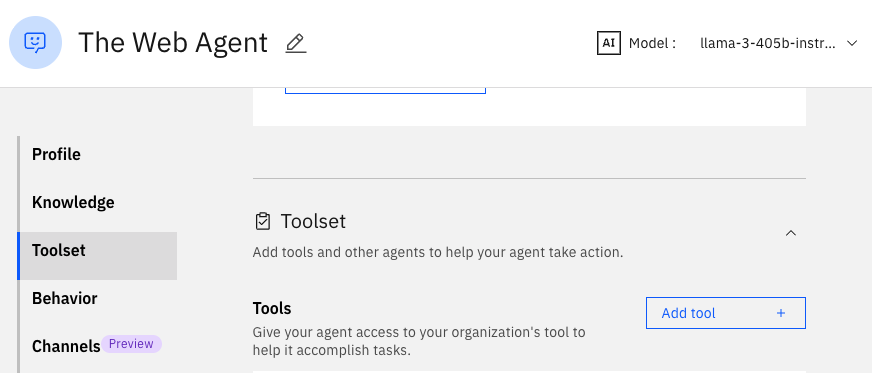
* Navigate to **Manage Agents** in IBM watsonx Orchestrate
* Select your agent
* In the left menu, click **Toolset**
* Click **Add Tool**
 In the "Add tool" dialog:
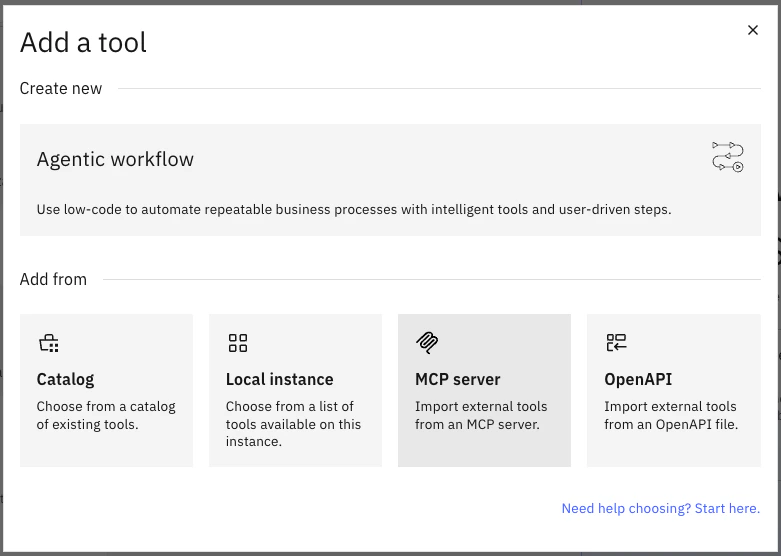 * Select **MCP server**
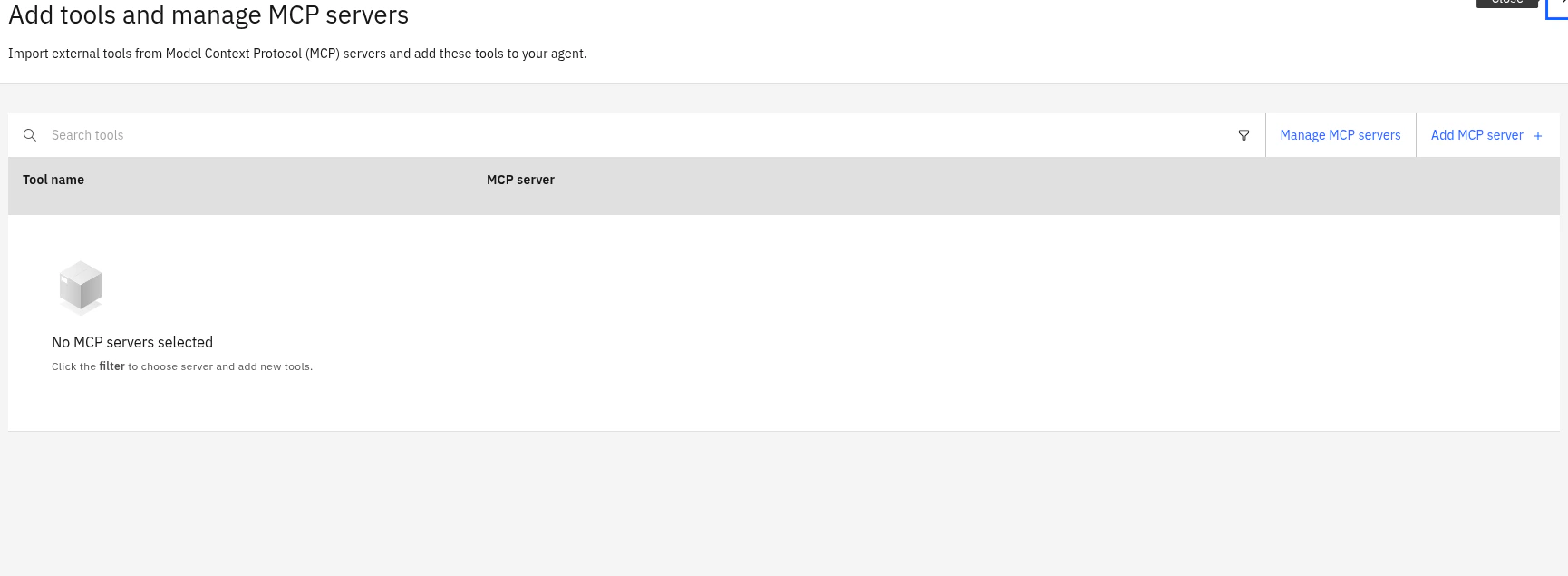
* Click on the **Add MCP server** button:
* Select **MCP server**
* Click on the **Add MCP server** button:
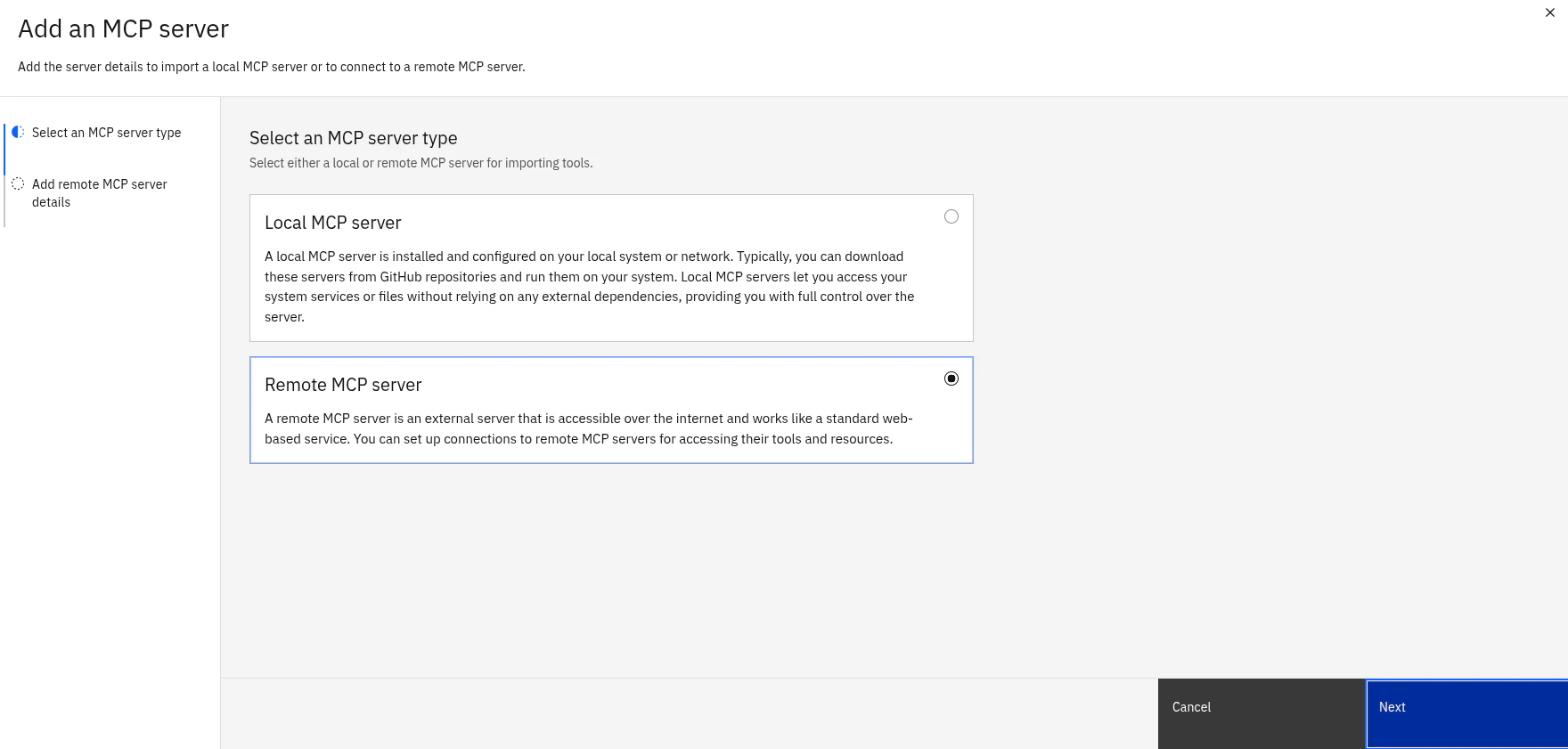
 * Select **Remote MCP** and click **Next**:
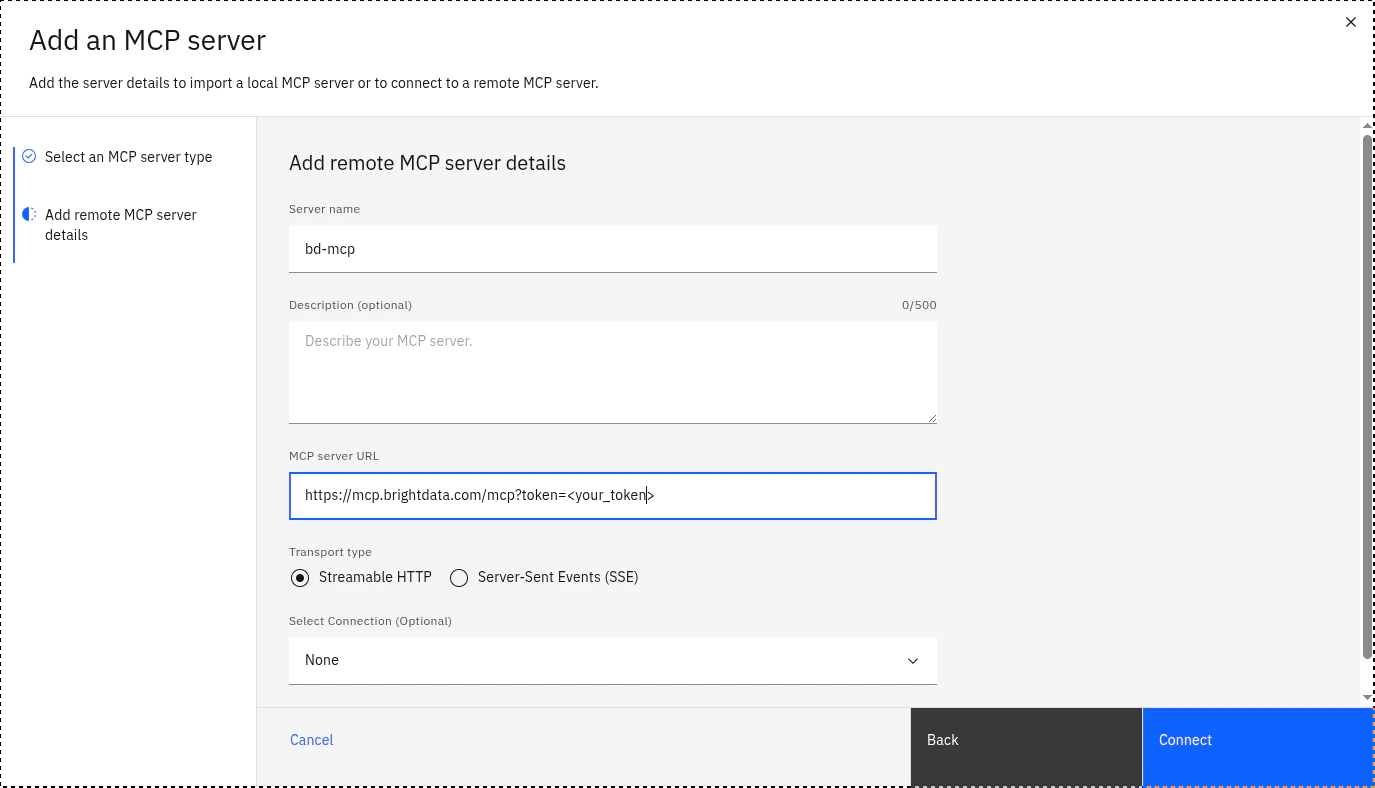
 * Choose a name for your Bright Data MCP server, add an optional description, and paste the MCP server URL including your API token, then click **Connect**:
```bash theme={null}
https://mcp.brightdata.com/sse?token=
```
* Choose a name for your Bright Data MCP server, add an optional description, and paste the MCP server URL including your API token, then click **Connect**:
```bash theme={null}
https://mcp.brightdata.com/sse?token=
```
 Once installation completes, multiple capabilities will appear in your agent's toolset. Enable the following:
`search_engine`
`scrape_as_markdown`
Verify the integration is working:
* Open your agent's chat interface
* Ask the agent to perform a simple task (e.g., "Search for recent AI trends")
* Confirm the agent successfully retrieves and processes data from Bright Data
## Example use cases
Once `search_engine` and `scrape_as_markdown` are enabled, your IBM watsonx Orchestrate agent can handle prompts like the ones below. Each example shows the user prompt, which Bright Data tool the agent will call, and the expected outcome.
### Search the live web with `search_engine`
Use `search_engine` when the agent needs fresh SERP results from Google, Bing or Yandex without being blocked.
```text Market research theme={null}
Find the top 10 results on Google for "enterprise RAG platforms 2026"
and return the title, URL and snippet for each result as a table.
```
```text Geo-targeted SERP theme={null}
Search Google for "best cloud GPU providers" as if I were located in
Germany, then list the first page of organic results.
```
```text News monitoring theme={null}
Search Bing News for "IBM watsonx Orchestrate" from the last 7 days
and summarize the top 5 headlines with publication dates.
```
**Expected behavior:** the agent calls `search_engine`, parses the SERP JSON, and replies with a structured summary. No proxy setup or CAPTCHA handling is required on your side.
### Extract page content with `scrape_as_markdown`
Use `scrape_as_markdown` when the agent needs the full content of a known URL, including pages protected by bot detection.
```text Competitive intelligence theme={null}
Scrape https://www.ibm.com/products/watsonx-orchestrate and summarize
the key features and pricing tiers in a 5-bullet executive briefing.
```
```text Documentation lookup theme={null}
Fetch the page at https://docs.brightdata.com/api-reference/MCP-Server
and list every tool name with its one-line description.
```
```text Product page extraction theme={null}
Scrape this product URL and return the title, price, rating and the
first 3 customer reviews as JSON: https://www.example-store.com/item/123
```
**Expected behavior:** the agent calls `scrape_as_markdown` with the URL, receives clean markdown, and extracts the requested fields. Pages that would normally trigger CAPTCHAs or 403 responses are handled by Bright Data's Unlocker infrastructure.
### Combine both tools in one task
The agent can chain `search_engine` and `scrape_as_markdown` to answer multi-step questions.
```text Research workflow theme={null}
Search Google for "top 5 vector databases 2026", then scrape the
homepage of each result and produce a comparison table with: product
name, pricing model, supported languages and a one-sentence positioning
statement.
```
The agent first calls `search_engine` to get the URLs, then calls `scrape_as_markdown` once per URL, then synthesizes the comparison. This pattern works for competitor analysis, lead enrichment and content aggregation flows.
## What you can do next
Your agent is now connected to Bright Data and ready to:
* Extract structured data from major platforms
* Perform geo-targeted web searches
* Scrape website content while bypassing bot protection
* Process large-scale data extraction tasks
## Where to get support
Need help? Contact Bright Data support or refer to the [Bright Data documentation](https://docs.brightdata.com) for detailed API references and troubleshooting guides.
Once installation completes, multiple capabilities will appear in your agent's toolset. Enable the following:
`search_engine`
`scrape_as_markdown`
Verify the integration is working:
* Open your agent's chat interface
* Ask the agent to perform a simple task (e.g., "Search for recent AI trends")
* Confirm the agent successfully retrieves and processes data from Bright Data
## Example use cases
Once `search_engine` and `scrape_as_markdown` are enabled, your IBM watsonx Orchestrate agent can handle prompts like the ones below. Each example shows the user prompt, which Bright Data tool the agent will call, and the expected outcome.
### Search the live web with `search_engine`
Use `search_engine` when the agent needs fresh SERP results from Google, Bing or Yandex without being blocked.
```text Market research theme={null}
Find the top 10 results on Google for "enterprise RAG platforms 2026"
and return the title, URL and snippet for each result as a table.
```
```text Geo-targeted SERP theme={null}
Search Google for "best cloud GPU providers" as if I were located in
Germany, then list the first page of organic results.
```
```text News monitoring theme={null}
Search Bing News for "IBM watsonx Orchestrate" from the last 7 days
and summarize the top 5 headlines with publication dates.
```
**Expected behavior:** the agent calls `search_engine`, parses the SERP JSON, and replies with a structured summary. No proxy setup or CAPTCHA handling is required on your side.
### Extract page content with `scrape_as_markdown`
Use `scrape_as_markdown` when the agent needs the full content of a known URL, including pages protected by bot detection.
```text Competitive intelligence theme={null}
Scrape https://www.ibm.com/products/watsonx-orchestrate and summarize
the key features and pricing tiers in a 5-bullet executive briefing.
```
```text Documentation lookup theme={null}
Fetch the page at https://docs.brightdata.com/api-reference/MCP-Server
and list every tool name with its one-line description.
```
```text Product page extraction theme={null}
Scrape this product URL and return the title, price, rating and the
first 3 customer reviews as JSON: https://www.example-store.com/item/123
```
**Expected behavior:** the agent calls `scrape_as_markdown` with the URL, receives clean markdown, and extracts the requested fields. Pages that would normally trigger CAPTCHAs or 403 responses are handled by Bright Data's Unlocker infrastructure.
### Combine both tools in one task
The agent can chain `search_engine` and `scrape_as_markdown` to answer multi-step questions.
```text Research workflow theme={null}
Search Google for "top 5 vector databases 2026", then scrape the
homepage of each result and produce a comparison table with: product
name, pricing model, supported languages and a one-sentence positioning
statement.
```
The agent first calls `search_engine` to get the URLs, then calls `scrape_as_markdown` once per URL, then synthesizes the comparison. This pattern works for competitor analysis, lead enrichment and content aggregation flows.
## What you can do next
Your agent is now connected to Bright Data and ready to:
* Extract structured data from major platforms
* Perform geo-targeted web searches
* Scrape website content while bypassing bot protection
* Process large-scale data extraction tasks
## Where to get support
Need help? Contact Bright Data support or refer to the [Bright Data documentation](https://docs.brightdata.com) for detailed API references and troubleshooting guides.