> ## Documentation Index
> Fetch the complete documentation index at: https://docs.brightdata.com/llms.txt
> Use this file to discover all available pages before exploring further.
# Set Up Bright Data With Octo Browser
> Integrate Bright Data proxies (400M+ IPs) with Octo Browser to add anti-detection-grade IP routing to multi-account browsing and scraping workflows.
**Account management is not a supported use case** on the Bright Data platform as of April 1, 2026. This includes managing accounts on platforms like TikTok, Instagram, or similar services. Bright Data proxies cannot be used for this purpose. See [Acceptable Use Policy](https://brightdata.com/acceptable-use-policy) for details.
### Your proxy access information
Bright Data proxies are grouped in "Proxy zones". Each zone holds the configuration for the proxies it holds.
To get access to the proxy zone:
1. Login to Bright Data control panel
2. Select the proxy zone or setup a new one
3. Click on the new zone name, and select the **Overview** tab.
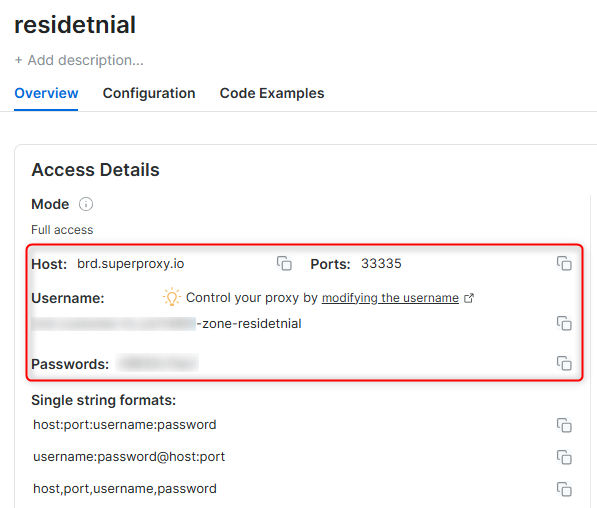
4. In the overview tab, under **Access details** you can find the proxy access details, and copy them to clipboard on click.
5. You will need: Proxy Host, Proxy Port, Proxy Zone username and Proxy Zone password.
6. Click on the copy icons to copy the text to your clipboard and paste in your tool's proxy configuration.
### Access Details Section Example
 ### Residential proxy access
To access Bright Data's **Residential Proxies** you will need to either get verified by our compliance team, or install a certificate. [Read more...](https://docs.brightdata.com/proxy-networks/residential/network-access)
### Targeting search engines?
If you target a search engine like google, bing or yandex, you need a special Search Engine Results Page (**SERP**) proxy API. Use Bright Data SERP API to target search engines.
[Click here to read more about Bright Data SERP proxy API.](https://docs.brightdata.com/scraping-automation/serp-api/introduction)
### Correct setup of proxy test to avoid "PROXY ERROR"
In many tools you will see a "test proxy" function, which performs a conncectivity test to your proxy, and some add a geolocation test as well, to identify the location of the proxy.
To correctly test your proxy you should target those search queries to:
`https://geo.brdtest.com/welcome.txt` .
Some tools use popular search engines (like google.com) as a default test target. Bright Data will block those requests and you tool will show **proxy error** although your proxy is perfectly fine.
If your proxy test fails, this is probably the reason. Make sure that your test domain is not a search engine (this is done in the tool configuration, and not controlled by Bright Data).
## What is Octo Browser?
Octo Browser is a smart tool for managing multiple browser profiles without the risk of detection. It’s perfect for marketers, researchers, and web scrapers who need anonymous, geo-flexible browsing.
Octo Browser creates separate profiles, each with its own unique settings, such as IP addresses and device details, ensuring your accounts stay unlinked. It supports HTTP, HTTPS, and SOCKS5 proxies, and offers features like automation and team collaboration, making it a powerful, user-friendly solution for secure and efficient online activity.
Maintain a consistent IP throughout your browser session by using the `-session` parameter in your username. This is essential because BrightData proxies default to rotating IPs with each request. [Learn more](https://docs.brightdata.com/proxy-networks/faqs#how-to-use-the-same-ip-for-an-extended-period-of-time-and-how-long-can-i-keep-it-long-session)
### Residential proxy access
To access Bright Data's **Residential Proxies** you will need to either get verified by our compliance team, or install a certificate. [Read more...](https://docs.brightdata.com/proxy-networks/residential/network-access)
### Targeting search engines?
If you target a search engine like google, bing or yandex, you need a special Search Engine Results Page (**SERP**) proxy API. Use Bright Data SERP API to target search engines.
[Click here to read more about Bright Data SERP proxy API.](https://docs.brightdata.com/scraping-automation/serp-api/introduction)
### Correct setup of proxy test to avoid "PROXY ERROR"
In many tools you will see a "test proxy" function, which performs a conncectivity test to your proxy, and some add a geolocation test as well, to identify the location of the proxy.
To correctly test your proxy you should target those search queries to:
`https://geo.brdtest.com/welcome.txt` .
Some tools use popular search engines (like google.com) as a default test target. Bright Data will block those requests and you tool will show **proxy error** although your proxy is perfectly fine.
If your proxy test fails, this is probably the reason. Make sure that your test domain is not a search engine (this is done in the tool configuration, and not controlled by Bright Data).
## What is Octo Browser?
Octo Browser is a smart tool for managing multiple browser profiles without the risk of detection. It’s perfect for marketers, researchers, and web scrapers who need anonymous, geo-flexible browsing.
Octo Browser creates separate profiles, each with its own unique settings, such as IP addresses and device details, ensuring your accounts stay unlinked. It supports HTTP, HTTPS, and SOCKS5 proxies, and offers features like automation and team collaboration, making it a powerful, user-friendly solution for secure and efficient online activity.
Maintain a consistent IP throughout your browser session by using the `-session` parameter in your username. This is essential because BrightData proxies default to rotating IPs with each request. [Learn more](https://docs.brightdata.com/proxy-networks/faqs#how-to-use-the-same-ip-for-an-extended-period-of-time-and-how-long-can-i-keep-it-long-session)
New users should begin with ISP or Data Center proxies, as residential proxies are incompatible with browser integration in [Immediate-Access mode](https://docs.brightdata.com/proxy-networks/residential/network-access#immediate-access) .
Connections to the following social networks are not supported on Data Center and ISP proxy networks: Facebook, TikTok, Instagram, X (Twitter), LinkedIn, YouTube, Reddit, Pinterest, Snapchat, and Discord.
## Octo Browser Proxy Integration
Here’s how to integrate Bright Data proxies into Octo Browser:
Download and install [**Octo Browser**](https://octobrowser.net/download/), then log in to your account.
1. Navigate to **Profiles** and click **Create Profile**.
2. Name your profile and set your desired configuration.
1. Go to the **Connection** tab in the profile settings and click on the **Proxy** field.
2. Click **+ Set a new proxy** to open the proxy configuration window.
In the pop-up window, enter your Bright Data proxy details:
* **Host**: Enter `http://brd.superproxy.io/`.
* **Port**: Use the port number provided in your [Bright Data dashboard](https://brightdata.com/cp/zones).
* **Login**: Enter your Bright Data proxy `username`.
* **Password**: Enter your Bright Data proxy `password`.
**For country-specific proxies, you can enter a format like `your-username-country-US` to receive a US exit node.**
1. Click **Check Proxy** to ensure the connection is active and working correctly.
2. Once confirmed, click **Confirm** to save the proxy settings to the profile.
1. Click **Create Profile** to save your setup.
2. You can now launch your configured profile by clicking **Start** in the Profiles section.
And that’s it! You’ve successfully integrated Bright Data proxies with Octo Browser.