> ## Documentation Index
> Fetch the complete documentation index at: https://docs.brightdata.com/llms.txt
> Use this file to discover all available pages before exploring further.
# How to Set Up Bright Data With Postern
> Configure Bright Data proxies in Postern on Android to route system-wide traffic through residential, datacenter, ISP, or mobile IPs. Spans 195 countries.
### Your proxy access information
Bright Data proxies are grouped in "Proxy zones". Each zone holds the configuration for the proxies it holds.
To get access to the proxy zone:
1. Login to Bright Data control panel
2. Select the proxy zone or setup a new one
3. Click on the new zone name, and select the **Overview** tab.
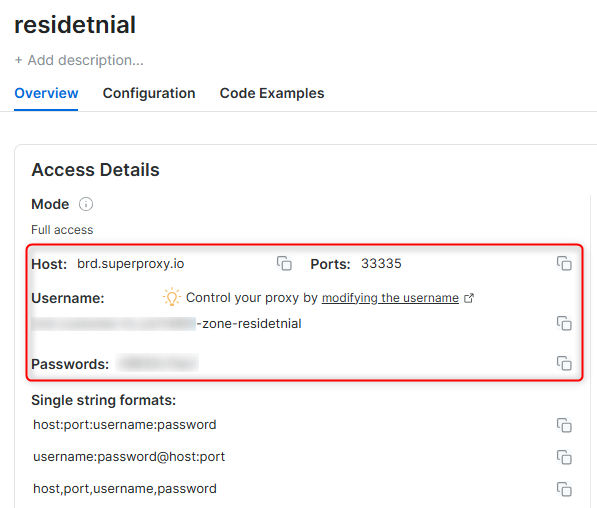
4. In the overview tab, under **Access details** you can find the proxy access details, and copy them to clipboard on click.
5. You will need: Proxy Host, Proxy Port, Proxy Zone username and Proxy Zone password.
6. Click on the copy icons to copy the text to your clipboard and paste in your tool's proxy configuration.
### Access Details Section Example
 ### Residential proxy access
To access Bright Data's **Residential Proxies** you will need to either get verified by our compliance team, or install a certificate. [Read more...](https://docs.brightdata.com/proxy-networks/residential/network-access)
### Targeting search engines?
If you target a search engine like google, bing or yandex, you need a special Search Engine Results Page (**SERP**) proxy API. Use Bright Data SERP API to target search engines.
[Click here to read more about Bright Data SERP proxy API.](https://docs.brightdata.com/scraping-automation/serp-api/introduction)
### Correct setup of proxy test to avoid "PROXY ERROR"
In many tools you will see a "test proxy" function, which performs a conncectivity test to your proxy, and some add a geolocation test as well, to identify the location of the proxy.
To correctly test your proxy you should target those search queries to:
`https://geo.brdtest.com/welcome.txt` .
Some tools use popular search engines (like google.com) as a default test target. Bright Data will block those requests and you tool will show **proxy error** although your proxy is perfectly fine.
If your proxy test fails, this is probably the reason. Make sure that your test domain is not a search engine (this is done in the tool configuration, and not controlled by Bright Data).
## What is Postern?
Postern is an Android proxy manager that allows users to route app traffic through proxies for secure and private connections. Supporting HTTP, HTTPS, and SOCKS5 proxies, it’s a versatile tool for managing internet connections and optimizing workflows.
## How to Set Up Bright Data With Postern
1. Find the app in the Google Play Store and install Postern on your Android device.
2. Open the app and allow any required permissions.
1. Open Postern and tap **Add Proxy** to start configuring a new proxy.
### Residential proxy access
To access Bright Data's **Residential Proxies** you will need to either get verified by our compliance team, or install a certificate. [Read more...](https://docs.brightdata.com/proxy-networks/residential/network-access)
### Targeting search engines?
If you target a search engine like google, bing or yandex, you need a special Search Engine Results Page (**SERP**) proxy API. Use Bright Data SERP API to target search engines.
[Click here to read more about Bright Data SERP proxy API.](https://docs.brightdata.com/scraping-automation/serp-api/introduction)
### Correct setup of proxy test to avoid "PROXY ERROR"
In many tools you will see a "test proxy" function, which performs a conncectivity test to your proxy, and some add a geolocation test as well, to identify the location of the proxy.
To correctly test your proxy you should target those search queries to:
`https://geo.brdtest.com/welcome.txt` .
Some tools use popular search engines (like google.com) as a default test target. Bright Data will block those requests and you tool will show **proxy error** although your proxy is perfectly fine.
If your proxy test fails, this is probably the reason. Make sure that your test domain is not a search engine (this is done in the tool configuration, and not controlled by Bright Data).
## What is Postern?
Postern is an Android proxy manager that allows users to route app traffic through proxies for secure and private connections. Supporting HTTP, HTTPS, and SOCKS5 proxies, it’s a versatile tool for managing internet connections and optimizing workflows.
## How to Set Up Bright Data With Postern
1. Find the app in the Google Play Store and install Postern on your Android device.
2. Open the app and allow any required permissions.
1. Open Postern and tap **Add Proxy** to start configuring a new proxy.
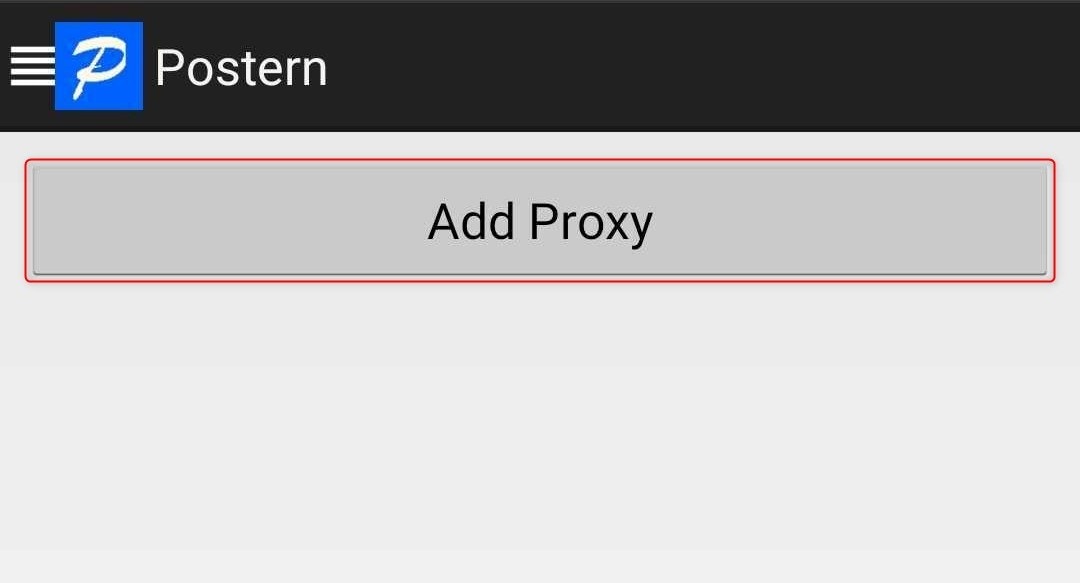 2. Fill in your Bright Data proxy details:
* **Server Name**: Enter a descriptive name (e.g., "Bright Data Proxy").
* **Server Address**: `http://brd.superproxy.io/`.
* **Server Port**: Use the port number provided in your [Bright Data dashboard](https://brightdata.com/cp/zones/page/plans).
* **Server Type**: Choose HTTP, HTTPS, or SOCKS5 based on your proxy type.
* **Username**: Input your Bright Data `username`.
* **Password**: Input your Bright Data `password`.
3. Tap **Save** to save the proxy configuration.
1. Go to the app menu and navigate to **Rules**.
2. Fill in your Bright Data proxy details:
* **Server Name**: Enter a descriptive name (e.g., "Bright Data Proxy").
* **Server Address**: `http://brd.superproxy.io/`.
* **Server Port**: Use the port number provided in your [Bright Data dashboard](https://brightdata.com/cp/zones/page/plans).
* **Server Type**: Choose HTTP, HTTPS, or SOCKS5 based on your proxy type.
* **Username**: Input your Bright Data `username`.
* **Password**: Input your Bright Data `password`.
3. Tap **Save** to save the proxy configuration.
1. Go to the app menu and navigate to **Rules**.
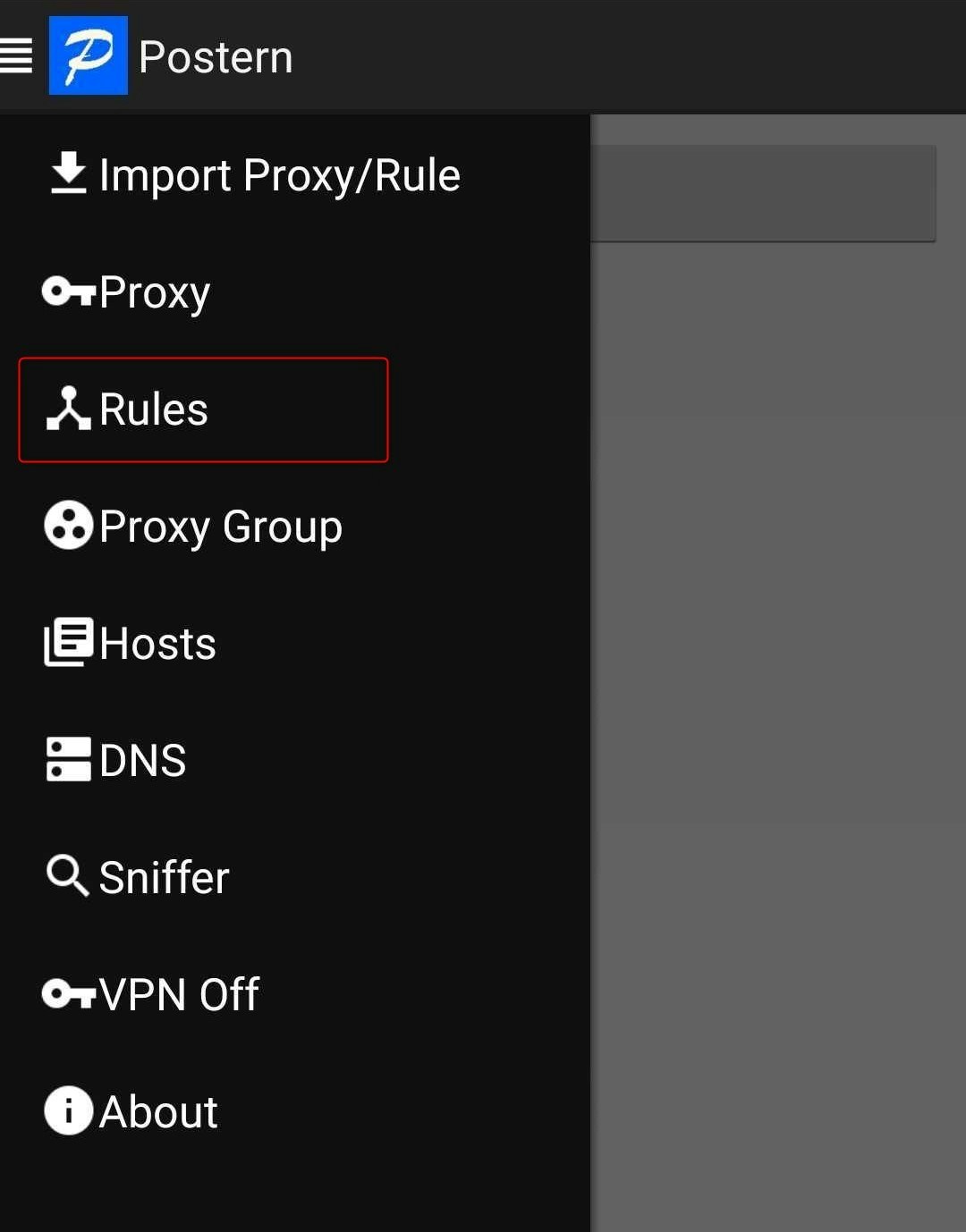 2. Tap **Add Rule** to create a new rule for your proxy.
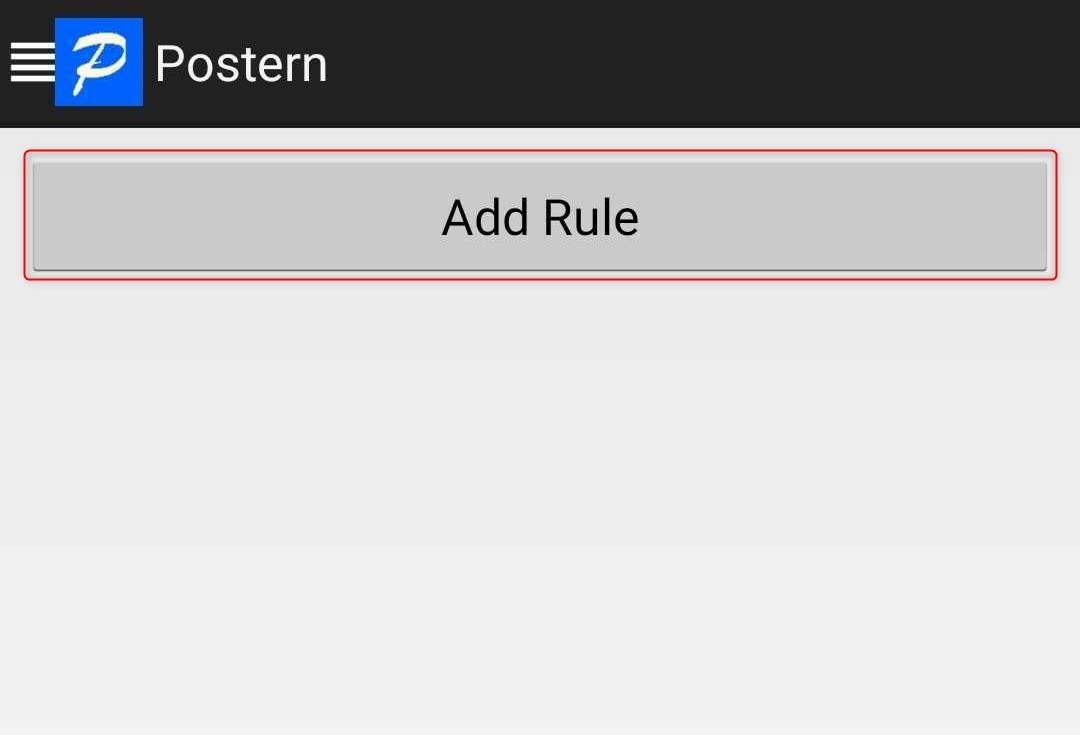 3. Set the following:
* **Match Method**: Select **Match All** to route all traffic through the proxy.
* **Rule Type**: Choose **Proxy/Tunnel**.
* **Proxy/Proxy Group**: Ensure your configured proxy (e.g., `http://brd.superproxy.io/:port`) is selected.
4. Tap **Save** to finalize the rule configuration.
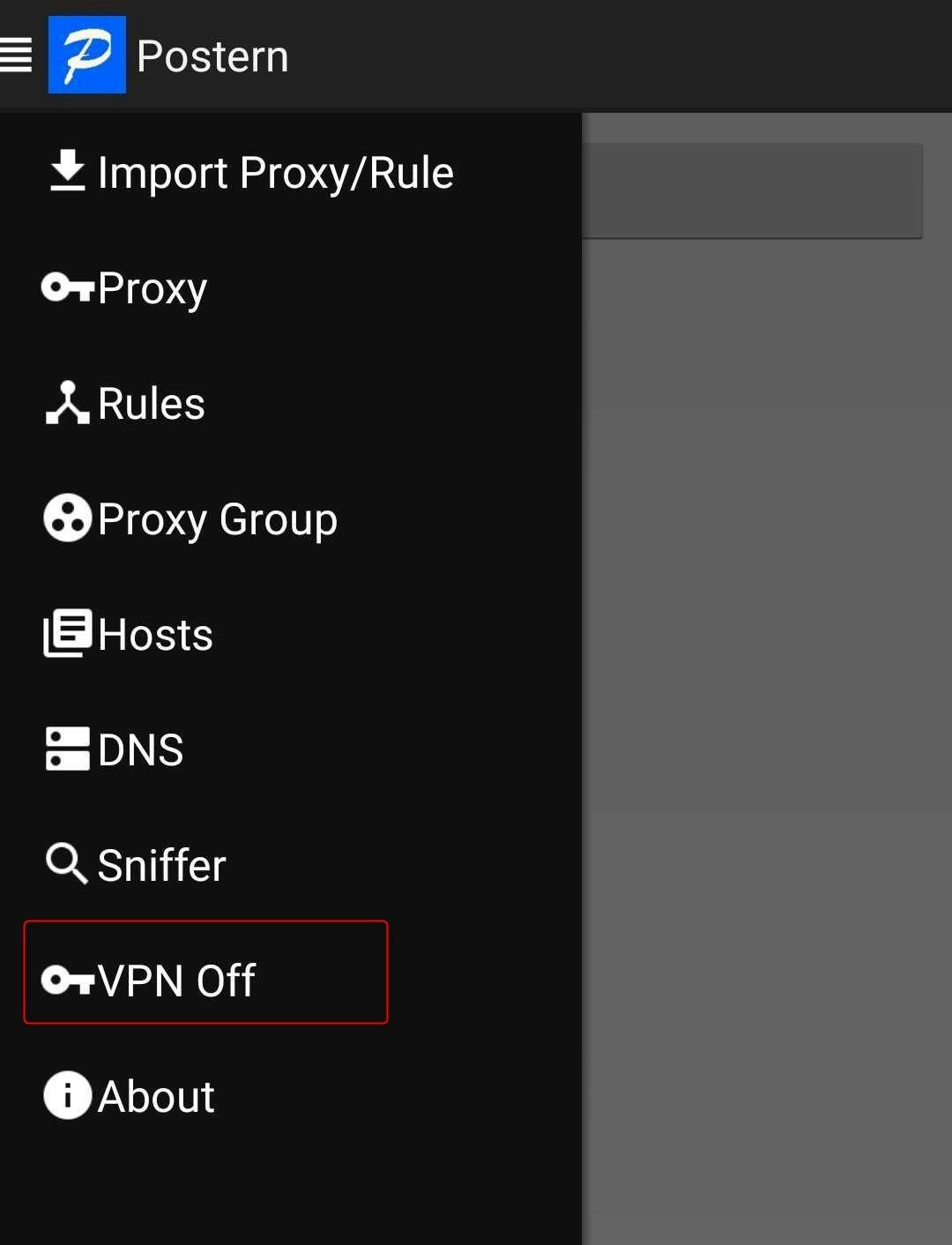
1. Open the app menu and toggle **VPN Off** to enable the connection.
2. Once activated, all traffic will be routed through your Bright Data proxy.
3. Set the following:
* **Match Method**: Select **Match All** to route all traffic through the proxy.
* **Rule Type**: Choose **Proxy/Tunnel**.
* **Proxy/Proxy Group**: Ensure your configured proxy (e.g., `http://brd.superproxy.io/:port`) is selected.
4. Tap **Save** to finalize the rule configuration.
1. Open the app menu and toggle **VPN Off** to enable the connection.
2. Once activated, all traffic will be routed through your Bright Data proxy.
 For geo-targeted proxies, update your username format to include a country code (e.g., `your-username-country-US`) to route through a specific location.
With Bright Data configured in Postern, your app traffic is now routed securely and anonymously. Whether you're managing proxies for personal use or business workflows, this setup ensures privacy and seamless connectivitкy.
For geo-targeted proxies, update your username format to include a country code (e.g., `your-username-country-US`) to route through a specific location.
With Bright Data configured in Postern, your app traffic is now routed securely and anonymously. Whether you're managing proxies for personal use or business workflows, this setup ensures privacy and seamless connectivitкy.