> ## Documentation Index
> Fetch the complete documentation index at: https://docs.brightdata.com/llms.txt
> Use this file to discover all available pages before exploring further.
# Set Up Bright Data With Screaming Frog
> Configure Bright Data proxies in Screaming Frog SEO Spider to route crawls through residential, datacenter, ISP, or mobile IPs at scale. Spans 195 countries.
### Your proxy access information
Bright Data proxies are grouped in "Proxy zones". Each zone holds the configuration for the proxies it holds.
To get access to the proxy zone:
1. Login to Bright Data control panel
2. Select the proxy zone or setup a new one
3. Click on the new zone name, and select the **Overview** tab.
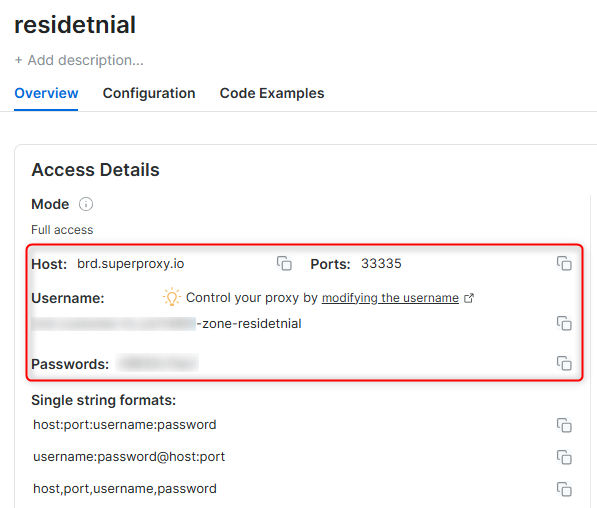
4. In the overview tab, under **Access details** you can find the proxy access details, and copy them to clipboard on click.
5. You will need: Proxy Host, Proxy Port, Proxy Zone username and Proxy Zone password.
6. Click on the copy icons to copy the text to your clipboard and paste in your tool's proxy configuration.
### Access Details Section Example
 ### Residential proxy access
To access Bright Data's **Residential Proxies** you will need to either get verified by our compliance team, or install a certificate. [Read more...](https://docs.brightdata.com/proxy-networks/residential/network-access)
### Targeting search engines?
If you target a search engine like google, bing or yandex, you need a special Search Engine Results Page (**SERP**) proxy API. Use Bright Data SERP API to target search engines.
[Click here to read more about Bright Data SERP proxy API.](https://docs.brightdata.com/scraping-automation/serp-api/introduction)
### Correct setup of proxy test to avoid "PROXY ERROR"
In many tools you will see a "test proxy" function, which performs a conncectivity test to your proxy, and some add a geolocation test as well, to identify the location of the proxy.
To correctly test your proxy you should target those search queries to:
`https://geo.brdtest.com/welcome.txt` .
Some tools use popular search engines (like google.com) as a default test target. Bright Data will block those requests and you tool will show **proxy error** although your proxy is perfectly fine.
If your proxy test fails, this is probably the reason. Make sure that your test domain is not a search engine (this is done in the tool configuration, and not controlled by Bright Data).
## What is Screaming Frog?
**Screaming Frog SEO Spider** is a versatile tool for SEO professionals and website managers. It helps audit websites, identify technical issues, and optimize performance by generating actionable insights. Combining Screaming Frog with **Bright Data** allows you to conduct secure, unrestricted, and geo-specific crawls, ensuring seamless SEO analysis.
## How to Set Up Bright Data With Screaming Frog
**Step 1. Download and Install Screaming Frog**
1. Visit the official [Screaming Frog website](https://www.screamingfrog.co.uk/seo-spider/).
2. Download and install the SEO Spider tool compatible with your operating system.
3. Launch the application once the installation is complete.
**Step 2. Access Proxy Settings**
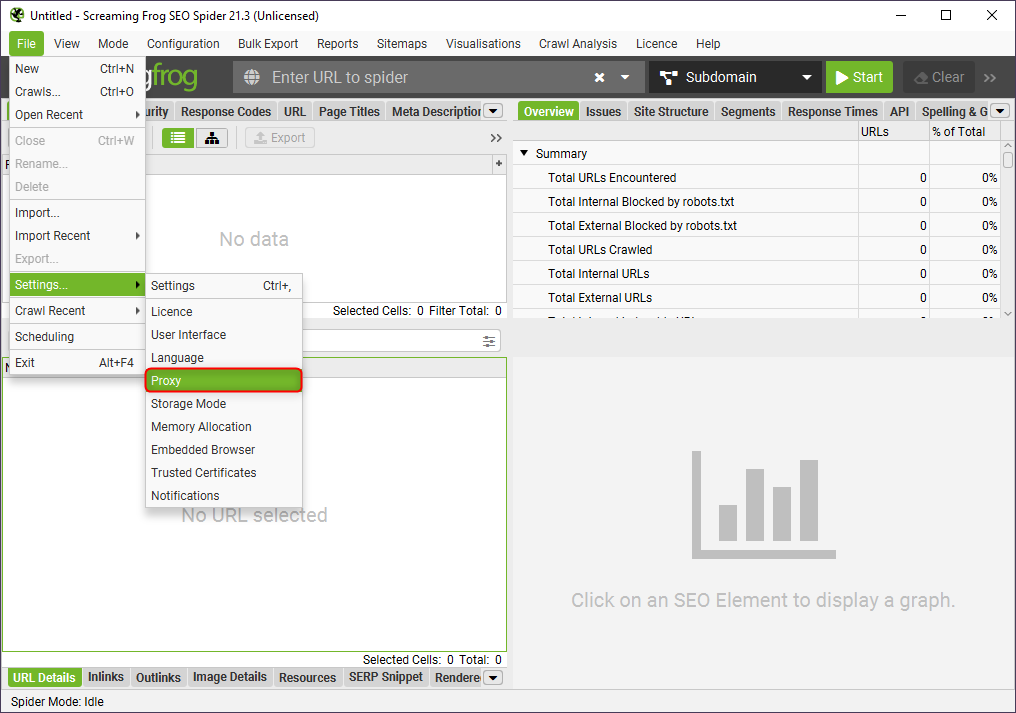
1. In Screaming Frog, click on **File** in the top menu.
2. Select **Settings > Proxy** to open the proxy configuration window.
### Residential proxy access
To access Bright Data's **Residential Proxies** you will need to either get verified by our compliance team, or install a certificate. [Read more...](https://docs.brightdata.com/proxy-networks/residential/network-access)
### Targeting search engines?
If you target a search engine like google, bing or yandex, you need a special Search Engine Results Page (**SERP**) proxy API. Use Bright Data SERP API to target search engines.
[Click here to read more about Bright Data SERP proxy API.](https://docs.brightdata.com/scraping-automation/serp-api/introduction)
### Correct setup of proxy test to avoid "PROXY ERROR"
In many tools you will see a "test proxy" function, which performs a conncectivity test to your proxy, and some add a geolocation test as well, to identify the location of the proxy.
To correctly test your proxy you should target those search queries to:
`https://geo.brdtest.com/welcome.txt` .
Some tools use popular search engines (like google.com) as a default test target. Bright Data will block those requests and you tool will show **proxy error** although your proxy is perfectly fine.
If your proxy test fails, this is probably the reason. Make sure that your test domain is not a search engine (this is done in the tool configuration, and not controlled by Bright Data).
## What is Screaming Frog?
**Screaming Frog SEO Spider** is a versatile tool for SEO professionals and website managers. It helps audit websites, identify technical issues, and optimize performance by generating actionable insights. Combining Screaming Frog with **Bright Data** allows you to conduct secure, unrestricted, and geo-specific crawls, ensuring seamless SEO analysis.
## How to Set Up Bright Data With Screaming Frog
**Step 1. Download and Install Screaming Frog**
1. Visit the official [Screaming Frog website](https://www.screamingfrog.co.uk/seo-spider/).
2. Download and install the SEO Spider tool compatible with your operating system.
3. Launch the application once the installation is complete.
**Step 2. Access Proxy Settings**
1. In Screaming Frog, click on **File** in the top menu.
2. Select **Settings > Proxy** to open the proxy configuration window.
 **Step 3. Enter Your Bright Data Proxy Details**
1. In the **Proxy** window, check **Use Proxy Server** to enable proxy usage.
2. If required, check **Use Proxy Credentials** and provide your login details.
3. Fill in the required proxy fields as follows:
* **Address**: Input `http://brd.superproxy.io/`.
* **Port**: Enter the port number found in your [Bright Data dashboard](https://brightdata.com/cp/zones/page/plans).
* **Username**: Provide your Bright Data username.
* **Password**: Enter your Bright Data password.
4. Once all details are entered, click **OK and Restart** to save your proxy settings.
For geo-specific proxies, append the country code to your username (e.g., `your-username-country-US`) to use a specific exit location.
Your Bright Data proxies are now integrated with Screaming Frog, enabling more secure and efficient web crawling. With this setup, you can bypass restrictions, avoid IP blocks, and conduct geo-specific audits to enhance your SEO tasks effortlessly.
**Step 3. Enter Your Bright Data Proxy Details**
1. In the **Proxy** window, check **Use Proxy Server** to enable proxy usage.
2. If required, check **Use Proxy Credentials** and provide your login details.
3. Fill in the required proxy fields as follows:
* **Address**: Input `http://brd.superproxy.io/`.
* **Port**: Enter the port number found in your [Bright Data dashboard](https://brightdata.com/cp/zones/page/plans).
* **Username**: Provide your Bright Data username.
* **Password**: Enter your Bright Data password.
4. Once all details are entered, click **OK and Restart** to save your proxy settings.
For geo-specific proxies, append the country code to your username (e.g., `your-username-country-US`) to use a specific exit location.
Your Bright Data proxies are now integrated with Screaming Frog, enabling more secure and efficient web crawling. With this setup, you can bypass restrictions, avoid IP blocks, and conduct geo-specific audits to enhance your SEO tasks effortlessly.