> ## Documentation Index
> Fetch the complete documentation index at: https://docs.brightdata.com/llms.txt
> Use this file to discover all available pages before exploring further.
# How to Use Selenium with Bright Data
> Configure Bright Data proxies (port 33335) in Selenium Python to run browser automation with geo-targeted IPs across Chrome, Firefox and other webdrivers.
### Your proxy access information
Bright Data proxies are grouped in "Proxy zones". Each zone holds the configuration for the proxies it holds.
To get access to the proxy zone:
1. Login to Bright Data control panel
2. Select the proxy zone or setup a new one
3. Click on the new zone name, and select the **Overview** tab.
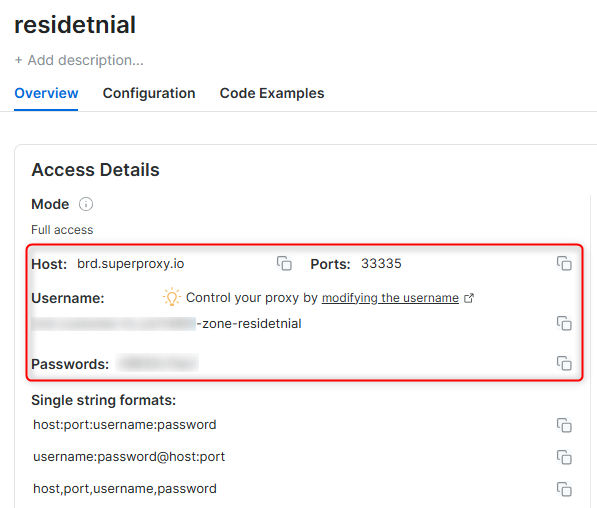
4. In the overview tab, under **Access details** you can find the proxy access details, and copy them to clipboard on click.
5. You will need: Proxy Host, Proxy Port, Proxy Zone username and Proxy Zone password.
6. Click on the copy icons to copy the text to your clipboard and paste in your tool's proxy configuration.
### Access Details Section Example
 ### Residential proxy access
To access Bright Data's **Residential Proxies** you will need to either get verified by our compliance team, or install a certificate. [Read more...](https://docs.brightdata.com/proxy-networks/residential/network-access)
### Targeting search engines?
If you target a search engine like google, bing or yandex, you need a special Search Engine Results Page (**SERP**) proxy API. Use Bright Data SERP API to target search engines.
[Click here to read more about Bright Data SERP proxy API.](https://docs.brightdata.com/scraping-automation/serp-api/introduction)
### Correct setup of proxy test to avoid "PROXY ERROR"
In many tools you will see a "test proxy" function, which performs a conncectivity test to your proxy, and some add a geolocation test as well, to identify the location of the proxy.
To correctly test your proxy you should target those search queries to:
`https://geo.brdtest.com/welcome.txt` .
Some tools use popular search engines (like google.com) as a default test target. Bright Data will block those requests and you tool will show **proxy error** although your proxy is perfectly fine.
If your proxy test fails, this is probably the reason. Make sure that your test domain is not a search engine (this is done in the tool configuration, and not controlled by Bright Data).
## What is Selenium?
Selenium is a powerful, open-source tool for automating web browsers. It supports multiple programming languages, including JavaScript, Python, and Java, and provides a robust API for controlling browser actions.
Selenium is widely used for:
* Web scraping
* Automated testing
* Browser-based workflows
With its flexibility and cross-browser compatibility, Selenium is an essential tool for developers and testers alike.
Maintain a consistent IP throughout your browser session by using the
### Residential proxy access
To access Bright Data's **Residential Proxies** you will need to either get verified by our compliance team, or install a certificate. [Read more...](https://docs.brightdata.com/proxy-networks/residential/network-access)
### Targeting search engines?
If you target a search engine like google, bing or yandex, you need a special Search Engine Results Page (**SERP**) proxy API. Use Bright Data SERP API to target search engines.
[Click here to read more about Bright Data SERP proxy API.](https://docs.brightdata.com/scraping-automation/serp-api/introduction)
### Correct setup of proxy test to avoid "PROXY ERROR"
In many tools you will see a "test proxy" function, which performs a conncectivity test to your proxy, and some add a geolocation test as well, to identify the location of the proxy.
To correctly test your proxy you should target those search queries to:
`https://geo.brdtest.com/welcome.txt` .
Some tools use popular search engines (like google.com) as a default test target. Bright Data will block those requests and you tool will show **proxy error** although your proxy is perfectly fine.
If your proxy test fails, this is probably the reason. Make sure that your test domain is not a search engine (this is done in the tool configuration, and not controlled by Bright Data).
## What is Selenium?
Selenium is a powerful, open-source tool for automating web browsers. It supports multiple programming languages, including JavaScript, Python, and Java, and provides a robust API for controlling browser actions.
Selenium is widely used for:
* Web scraping
* Automated testing
* Browser-based workflows
With its flexibility and cross-browser compatibility, Selenium is an essential tool for developers and testers alike.
Maintain a consistent IP throughout your browser session by using the -session parameter in your username.\
This is essential because Bright Data proxies rotate IPs by default.
Learn more:\
[https://docs.brightdata.com/proxy-networks/faqs#how-to-use-the-same-ip-for-an-extended-period-of-time-and-how-long-can-i-keep-it-long-session](https://docs.brightdata.com/proxy-networks/faqs#how-to-use-the-same-ip-for-an-extended-period-of-time-and-how-long-can-i-keep-it-long-session)
New users should begin with **ISP** or **Data Center** proxies.\
Residential proxies are incompatible with browser integration in Immediate-Access mode:
[https://docs.brightdata.com/proxy-networks/residential/network-access#immediate-access](https://docs.brightdata.com/proxy-networks/residential/network-access#immediate-access)
For **account management use cases**, use a consistent static dedicated IP.\
Dedicated ISP proxies are recommended:
[https://docs.brightdata.com/proxy-networks/isp/introduction](https://docs.brightdata.com/proxy-networks/isp/introduction)
## How to Integrate Bright Data with Selenium
### Step 0: Prerequisites
Before starting, ensure you have the following:
1. **Python installed**\
Download the latest version from [https://www.python.org/](https://www.python.org/)
2. **Install Selenium**
```bash theme={null}
pip install selenium
```
3. **Bright Data proxy credentials**\
Get your host, port, username, and password from the [Bright Data Control Panel](https://brightdata.com/cp/zones/page/plans)
4. **WebDriver installed**\
Download the appropriate driver for your browser\
Example (Chrome): [https://developer.chrome.com/docs/chromedriver/](https://developer.chrome.com/docs/chromedriver/)
5. **Optional: WebDriver Manager**\
For easier driver setup:
```bash theme={null}
pip install webdriver-manager
```
If you want to use Selenium with Bright Data's **Browser API**, refer to the official documentation: [https://docs.brightdata.com/scraping-automation/scraping-browser/introduction](https://docs.brightdata.com/scraping-automation/scraping-browser/introduction)
The steps below apply to direct proxy integration, not Browser API usage.
### Step 1: Import Required Libraries
```python theme={null}
from selenium import webdriver
from selenium.webdriver.chrome.service import Service
from selenium.webdriver.chrome.options import Options
from webdriver_manager.chrome import ChromeDriverManager
```
### Step 2: Configure Your Bright Data Proxy
```python theme={null}
# Bright Data Proxy Configuration
proxy_host = "brd.superproxy.io"
proxy_port = "port" # Replace with your port
proxy_username = "username" # Replace with your Bright Data username
proxy_password = "password" # Replace with your Bright Data password
# Full proxy URL
proxy = f"http://{proxy_username}:{proxy_password}@{proxy_host}:{proxy_port}"
```
### Step 3: Set Up Chrome Options
```python theme={null}
chrome_options = Options()
chrome_options.add_argument(f"--proxy-server={proxy}")
```
### Step 4: Initialize the WebDriver
```python theme={null}
service = Service(ChromeDriverManager().install())
driver = webdriver.Chrome(service=service, options=chrome_options)
```
### Step 5: Test the Proxy Connection
```python theme={null}
print("Connecting to target website...")
driver.get("http://httpbin.org/ip")
print("Page content:")
print(driver.page_source)
driver.quit()
```
### Step 6: Verify the Output
If the proxy is working correctly, you'll see an IP address similar to:
```json theme={null}
{
"origin": "123.45.67.89"
}
```
## Summary
By integrating Bright Data proxies with Selenium, you can automate browser workflows securely and efficiently.
This setup is ideal for:
* Testing web applications
* Scraping dynamic content
* Accessing geo-restricted websites
Bright Data ensures reliability, anonymity, and scalability, helping you build smarter automation workflows with Selenium.