> ## Documentation Index
> Fetch the complete documentation index at: https://docs.brightdata.com/llms.txt
> Use this file to discover all available pages before exploring further.
# How to Set Up Bright Data With TexAu
> Configure Bright Data proxies (400M+ IPs) in TexAu to scale social outreach and lead-gen automations with geo-targeted IPs and reduced ban risk.
### Your proxy access information
Bright Data proxies are grouped in "Proxy zones". Each zone holds the configuration for the proxies it holds.
To get access to the proxy zone:
1. Login to Bright Data control panel
2. Select the proxy zone or setup a new one
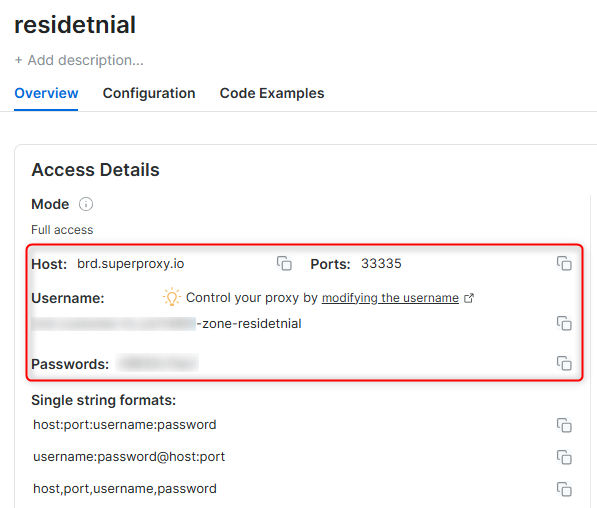
3. Click on the new zone name, and select the **Overview** tab.
4. In the overview tab, under **Access details** you can find the proxy access details, and copy them to clipboard on click.
5. You will need: Proxy Host, Proxy Port, Proxy Zone username and Proxy Zone password.
6. Click on the copy icons to copy the text to your clipboard and paste in your tool's proxy configuration.
### Access Details Section Example
 ### Residential proxy access
To access Bright Data's **Residential Proxies** you will need to either get verified by our compliance team, or install a certificate. [Read more...](https://docs.brightdata.com/proxy-networks/residential/network-access)
### Targeting search engines?
If you target a search engine like google, bing or yandex, you need a special Search Engine Results Page (**SERP**) proxy API. Use Bright Data SERP API to target search engines.
[Click here to read more about Bright Data SERP proxy API.](https://docs.brightdata.com/scraping-automation/serp-api/introduction)
### Correct setup of proxy test to avoid "PROXY ERROR"
In many tools you will see a "test proxy" function, which performs a conncectivity test to your proxy, and some add a geolocation test as well, to identify the location of the proxy.
To correctly test your proxy you should target those search queries to:
`https://geo.brdtest.com/welcome.txt` .
Some tools use popular search engines (like google.com) as a default test target. Bright Data will block those requests and you tool will show **proxy error** although your proxy is perfectly fine.
If your proxy test fails, this is probably the reason. Make sure that your test domain is not a search engine (this is done in the tool configuration, and not controlled by Bright Data).
## What is TexAu?
TexAu is a growth automation platform designed to help marketers and businesses scale lead generation, outreach, and online engagement. It automates actions across social networks and websites, allowing you to run workflows efficiently without manual intervention. When combined with Bright Data proxies, TexAu provides improved anonymity, geo-targeting capabilities, and reduced risk of IP bans.
Maintain a consistent IP throughout your automation session by using the `-session` parameter in your username. Bright Data proxies rotate IPs by default.\
[Learn more](https://docs.brightdata.com/proxy-networks/faqs#how-to-use-the-same-ip-for-an-extended-period-of-time-and-how-long-can-i-keep-it-long-session)
New users should begin with **ISP or Data Center proxies**, as residential proxies are incompatible with browser-based automation in Immediate-Access mode.
For **account management use cases**, assign a consistent static dedicated IP to each account. Dedicated ISP proxies are recommended.
***
## Why Use Bright Data With TexAu?
* **Enhanced Privacy**: Hide your real IP address while running automation tasks.
* **Geo-Targeted Access**: Collect location-specific data using country- or city-level proxies.
* **Improved Stability**: Reduce blocks and interruptions during long-running workflows.
* **Account Safety**: Isolate accounts with dedicated IPs to minimize risk.
***
## How to Integrate Bright Data With TexAu
Follow the steps below to configure Bright Data proxies in TexAu.
### Prerequisites
Before you begin, ensure you have:
* An active TexAu account
* An active Bright Data account
* A configured Bright Data proxy zone (ISP or Data Center recommended)
* Your Bright Data proxy credentials (host, port, username, password)
***
### Step 1. Log In to TexAu
1. Visit the [TexAu website](https://texau.com/) and sign in to your account.
2. From the dashboard, access your automation workspace.
***
### Step 2. Open Proxy Configuration Settings
1. From the dashboard, navigate to **Preferences** in the left-hand menu.
2. Select the **Proxies** tab.
3. Click **New Proxy** to add a new proxy configuration.
### Residential proxy access
To access Bright Data's **Residential Proxies** you will need to either get verified by our compliance team, or install a certificate. [Read more...](https://docs.brightdata.com/proxy-networks/residential/network-access)
### Targeting search engines?
If you target a search engine like google, bing or yandex, you need a special Search Engine Results Page (**SERP**) proxy API. Use Bright Data SERP API to target search engines.
[Click here to read more about Bright Data SERP proxy API.](https://docs.brightdata.com/scraping-automation/serp-api/introduction)
### Correct setup of proxy test to avoid "PROXY ERROR"
In many tools you will see a "test proxy" function, which performs a conncectivity test to your proxy, and some add a geolocation test as well, to identify the location of the proxy.
To correctly test your proxy you should target those search queries to:
`https://geo.brdtest.com/welcome.txt` .
Some tools use popular search engines (like google.com) as a default test target. Bright Data will block those requests and you tool will show **proxy error** although your proxy is perfectly fine.
If your proxy test fails, this is probably the reason. Make sure that your test domain is not a search engine (this is done in the tool configuration, and not controlled by Bright Data).
## What is TexAu?
TexAu is a growth automation platform designed to help marketers and businesses scale lead generation, outreach, and online engagement. It automates actions across social networks and websites, allowing you to run workflows efficiently without manual intervention. When combined with Bright Data proxies, TexAu provides improved anonymity, geo-targeting capabilities, and reduced risk of IP bans.
Maintain a consistent IP throughout your automation session by using the `-session` parameter in your username. Bright Data proxies rotate IPs by default.\
[Learn more](https://docs.brightdata.com/proxy-networks/faqs#how-to-use-the-same-ip-for-an-extended-period-of-time-and-how-long-can-i-keep-it-long-session)
New users should begin with **ISP or Data Center proxies**, as residential proxies are incompatible with browser-based automation in Immediate-Access mode.
For **account management use cases**, assign a consistent static dedicated IP to each account. Dedicated ISP proxies are recommended.
***
## Why Use Bright Data With TexAu?
* **Enhanced Privacy**: Hide your real IP address while running automation tasks.
* **Geo-Targeted Access**: Collect location-specific data using country- or city-level proxies.
* **Improved Stability**: Reduce blocks and interruptions during long-running workflows.
* **Account Safety**: Isolate accounts with dedicated IPs to minimize risk.
***
## How to Integrate Bright Data With TexAu
Follow the steps below to configure Bright Data proxies in TexAu.
### Prerequisites
Before you begin, ensure you have:
* An active TexAu account
* An active Bright Data account
* A configured Bright Data proxy zone (ISP or Data Center recommended)
* Your Bright Data proxy credentials (host, port, username, password)
***
### Step 1. Log In to TexAu
1. Visit the [TexAu website](https://texau.com/) and sign in to your account.
2. From the dashboard, access your automation workspace.
***
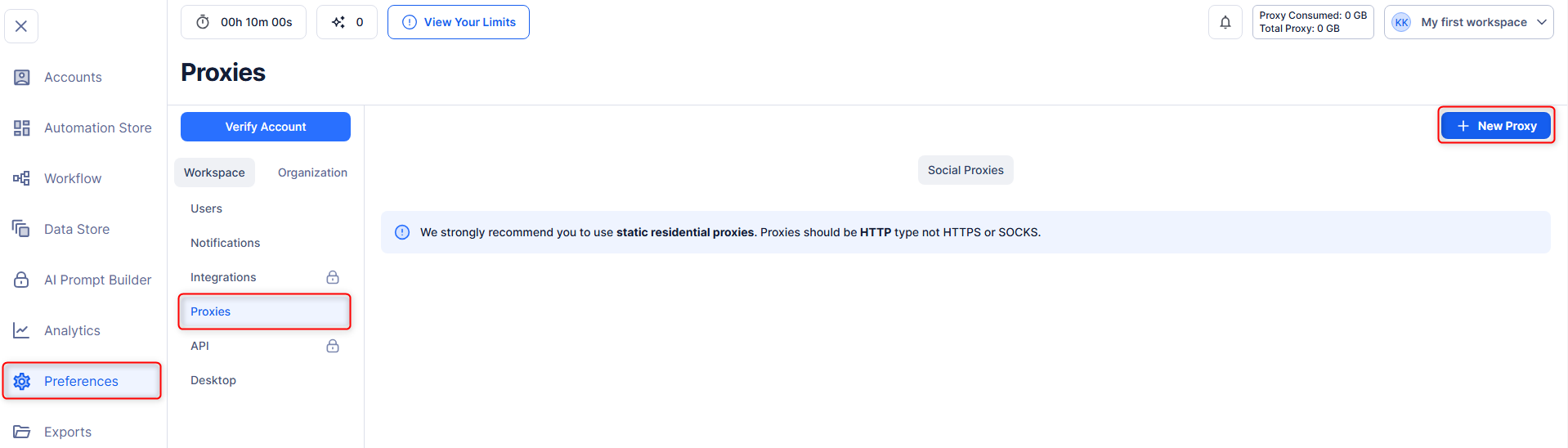
### Step 2. Open Proxy Configuration Settings
1. From the dashboard, navigate to **Preferences** in the left-hand menu.
2. Select the **Proxies** tab.
3. Click **New Proxy** to add a new proxy configuration.
 ***
### Step 3. Add Your Bright Data Proxy Details
Fill in the proxy details using the information from your Bright Data dashboard:
* **Host**: `brd.superproxy.io`
* **Port**: Use the port assigned to your proxy zone
* **Username**: Your Bright Data username\
*(Optionally append `-session-` to maintain a consistent IP)*
* **Password**: Your Bright Data password
After entering the details, click **Test Proxy** to verify the connection.
If you are using geo-targeted proxies, format your username as\
`your-username-country-XX` (for example, `your-username-country-US`)\
to target a specific country.
***
### Step 4. Save and Apply the Proxy
Once the proxy test is successful:
1. Click **Save** to store the proxy configuration.
2. Assign the proxy to your automation workflows or accounts as needed.
TexAu will now route all automation traffic through Bright Data proxies.
***
## Best Practices
* Use one proxy per account for account-based automation
* Avoid running too many automations concurrently on the same proxy
* Start with low execution limits and scale gradually
* Monitor TexAu logs for proxy-related errors
* Rotate sessions periodically for long-running workflows
***
## Conclusion
By integrating Bright Data with TexAu, you gain a secure, reliable, and scalable automation setup. This combination helps protect your identity, access geo-specific data, and maintain stable performance across all your growth and engagement workflows. With the technical setup complete, you can focus on driving results with confidence.
***
### Step 3. Add Your Bright Data Proxy Details
Fill in the proxy details using the information from your Bright Data dashboard:
* **Host**: `brd.superproxy.io`
* **Port**: Use the port assigned to your proxy zone
* **Username**: Your Bright Data username\
*(Optionally append `-session-` to maintain a consistent IP)*
* **Password**: Your Bright Data password
After entering the details, click **Test Proxy** to verify the connection.
If you are using geo-targeted proxies, format your username as\
`your-username-country-XX` (for example, `your-username-country-US`)\
to target a specific country.
***
### Step 4. Save and Apply the Proxy
Once the proxy test is successful:
1. Click **Save** to store the proxy configuration.
2. Assign the proxy to your automation workflows or accounts as needed.
TexAu will now route all automation traffic through Bright Data proxies.
***
## Best Practices
* Use one proxy per account for account-based automation
* Avoid running too many automations concurrently on the same proxy
* Start with low execution limits and scale gradually
* Monitor TexAu logs for proxy-related errors
* Rotate sessions periodically for long-running workflows
***
## Conclusion
By integrating Bright Data with TexAu, you gain a secure, reliable, and scalable automation setup. This combination helps protect your identity, access geo-specific data, and maintain stable performance across all your growth and engagement workflows. With the technical setup complete, you can focus on driving results with confidence.