> ## Documentation Index
> Fetch the complete documentation index at: https://docs.brightdata.com/llms.txt
> Use this file to discover all available pages before exploring further.
# How to scrape data in bulk with async requests
> Trigger bulk Scraper API jobs with the async /trigger endpoint, monitor snapshot progress and download results. Works with every Bright Data scraper.
Use the asynchronous `/trigger` endpoint to scrape more than 20 URLs in one job, run discovery collections or deliver results to a webhook or cloud storage. The workflow is the same for every Bright Data scraper: trigger, poll, download. Only the `dataset_id` changes.
Not sure whether to use sync or async? Read [Understanding sync vs. async requests](/products/scrapers/concepts/sync-vs-async).
## Prerequisites
* A [Bright Data account](https://brightdata.com/cp/start) with an active API key
* The `dataset_id` for the scraper you want to run, from the table below
* Familiarity with the synchronous request flow for your scraper, for example [Send your first LinkedIn API request](/products/scrapers/linkedin/send-first-request)
## Which dataset ID do I use?
Every scraper has its own `dataset_id`. The examples on this page use LinkedIn profiles. Substitute the ID for the platform you are scraping.
| Scraper | Primary `dataset_id` | Endpoint reference |
| :---------- | :---------------------- | :----------------------------------------------------------------- |
| LinkedIn | `gd_l1viktl72bvl7bjuj0` | [LinkedIn Scraper API](/products/scrapers/linkedin/introduction) |
| Instagram | `gd_l1vikfch901nx3by4` | [Instagram Scraper API](/products/scrapers/instagram/introduction) |
| TikTok | `gd_l1villgoiiidt09ci` | [TikTok Scraper API](/products/scrapers/tiktok/introduction) |
| Amazon | `gd_l7q7dkf244hwjntr0` | [Amazon Scraper API](/products/scrapers/amazon/introduction) |
| ChatGPT | `gd_m7aof0k82r803d5bjm` | [ChatGPT Scraper API](/products/scrapers/chatgpt/introduction) |
| Facebook | `gd_mf0urb782734ik94dz` | [Facebook Scraper API](/products/scrapers/facebook/introduction) |
| X (Twitter) | `gd_lwxmeb2u1cniijd7t4` | [X (Twitter) Scraper API](/products/scrapers/twitter/introduction) |
| YouTube | `gd_lk538t2k2p1k3oos71` | [YouTube Scraper API](/products/scrapers/youtube/introduction) |
| Reddit | `gd_lvz8ah06191smkebj4` | [Reddit Scraper API](/products/scrapers/reddit/introduction) |
| Google | `gd_m8ebnr0q2qlklc02fz` | [Google Scraper API](/products/scrapers/google/introduction) |
Each scraper exposes several endpoints, for example Amazon has separate IDs for products, reviews and sellers. The full list for each platform is on its introduction page, and every ID is browsable in the [Scrapers library](/products/scrapers/overview).
## Step 1: Trigger the collection
Send a `POST` request to the `/trigger` endpoint with your input URLs:
```bash cURL theme={null}
curl -X POST \
"https://api.brightdata.com/datasets/v3/trigger?dataset_id=gd_l1viktl72bvl7bjuj0&format=json" \
-H "Authorization: Bearer YOUR_API_KEY" \
-H "Content-Type: application/json" \
-d '[
{"url": "https://www.linkedin.com/in/satyanadella"},
{"url": "https://www.linkedin.com/in/jeffweiner08"},
{"url": "https://www.linkedin.com/in/rbranson"},
{"url": "https://www.linkedin.com/in/sherylsandberg"},
{"url": "https://www.linkedin.com/in/raboram"}
]'
```
```python Python theme={null}
import requests
response = requests.post(
"https://api.brightdata.com/datasets/v3/trigger",
params={
"dataset_id": "gd_l1viktl72bvl7bjuj0",
"format": "json",
},
headers={
"Authorization": "Bearer YOUR_API_KEY",
"Content-Type": "application/json",
},
json=[
{"url": "https://www.linkedin.com/in/satyanadella"},
{"url": "https://www.linkedin.com/in/jeffweiner08"},
{"url": "https://www.linkedin.com/in/rbranson"},
{"url": "https://www.linkedin.com/in/sherylsandberg"},
{"url": "https://www.linkedin.com/in/raboram"},
],
)
snapshot = response.json()
print("Snapshot ID:", snapshot["snapshot_id"])
```
```javascript Node.js theme={null}
const response = await fetch(
"https://api.brightdata.com/datasets/v3/trigger?dataset_id=gd_l1viktl72bvl7bjuj0&format=json",
{
method: "POST",
headers: {
"Authorization": "Bearer YOUR_API_KEY",
"Content-Type": "application/json",
},
body: JSON.stringify([
{ url: "https://www.linkedin.com/in/satyanadella" },
{ url: "https://www.linkedin.com/in/jeffweiner08" },
{ url: "https://www.linkedin.com/in/rbranson" },
{ url: "https://www.linkedin.com/in/sherylsandberg" },
{ url: "https://www.linkedin.com/in/raboram" },
]),
}
);
const snapshot = await response.json();
console.log("Snapshot ID:", snapshot.snapshot_id);
```
You should see a `200` response with a `snapshot_id`:
```json theme={null}
{
"snapshot_id": "s_m1a2b3c4d5e6f7g8h"
}
```
Save this ID. You need it to check progress and download results.
## Step 2: Monitor progress
Poll the snapshot status until it shows `ready`. This takes 30 seconds to several minutes depending on the number of URLs.
```bash cURL theme={null}
curl "https://api.brightdata.com/datasets/v3/progress/s_m1a2b3c4d5e6f7g8h" \
-H "Authorization: Bearer YOUR_API_KEY"
```
```python Python theme={null}
import time
snapshot_id = "s_m1a2b3c4d5e6f7g8h"
while True:
status_response = requests.get(
f"https://api.brightdata.com/datasets/v3/progress/{snapshot_id}",
headers={"Authorization": "Bearer YOUR_API_KEY"},
)
status = status_response.json().get("status")
print(f"Status: {status}")
if status == "ready":
break
time.sleep(10)
```
```javascript Node.js theme={null}
const snapshotId = "s_m1a2b3c4d5e6f7g8h";
let status = "collecting";
while (status !== "ready") {
const statusResponse = await fetch(
`https://api.brightdata.com/datasets/v3/progress/${snapshotId}`,
{ headers: { "Authorization": "Bearer YOUR_API_KEY" } }
);
const statusData = await statusResponse.json();
status = statusData.status;
console.log("Status:", status);
if (status !== "ready") {
await new Promise((r) => setTimeout(r, 10000));
}
}
```
Status values:
| Status | Meaning |
| :----------- | :---------------------------------- |
| `collecting` | Scraping is in progress |
| `digesting` | Data is being processed |
| `ready` | Results are available for download |
| `failed` | The collection encountered an error |
## Step 3: Download results
Once the status is `ready`, download the scraped data:
```bash cURL theme={null}
curl "https://api.brightdata.com/datasets/v3/snapshot/s_m1a2b3c4d5e6f7g8h?format=json" \
-H "Authorization: Bearer YOUR_API_KEY" \
-o results.json
```
```python Python theme={null}
results_response = requests.get(
f"https://api.brightdata.com/datasets/v3/snapshot/{snapshot_id}",
params={"format": "json"},
headers={"Authorization": "Bearer YOUR_API_KEY"},
)
results = results_response.json()
print(f"Collected {len(results)} records")
```
```javascript Node.js theme={null}
const resultsResponse = await fetch(
`https://api.brightdata.com/datasets/v3/snapshot/${snapshotId}?format=json`,
{ headers: { "Authorization": "Bearer YOUR_API_KEY" } }
);
const results = await resultsResponse.json();
console.log(`Collected ${results.length} records`);
```
You have triggered, monitored and downloaded a batch scraping job.
## Skip polling with webhooks
If you don't want to poll for status, add an `endpoint` parameter to receive results automatically:
```bash theme={null}
curl -X POST \
"https://api.brightdata.com/datasets/v3/trigger?dataset_id=gd_l1viktl72bvl7bjuj0&format=json&endpoint=https://your-server.com/webhook" \
-H "Authorization: Bearer YOUR_API_KEY" \
-H "Content-Type: application/json" \
-d '[{"url": "https://www.linkedin.com/in/satyanadella"}]'
```
See [Deliver results to webhooks and cloud storage](/products/scrapers/scrapers-library/data-delivery) for the full setup.
## Limits and constraints
| Constraint | Value |
| :-------------------- | :--------- |
| Max input file size | 1 GB |
| Max concurrent jobs | 5000 |
| Webhook delivery size | Up to 1 GB |
| API download size | Up to 5 GB |
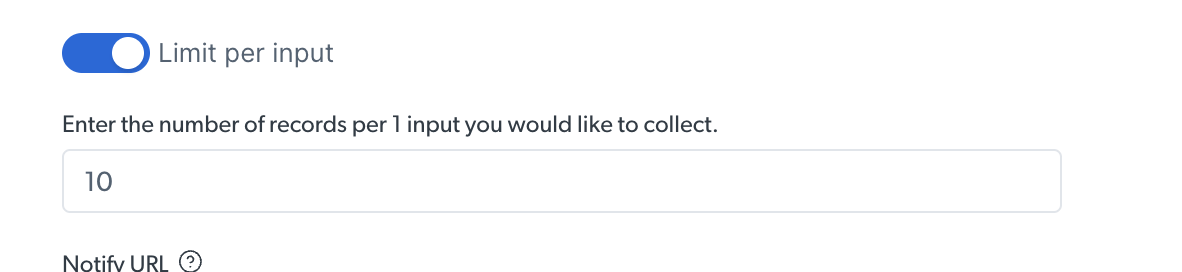
### How to limit records per input
When running a discovery collection, you can cap the number of results returned per input. Set this in the scraper's configuration in the Control Panel.
 With a limit of 10, each input returns at most 10 records.
 ## Troubleshooting
You've exceeded the concurrent request limit. Reduce the number of parallel requests or combine inputs into fewer, larger batches. Each batch can include up to 1 GB of input data.
Check that all input URLs are valid for the scraper you are calling. A LinkedIn URL sent to the Amazon `dataset_id` fails. Review the error details in the snapshot response or in the [Logs tab](https://brightdata.com/cp/scrapers) of your Bright Data dashboard.
Some URLs may fail individually while the overall job succeeds. Check the snapshot response for any `errors` field. Retry failed URLs in a separate request.
## FAQ
### How many URLs can I send in one async request?
Async requests accept up to 1 GB of input data per job, which is tens of thousands of URLs. Use the synchronous endpoint only when you have 20 URLs or fewer and want the results in the same response.
### Do I need a different dataset ID for each platform?
Yes. The `dataset_id` query parameter selects both the platform and the endpoint, for example Amazon products versus Amazon reviews. The table above lists the primary ID per platform, and each platform's introduction page lists the rest.
### How long does a snapshot stay available?
Snapshots are downloadable for 30 days after the job completes. Deliver results to a webhook or cloud storage if you need them retained longer.
## Related
* [Deliver results to webhooks and cloud storage](/products/scrapers/scrapers-library/data-delivery)
* [Understanding sync vs. async requests](/products/scrapers/concepts/sync-vs-async)
* [Error codes by endpoint](/products/scrapers/scrapers-library/error-list-by-endpoint)
## Troubleshooting
You've exceeded the concurrent request limit. Reduce the number of parallel requests or combine inputs into fewer, larger batches. Each batch can include up to 1 GB of input data.
Check that all input URLs are valid for the scraper you are calling. A LinkedIn URL sent to the Amazon `dataset_id` fails. Review the error details in the snapshot response or in the [Logs tab](https://brightdata.com/cp/scrapers) of your Bright Data dashboard.
Some URLs may fail individually while the overall job succeeds. Check the snapshot response for any `errors` field. Retry failed URLs in a separate request.
## FAQ
### How many URLs can I send in one async request?
Async requests accept up to 1 GB of input data per job, which is tens of thousands of URLs. Use the synchronous endpoint only when you have 20 URLs or fewer and want the results in the same response.
### Do I need a different dataset ID for each platform?
Yes. The `dataset_id` query parameter selects both the platform and the endpoint, for example Amazon products versus Amazon reviews. The table above lists the primary ID per platform, and each platform's introduction page lists the rest.
### How long does a snapshot stay available?
Snapshots are downloadable for 30 days after the job completes. Deliver results to a webhook or cloud storage if you need them retained longer.
## Related
* [Deliver results to webhooks and cloud storage](/products/scrapers/scrapers-library/data-delivery)
* [Understanding sync vs. async requests](/products/scrapers/concepts/sync-vs-async)
* [Error codes by endpoint](/products/scrapers/scrapers-library/error-list-by-endpoint)