> ## Documentation Index
> Fetch the complete documentation index at: https://docs.brightdata.com/llms.txt
> Use this file to discover all available pages before exploring further.
# Success rate alerts for scrapers
> Configure per-scraper email alerts in the Bright Data Control Panel for any scraper when a Web Scraper API success rate drops or recovers.
## Why this is good (and why it matters)
* Faster time-to-detection: Instead of discovering issues after a workflow breaks (or after opening a ticket), you get notified as soon as SR degrades.
* More production-ready monitoring: Your team can react quickly to failures or partial degradation and reduce downtime for data pipelines.
* Clarity instead of a “black box”: SR changes are surfaced proactively, so you don't need to constantly check dashboards to know if a scraper is struggling.
* Automatic recovery signal: You get a second email when SR returns to normal - useful for closing incidents and restoring paused jobs.
## How to set up Success Rate (SR) email alerts for a Web Scraper API scraper
This guide shows you how to configure email notifications in the Control Panel so your team gets alerted when a scraper's SR drops below a threshold - and when it recovers.
## What SR email alerts do
Once enabled per scraper, SR alerts send:
* Drop alert: An email when the scraper's Success Rate falls below the threshold you set (example: below 25%).
* Recovery alert: A second email when the scraper's Success Rate rises back above that same threshold.
You can select one or multiple recipients from the email addresses available in your Control Panel settings.
**Default behavior**: By default, alerts are configured to notify only if the scraper is in outage. You can manually increase the threshold from the scraper page to detect issues earlier (before a full outage).
## Configure SR alerts (per scraper)
1. Open the Control Panel and go to Scrapers ([https://brightdata.com/cp/scrapers](https://brightdata.com/cp/scrapers)).
2. Select the scraper you want to monitor.
3. In the scraper page, find Success Rate (SR) email alerts (notification settings).
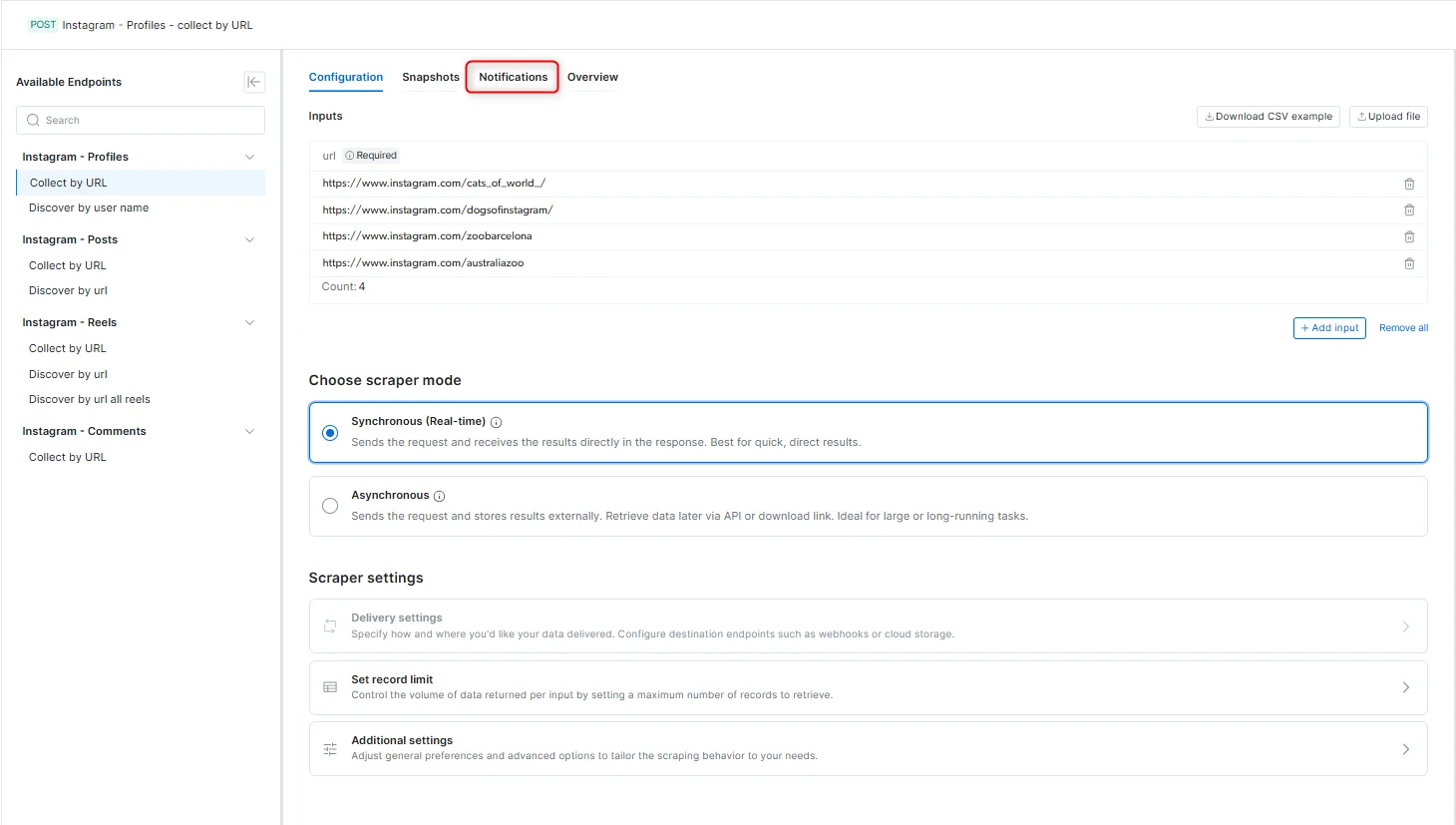 4. Enable the SR email alerts for this scraper.
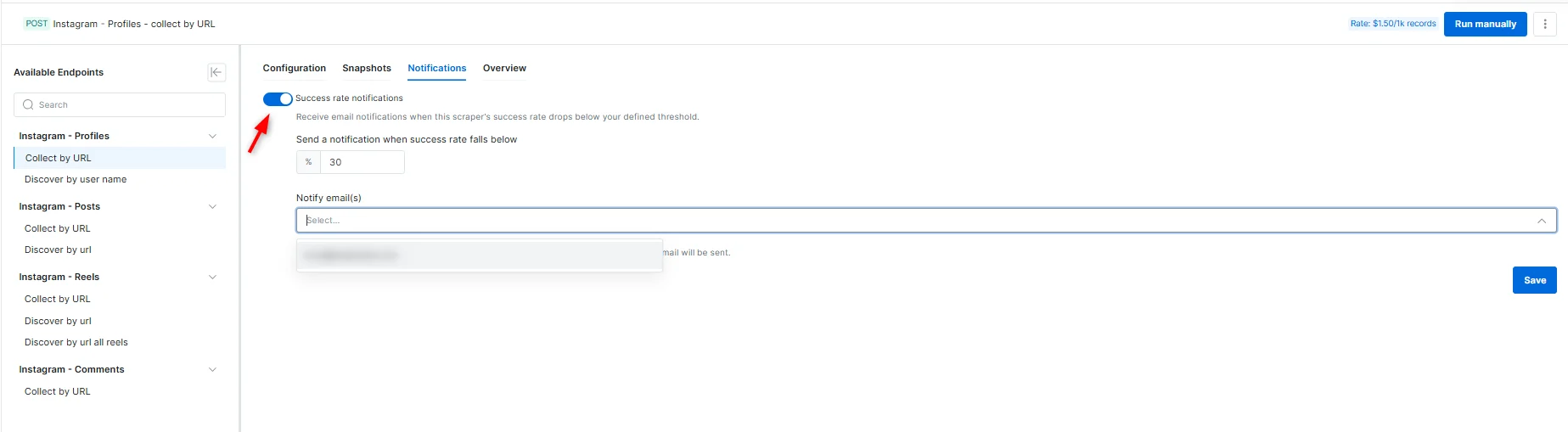 5. Set the SR threshold (example: 25%).
6. Select recipients (one or multiple email addresses).
7. Save your changes.
## Troubleshooting
| Issue | What it usually means | How to fix |
| :------------------------------- | :------------------------------------------------------------------------- | :----------------------------------------------------------------------------------------------- |
| No recipients to choose from | No emails are defined/available in Control Panel Settings | Add/verify email addresses in Control Panel Settings, then return to the scraper and select them |
| Not receiving alerts | Alerts aren't enabled for that scraper, or the threshold isn't appropriate | Re-check the scraper's SR alerts toggle, threshold value, and click Save |
| You only get outage-level alerts | Threshold is still at the default “outage only” behavior | Increase the threshold manually on the scraper page |
5. Set the SR threshold (example: 25%).
6. Select recipients (one or multiple email addresses).
7. Save your changes.
## Troubleshooting
| Issue | What it usually means | How to fix |
| :------------------------------- | :------------------------------------------------------------------------- | :----------------------------------------------------------------------------------------------- |
| No recipients to choose from | No emails are defined/available in Control Panel Settings | Add/verify email addresses in Control Panel Settings, then return to the scraper and select them |
| Not receiving alerts | Alerts aren't enabled for that scraper, or the threshold isn't appropriate | Re-check the scraper's SR alerts toggle, threshold value, and click Save |
| You only get outage-level alerts | Threshold is still at the default “outage only” behavior | Increase the threshold manually on the scraper page |