> ## Documentation Index
> Fetch the complete documentation index at: https://docs.brightdata.com/llms.txt
> Use this file to discover all available pages before exploring further.
# Bright Data's Asset Shield
> Protect your domain with Bright Data Asset Shield in 4 steps: monitor traffic, set rules and receive alerts to secure your online assets at scale.
Asset shield product provides data about the incoming brightdata traffic to the customers' domain, in order to:
* Successfully split organic and proxy traffic to their domain
* Monitor specific endpoints to ensure forbidden endpoints are not accessed
* Define rate limit for site paths/specific patterns inside the results
* Discover trends according to what people are scraping from my site
## Asset shield features
To use Asset Shield features, the customer will need to add a domain and verify that he owns it.
### Add a domain
* Login to your account and navigate to the Asset Shield page.
* Add a new domain
* If you don't have a domain yet, click the “Add domain” button
* If you do have a domain, click on the domain dropdown and select “Add domain” option
* Follow the instructions in the form
* Enter your domain
* Copy record into the DNS configuration of your domain
* Click verify
DNS changes may take some time to apply. If we can't find the record immediately, wait a day and try to verify again.
### How to monitor your data
The Data Monitor feature allows customers to view the traffic volume of other Bright Data's customers to their domain for the chosen timeframe, monitor specific endpoints in their website based on their path or a custom pattern, and get alerts when the amount of requests to these endpoints cross the threshold they defined.
On the Data Monitor page, you can access a chart that visualizes all incoming proxy traffic to your domain. This chart offers filtering options based on IP type (desktop/mobile), Proxy IP country, and crawler country (request origin).
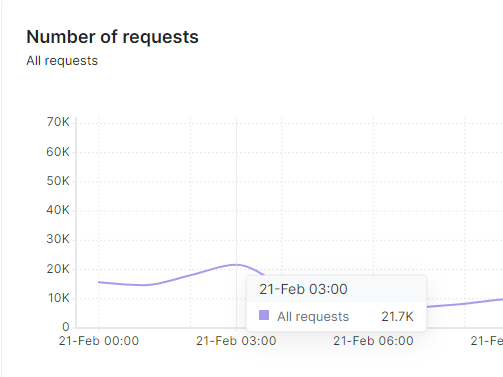
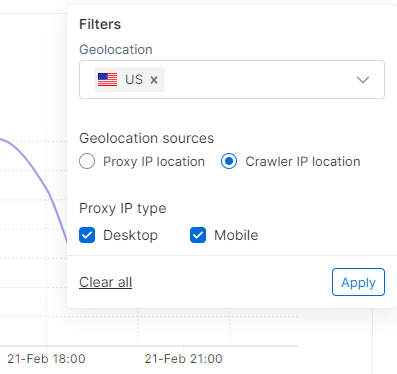 Below the chart, you'll find the rules table for further review.
### Adding and using rules
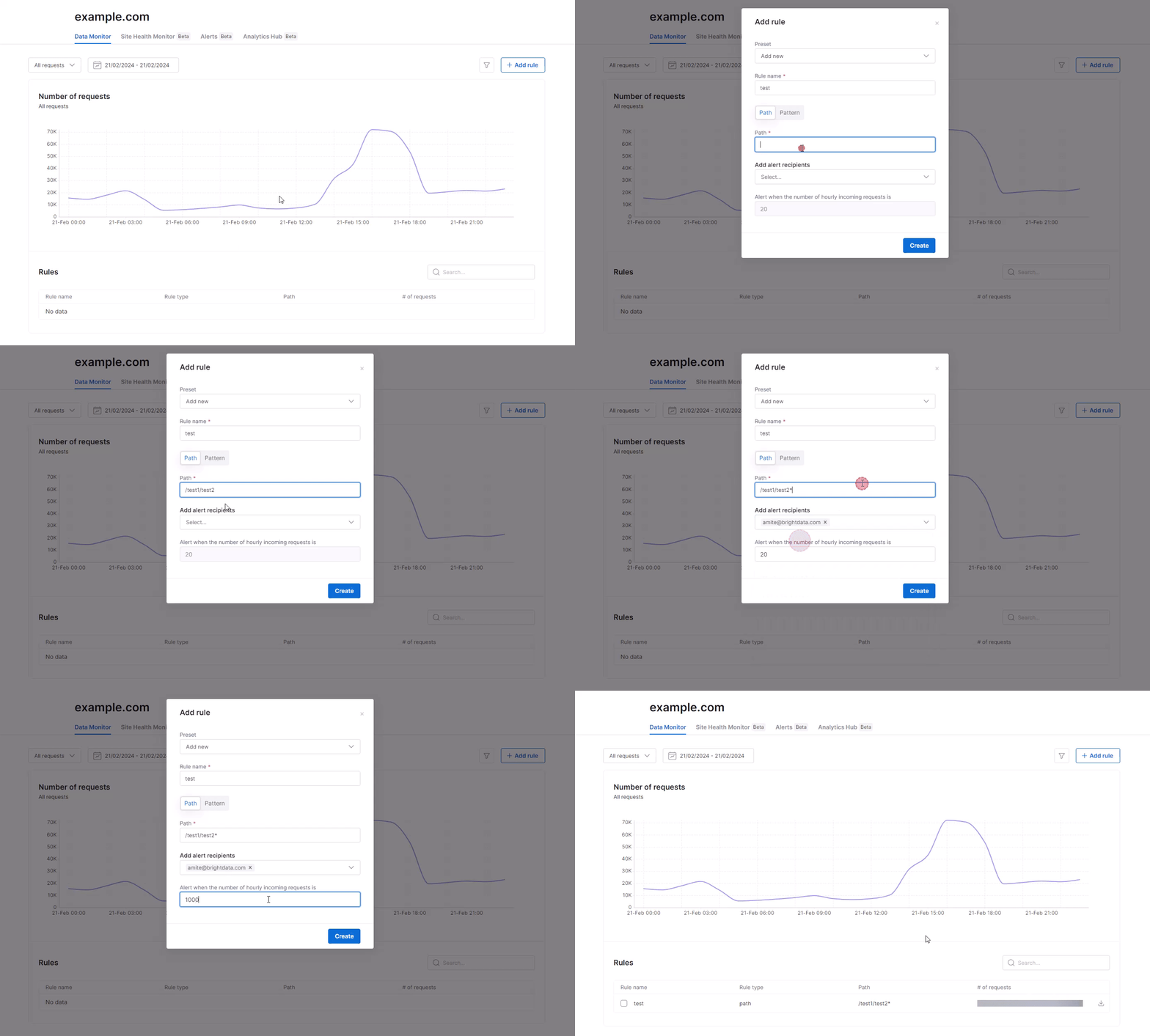
Asset Shield offers customers the ability to establish rules for specific paths or patterns within their own domain. Once a rule is set up, a new entry is created in the table, displaying the number of requests to the specified path or pattern. Customers can also set a threshold for hourly requests, triggering an alert when exceeded.
To add rules:
Login and navigate to the Asset Shield page.
If you don't have any domains, follow the "How to Add a Domain" guide first.
* Click "Manage" next to Data Monitor.
* Click on "Add Rule."
* Select "Add New" under the preset options.
* Choose between a path rule or a pattern rule.
Enter the desired path using regex.
Example: `/path1/path2/*` will track all requests to any path starting with `/path1/path2/`.
Specify a pattern or content to track using regex.
Example: entering "electronics" will track requests containing the word "electronics."
* Add email addresses of designated users to receive alerts when the hourly request amount exceeds a custom threshold.
* Choose the threshold value for the alert.
Below the chart, you'll find the rules table for further review.
### Adding and using rules
Asset Shield offers customers the ability to establish rules for specific paths or patterns within their own domain. Once a rule is set up, a new entry is created in the table, displaying the number of requests to the specified path or pattern. Customers can also set a threshold for hourly requests, triggering an alert when exceeded.
To add rules:
Login and navigate to the Asset Shield page.
If you don't have any domains, follow the "How to Add a Domain" guide first.
* Click "Manage" next to Data Monitor.
* Click on "Add Rule."
* Select "Add New" under the preset options.
* Choose between a path rule or a pattern rule.
Enter the desired path using regex.
Example: `/path1/path2/*` will track all requests to any path starting with `/path1/path2/`.
Specify a pattern or content to track using regex.
Example: entering "electronics" will track requests containing the word "electronics."
* Add email addresses of designated users to receive alerts when the hourly request amount exceeds a custom threshold.
* Choose the threshold value for the alert.
 ## Asset Shield Billing
Asset Shield's pricing is based on the bandwidth to the selected domain, starting at \$0.2 per gigabyte with a minimum monthly commitment of \$10,000. This commitment is separate from any other monthly commitments the account may have.
For larger packages with reduced bandwidth rates, please get in touch with your account manager for further details.
## Asset Shield Billing
Asset Shield's pricing is based on the bandwidth to the selected domain, starting at \$0.2 per gigabyte with a minimum monthly commitment of \$10,000. This commitment is separate from any other monthly commitments the account may have.
For larger packages with reduced bandwidth rates, please get in touch with your account manager for further details.