

Prerequisites
- A Bright Data account with at least one scraper you run in production.
- Recipient email addresses added in the Control Panel settings. The alert form only offers addresses that already exist there.
How to turn on alerts for a scraper
- Open Scrapers in the Control Panel.
- Select the scraper you want to monitor.
-
On the scraper’s page, open the notification settings and find Success rate email alerts.
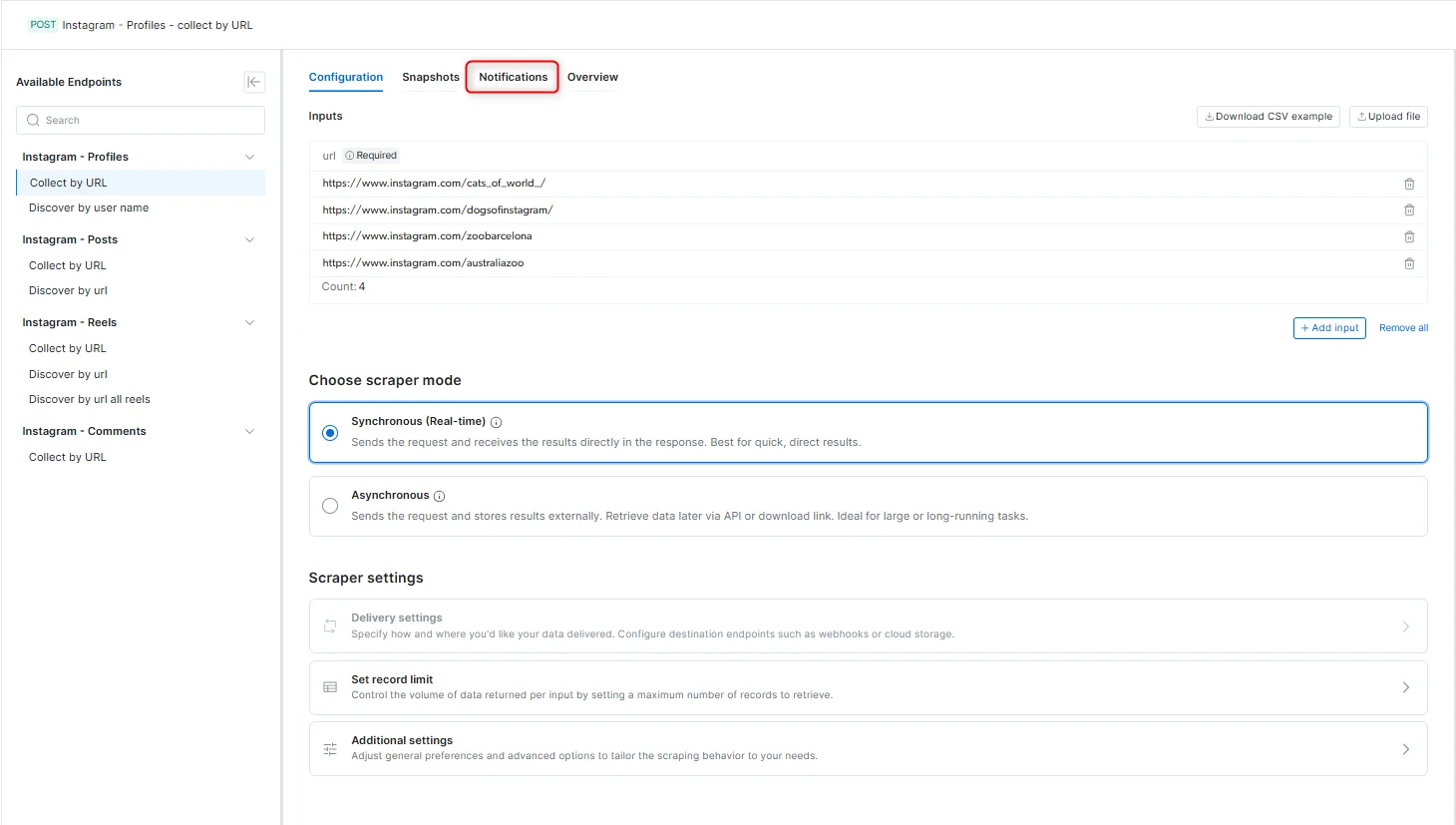
-
Enable the alerts for this scraper.
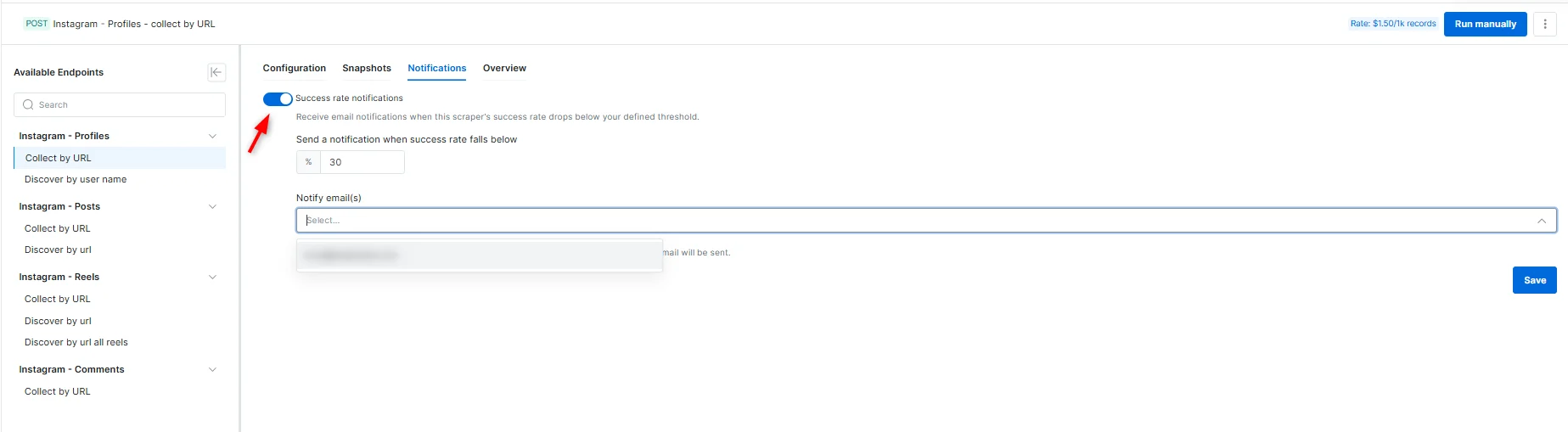
- Set the threshold, for example 25 percent.
- Select one or more recipients.
- Save.
What the alerts send
Once enabled, a scraper sends two kinds of email:- Drop alert: the success rate fell below the threshold you set.
- Recovery alert: the success rate rose back above that same threshold. Use it to close an incident and resume paused jobs.
By default, alerts fire only when the scraper is in outage. Raise the threshold on the scraper’s page to hear about partial degradation before a full outage.
GET /datasets/v3/progress/{snapshot_id} for each job and count failures yourself.
Troubleshooting
Related
Async requests
Trigger, monitor and download a batch job, with a troubleshooting section.
Error codes
What each endpoint returns when a request or a job fails.