

The Self-Healing tool is manual: you write the prompt and review the diff. To let Bright Data Scraper Studio fix a scraper on its own when its success rate drops or a supported error occurs, configure Auto Self-Healing on the scraper.
Prerequisites
- An active Bright Data account
- An existing scraper in Bright Data Scraper Studio (saved in development mode)
- Access to the Scraper Studio IDE
How do I fix a scraper with the Self-Healing tool?
1
Open the Self-Healing tool
In the Bright Data Scraper Studio IDE, open the scraper you want to fix and locate the Self-Healing tool panel.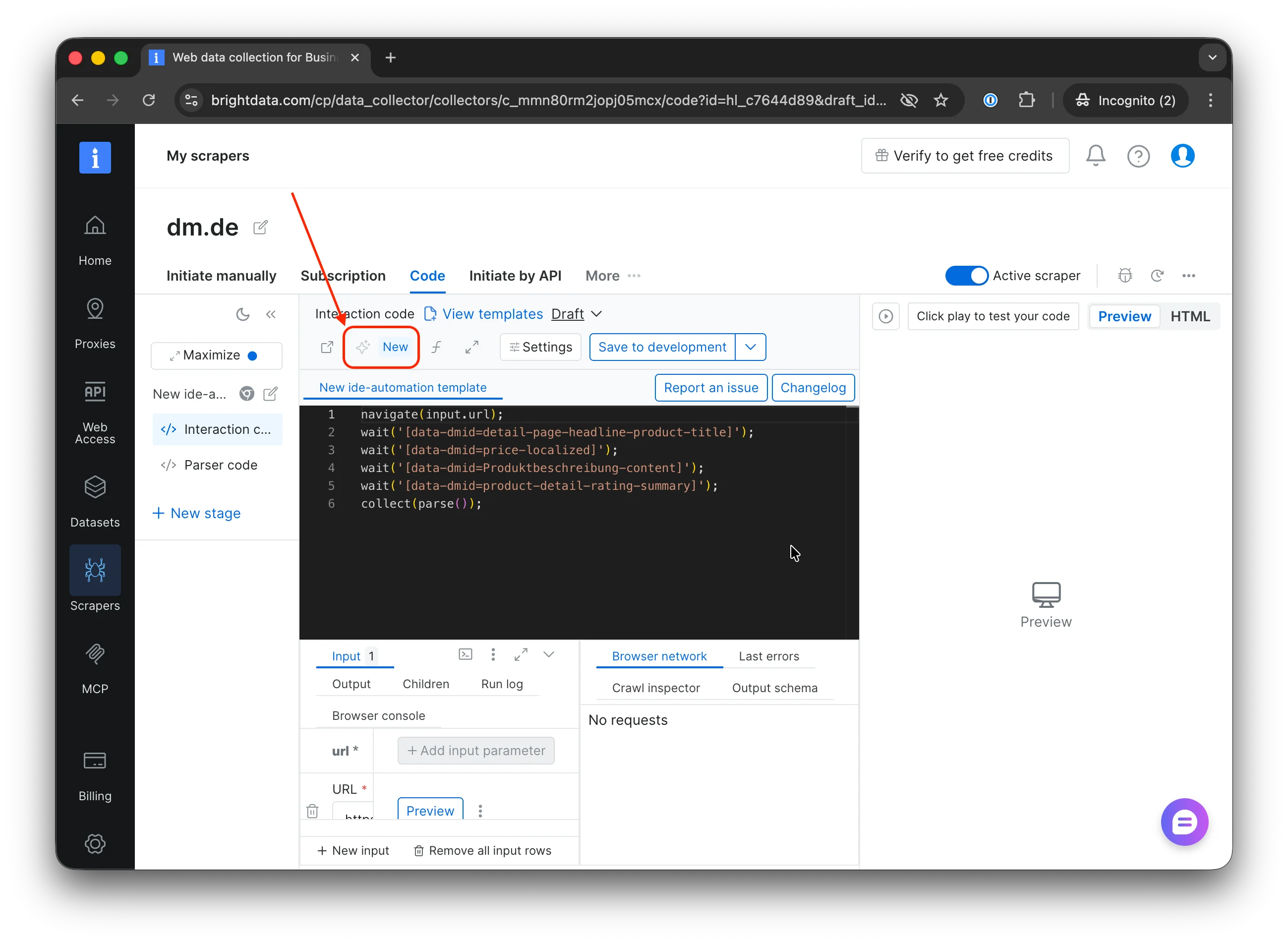
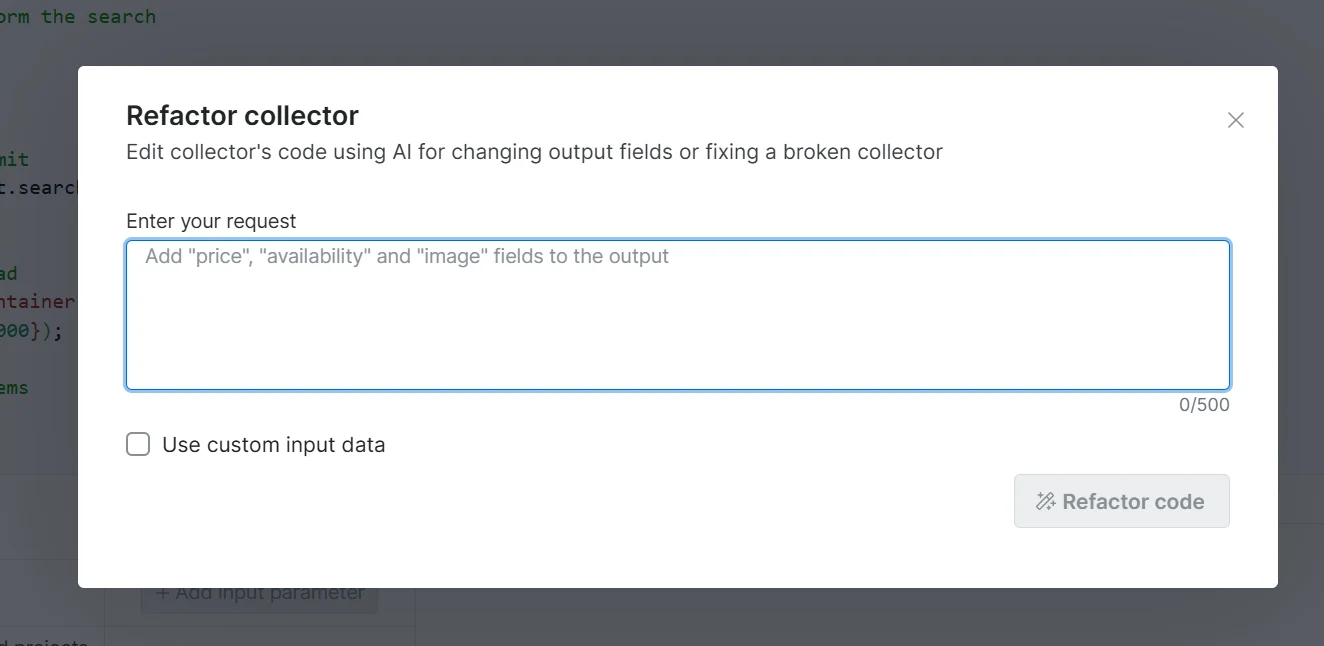
Expected result: a text input field appears, ready to accept your instruction.
2
Describe the fix or change you need
Type your request in plain language. Be specific about what is broken and which fields are affected.
Example prompts
Expected result: the AI processes your prompt and produces a code diff in the editor.
Refactoring can take up to 15 minutes. You do not need to stay on the page: Bright Data sends an email when the diff is ready, and you can review it at your convenience.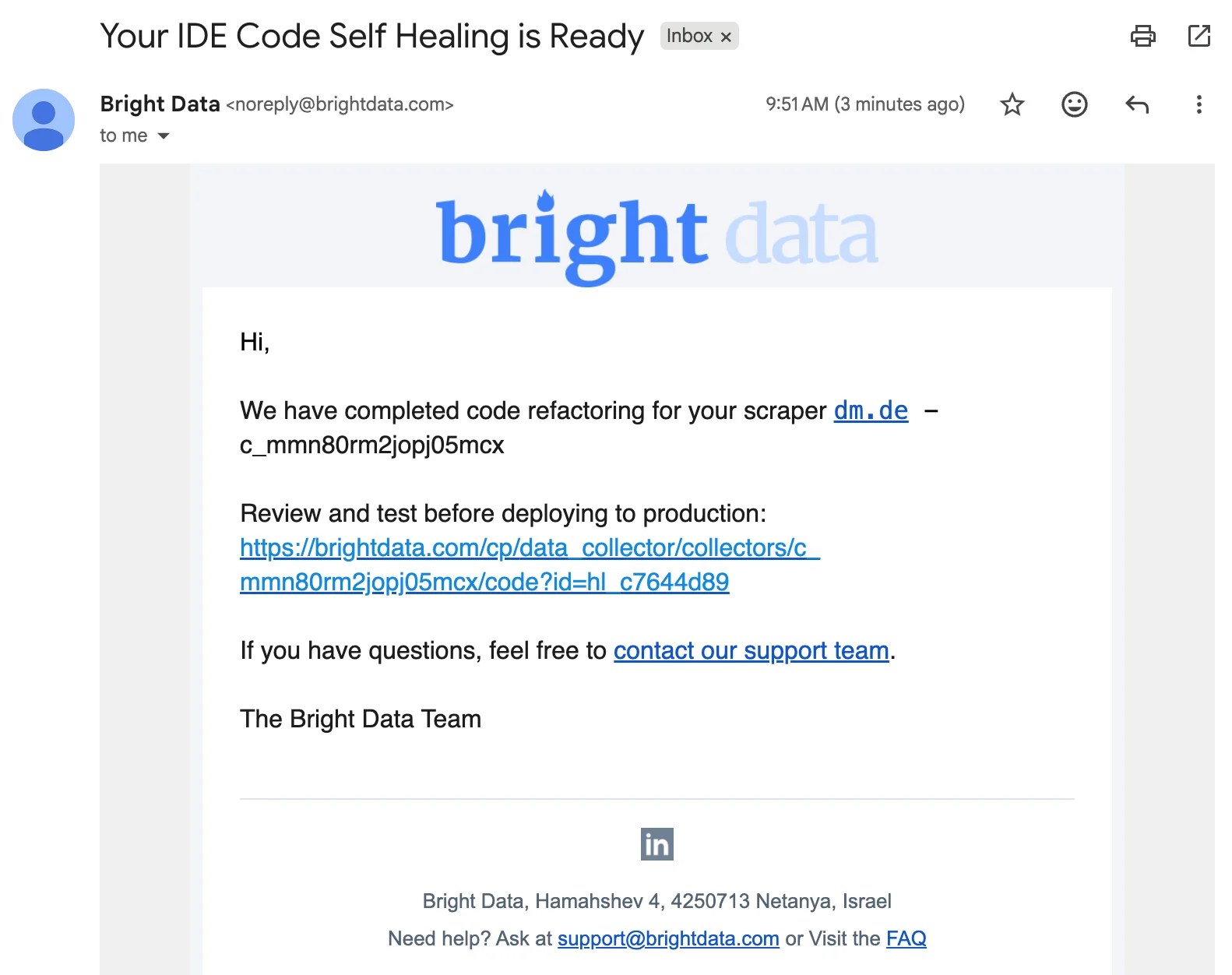
3
Review the proposed changes
Examine the AI-generated diff in the code template. Verify it matches your intent before accepting.
- Accept: saves the changes to a draft
- Decline: discards the suggestion; your original code remains unchanged
Expected result: if accepted, the editor shows the updated code and saves it to the draft.
4
Run a preview
After accepting, run a preview to confirm the scraper returns the expected data.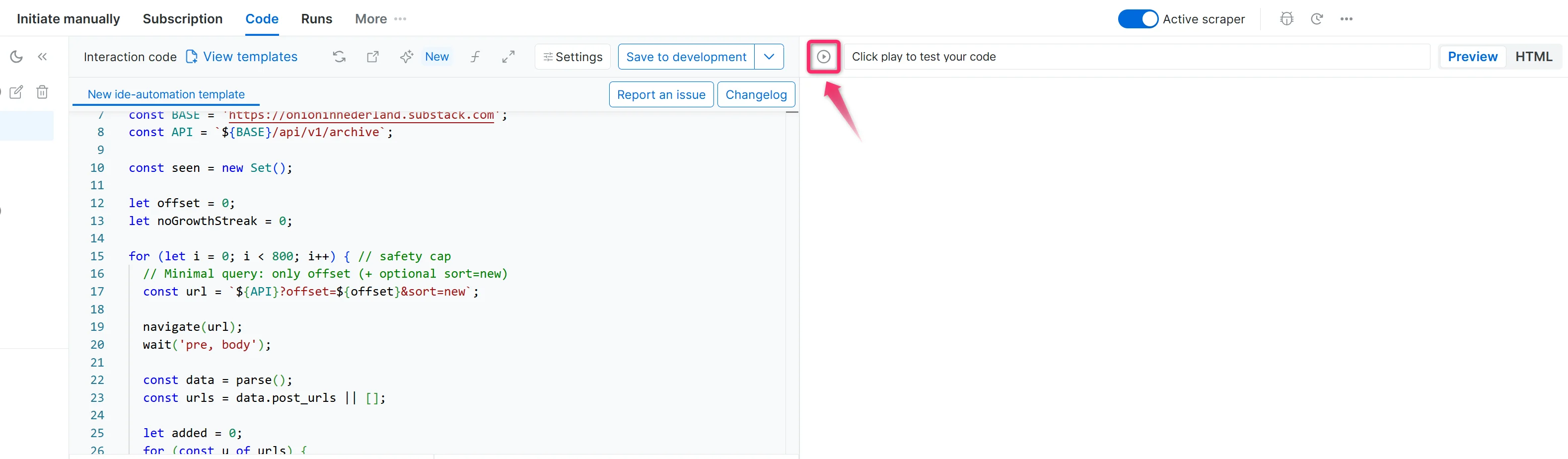
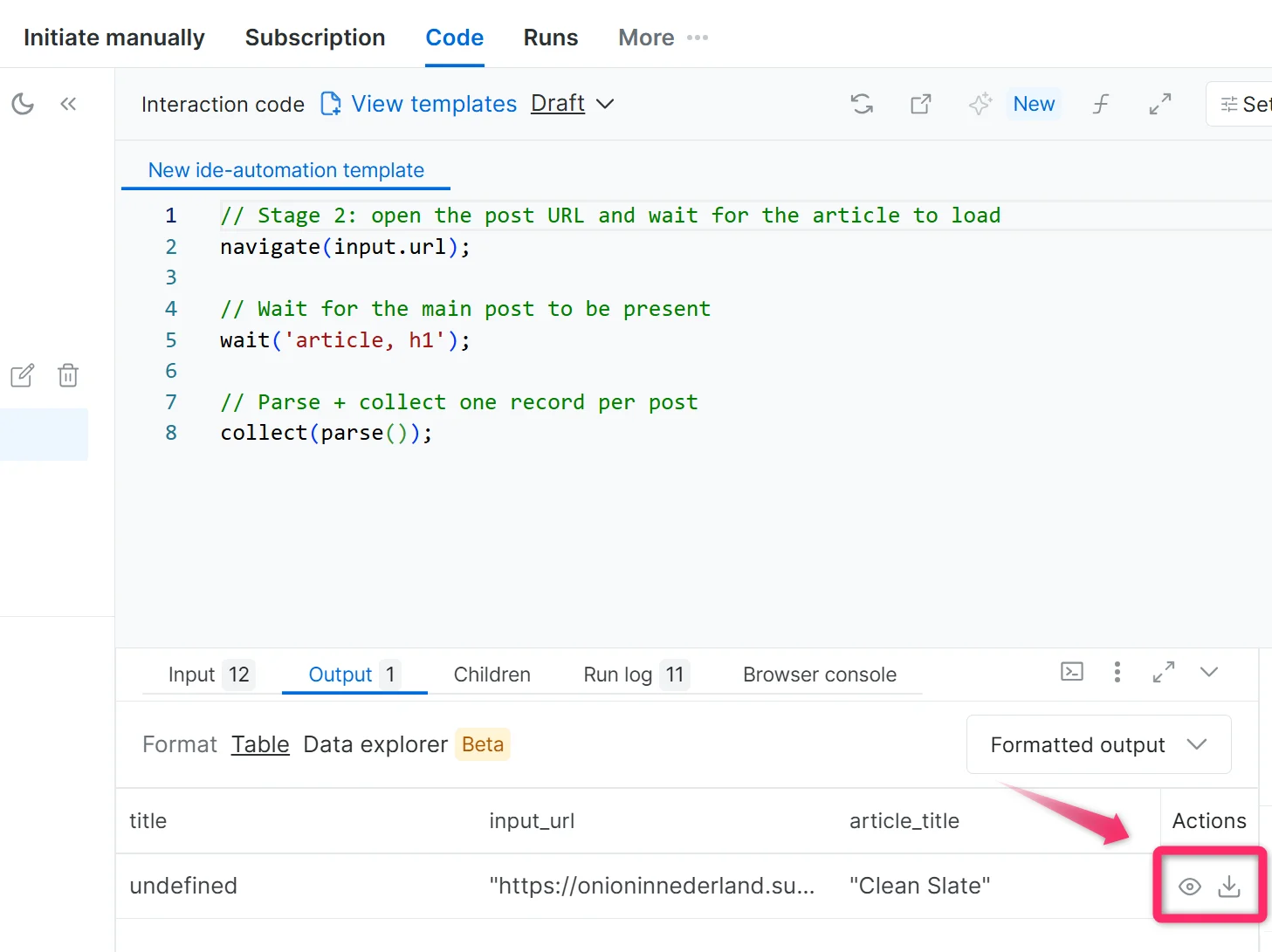
Expected result: the output file contains the new or fixed fields with valid, non-undefined values.
5
Save to production
Once the preview looks correct, save the scraper to production.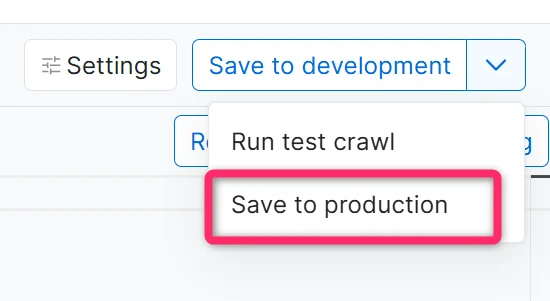
If you added or renamed fields, Bright Data Scraper Studio prompts you to update the output schema. Click Update Schema, then Save to Production.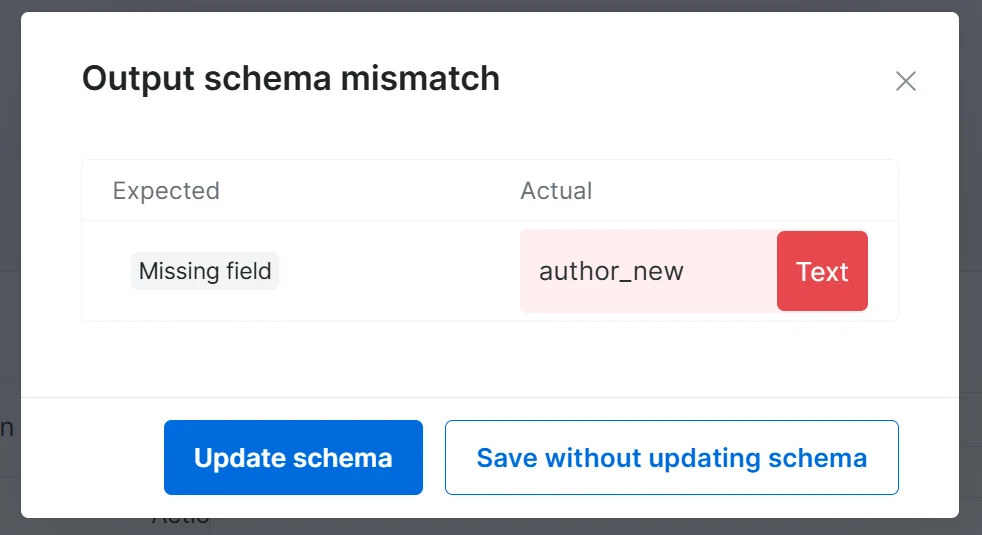
Expected result: the refactored scraper is live and collecting data with the new configuration.
Troubleshooting
Frequently asked questions
Does the Self-Healing tool work on every scraper?
Does the Self-Healing tool work on every scraper?
Yes. The Self-Healing tool works on any scraper saved in development mode in Bright Data Scraper Studio, regardless of whether the scraper was built by the AI Agent, from a template, or written from scratch in the IDE.
Can I undo a Self-Healing change?
Can I undo a Self-Healing change?
Yes. Accepted changes go to a draft first; they only affect production after you click Save to Production. If you already saved to production, open the Versions menu on the scraper dashboard to roll back to an earlier version.
What happens if I change the output schema?
What happens if I change the output schema?
The Self-Healing tool can add or remove fields, but you must confirm the schema change before saving to production. Bright Data Scraper Studio prompts you with Update Schema when the new output no longer matches the current schema.
Related
Scraper Studio AI Agent
Build a new scraper from natural-language prompts
Develop a scraper
Build and edit scrapers directly in the IDE
Auto Self-Healing
Fix a scraper automatically from per-scraper trigger rules