

Expand to get your Bright Data Proxy Access Information
Expand to get your Bright Data Proxy Access Information
Your proxy access information
Bright Data proxies are grouped in “Proxy zones”. Each zone holds the configuration for the proxies it holds.To get access to the proxy zone:- Login to Bright Data control panel
- Select the proxy zone or setup a new one
- Click on the new zone name, and select the Overview tab.
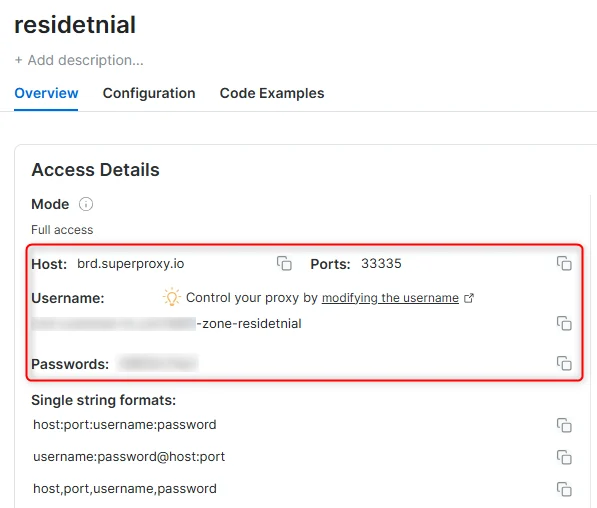
- In the overview tab, under Access details you can find the proxy access details, and copy them to clipboard on click.
- You will need: Proxy Host, Proxy Port, Proxy Zone username and Proxy Zone password.
- Click on the copy icons to copy the text to your clipboard and paste in your tool’s proxy configuration.
Access Details Section Example
Residential proxy access
To access Bright Data’s Residential Proxies you must be a KYC-verified business account. Complete KYC verification with the Bright Data compliance team; there is no automatic or no-KYC path. Without KYC, use ISP or Datacenter proxies. Read more…Targeting search engines?
If you target a search engine like google, bing or yandex, you need a special Search Engine Results Page (SERP) proxy API. Use Bright Data SERP API to target search engines. Click here to read more about Bright Data SERP proxy API.Correct setup of proxy test to avoid “PROXY ERROR”
In many tools you will see a “test proxy” function, which performs a conncectivity test to your proxy, and some add a geolocation test as well, to identify the location of the proxy. To correctly test your proxy you should target those search queries to:https://geo.brdtest.com/welcome.txt .Some tools use popular search engines (like google.com) as a default test target. Bright Data will block those requests and you tool will show proxy error although your proxy is perfectly fine.If your proxy test fails, this is probably the reason. Make sure that your test domain is not a search engine (this is done in the tool configuration, and not controlled by Bright Data).What is Dolphin Anty?
Dolphin Anty is an easy-to-use, anti-detection browser built for marketers, researchers, and data professionals who need secure, anonymous browsing for data collection and competitive intelligence. It creates unique digital fingerprints for each profile, like IP addresses and device types, so platforms can’t link profiles to the same user. With Dolphin Anty, you can securely collect web data, conduct market research, and manage affiliate marketing workflows, all without worrying about blocks or detection.Dolphin Anty Proxy Integration
Here’s a quick guide to get you started:Step 1. Download Dolphin Anty.
Visit the Dolphin Anty website to download and install the software.Step 2. Create and Log into Your Account.
After installing Dolphin Anty, open the app, create your account, and log in.Step 3. Create a New Profile.
Click on + CREATE PROFILE to start setting up your new browsing environment.Step 4. Add a New Proxy.
Scroll down to the NEW PROXY section to begin configuring your Bright Data proxy.Step 5. Configure Your Bright Data Proxy.
Follow this format for entering your proxy details:type://host:port:username:password
- Type: Choose
HTTPorSOCKS5(based on your proxy type). - Host: Enter
http://brd.superproxy.io/. - Port: Use the port number provided in your Bright Data dashboard.
- Username: Enter your Bright Data proxy
username. - Password: Enter your Bright Data proxy
password.
For country-specific proxies, you can enter a format like
your-username-country-US to receive a US exit node.Step 6. Save Your Settings.
Once everything is in place, click + CREATE to save your profile.And you’re all set! You’ve successfully integrated Bright Data proxies with Dolphin Anty.